
1、About why choose Elementor Pro
- Ease of use and flexibility:Elementor Pro offers an intuitive drag-and-drop interface,Allows even users with no programming experience to easily create and edit websites。It offers a wide range of customization options,Allow users to design the website according to their needs。
- Rich features:Elementor Pro has more advanced features than the free version,Such as full site editing、dynamic content、Theme builder and more,These features help users gain more complete control over their website design。
- Professional design elements and templates:Elementor Pro offers tons of professional design elements and pre-made templates,These help users quickly build beautiful and functional web pages。
- Ongoing updates and support:Purchasing Elementor Pro means you get regular updates and professional support,This is vital to keeping the website secure and up-to-date。
- Improve SEO and responsive design:Elementor Pro helps optimize your website’s search engine rankings,And ensure that the website displays well on various devices。
2、Official purchase subscription and registration
1)registerOfficial account
Go to Elementor official website to register
If you can't open it, please confirm,Whether your computer can access foreign websites (generally, it can be opened)。
Prepare an email account,Used to register an account。

After successful registration, log in directly to the management backend.

2) Purchase an Elementor Pro subscription
Click the [get Elementor Pro] button under the [Subscription] page to purchase a subscription

Select the subscription version you want to purchase,Click the [Buy Now] button below

Fill in billing information,The billing address can be filled in China,VAT number is the tax number used for invoicing,If you are not sure, you can contact Elementor customer service to confirm before purchasing.。

Payment methods include credit card or PayPal.。

After filling in, click the [CheckOut] button。
After submission, return to the Elementor background management interface.,You can see the subscription you purchased in the [subscription] interface。
You can directly download the latest installation package of Elementor Pro here,Upgrade subscription。
To upgrade your subscription, you only need to pay the price difference.,Subscriptions upgraded at the same time,The installation package is the same,No need to re-download and install。
Installing Elementor Pro version for the first time,You need to download the installation package from here,Upload and install。

3) Download and install Elementor Pro,and activate your subscription on the website
Click [download ZIP] on the subscription item in the [subscription] page of the Elementor management backend to download the installation package to your computer.。

View the downloaded installation package in the local file manager,No need to decompress。

Log in to our WordPress website backend,Enter the plug-in management interface,You can see the Elementor basic plug-in we installed,But there is no Pro version yet,Click [Install Plug-in]

Continue to click [Upload Plug-in]

Click to upload the local installation package,Click [Install Now]

After the installation is complete, click [Enable Plug-in]

Return to the list of installed plugins,You can see that Elementor Pro has been installed and enabled,Click [Connect&Active】Activate subscription
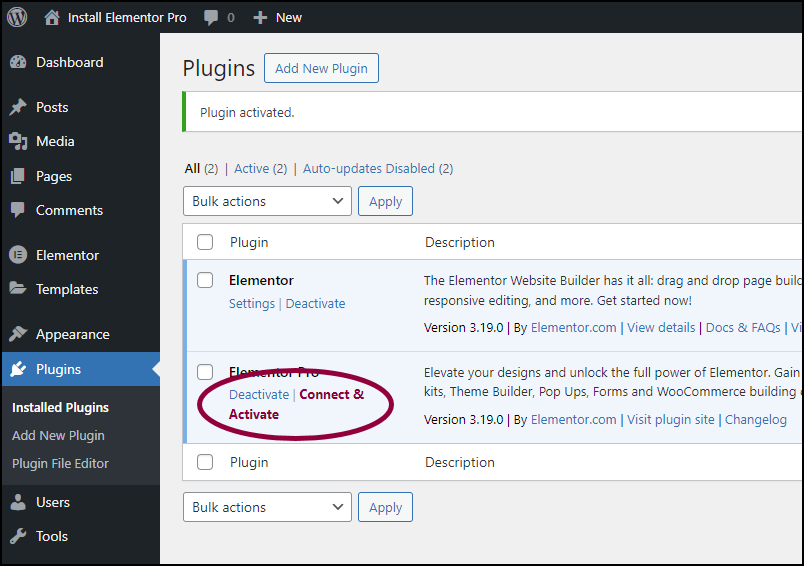
Click [Extend Your License] to associate the account

Automatically jump to the website after activation is successful,And display the subscription activation success status

We open the Elementor page editing window,You can see that all elements of the professional version are unlocked,And all professional functions are already available。

This way you can use Elementor to customize the content of your website!
3、Website that manages subscription management
1) View the Elementor Pro subscription activation website
You can see all associated subscription websites in [Website] in the Elementor Pro management control background.,However, representatives with the Pro logo are authorized to use the professional version。

2) Cancel the Professional version activation of a website,and activate another website
Method 1、Visit Elementor official website,Log in to your account,Find your subscriptions and manage them:Subscription > Manage the Subscription

Then,Search for websites that require authorization removal,Clickbroken chainbutton,Even if Elementor Pro is installed on the website that has been disconnected from the authorization,You will also be unable to use the functions of Elementor Pro properly.,However, pages that have already been created will not be affected.,Then,You can then authorize the use of Elementor Pro in your new website。

Method 2、In the WordPress backend of the original website,Disconnect Elementor authorization,Then install Elementor Pro in the new website and activate。

have to be aware of is,If your subscription is limited,For example, only one website can be authorized,You need to delete the Pro subscription of the original website first,To successfully manage and successfully subscribe to the Professional Edition,Otherwise, you just manage the account,The Professional version subscription cannot be completed!
4、FAQ
1) payment method?
Stripe,PayPal or any credit card to pay for Elementor Pro。
2) Will the original page be affected after the upgrade?
No,You can continue to modify and edit the original content,and can use more elements and functions of Elementor。
3) Is it possible to transfer Elementor Pro license keys from one domain to another?
Can,This is the subscription switch mentioned above,Just follow the operation。
4) after switching subscriptions,Will the sites I delete my subscriptions from be affected?
As long as the Elementor Pro plug-in is not deleted,Pages that have been edited and published will not be affected,But the advanced elements used by the page will no longer be editable,It is also no longer possible to add advanced elements to the page。at the same time,Elementor Pro plugin will not update,Elementor basic plugin can be updated,However, after the update, Elementor and Elementor Pro may be incompatible.。If the plug-in is not updated for a long time, there will be some vulnerabilities and security risks.。
5) if the license is not renewed after one year,What happens? Is Elementor Pro still available?
Existing projects will remain unchanged。The only difference is the support,Updates and access to premium templates subject to renewal。also,If the license is not activated in version 2.9 and above,Elementor Pro widgets cannot be dragged。
6) after purchasing the license,Can I upgrade my license?
certainly,You can upgrade at any time。You just need to make up the price difference between your existing plan and the plan you want to upgrade to,until the remaining time,Until the next license renewal。
7) Is there a trial version of Elementor Pro?
No,But there is a refund policy,Get a refund within the first 30 days。therefore,You can try it for a month,and then decide whether to keep it。
8) Will there be any impact on websites that have disabled Elementor Pro authorization?
For already completed web pages,Content design will not be affected,But none of the functions involving Elementor Pro can be used。for example:Elementor Pro element blocks cannot be dragged onto the page;The dynamic calling function of existing Pro element blocks cannot be used,Unable to use the import template library function,Unable to update Elementor Pro。
9) when activating an Elementor Pro license,Interface prompts reconnect button,And it cannot be activated after clicking the button
When you activate your Elementor Pro license,see prompt:We’ve noticed that you are trying to connect: your domain name. Please make sure this is the correct URL and click ‘Reconnect’. A Reconnect button is also provided。Even if you click this button,Still unable to activate the license。
The reason for this problem is that:Your website background settings > The wordpress address and site address in the general page are different,Elementor Pro requires you to unify them,Please modify it to make it consistent,Then activate the authorization。