Elementor Pro global style settings are an overall setting,Only installedElementor ProOnly then can you make global settings,Theme settings for similar themes,It can help you preset the overall website color style,Things like font styles and layout and element presets,These will greatly reduce the workload of your post-production website。
for example,We can set several global colors,Then when setting the content color, you are directly responsible for these global colors.
This tutorial will introduce the common functions of global styles and settings of the Elementor web editor.,For example, setting the global font、color、Page content width、Default spacing of elements, etc.。
Enter [Site Settings]
After installing and activating Elementor Pro,Enter the Elementor editor window of any page,Click the button in the upper left corner,Then click on site settings as shown in the image below
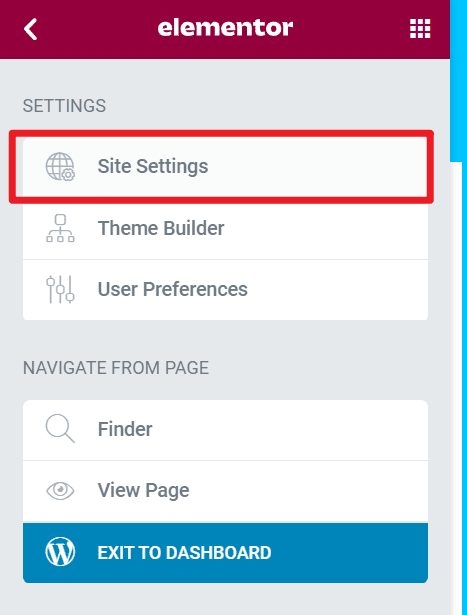
Then you can see the following configuration options。
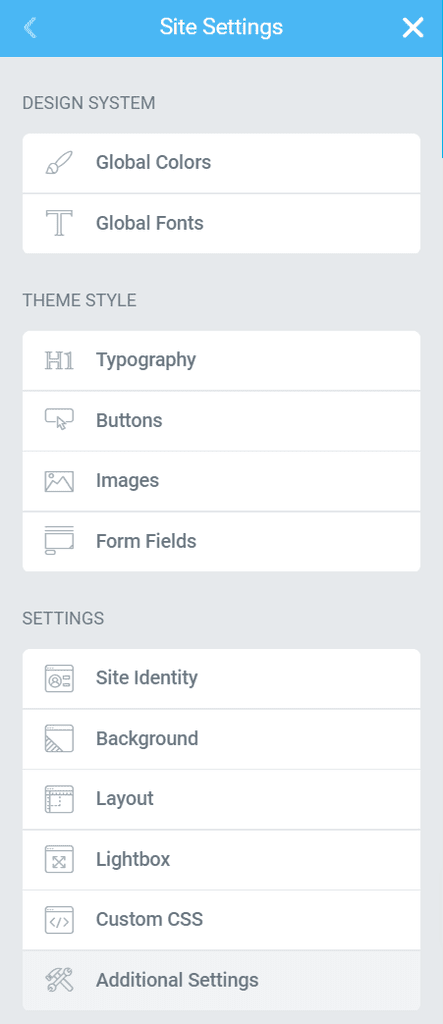
Design System/Design System
Set global colors and global fonts。
Global Colors全局颜色设置
设置全局颜色最大的好处是你可以快速切换网站的颜色风格,For example, my current website is mainly green,If I want to change to the blue style, I only need to modify the color settings in the global color to quickly switch the website color style.。This requires that when you design and create the page, all colors are configured through global colors.,If the color is added manually,Then you still need to modify it manually。
How to set and use global colors is as follows:
You can set the global color through the site settings,Set several common global colors。
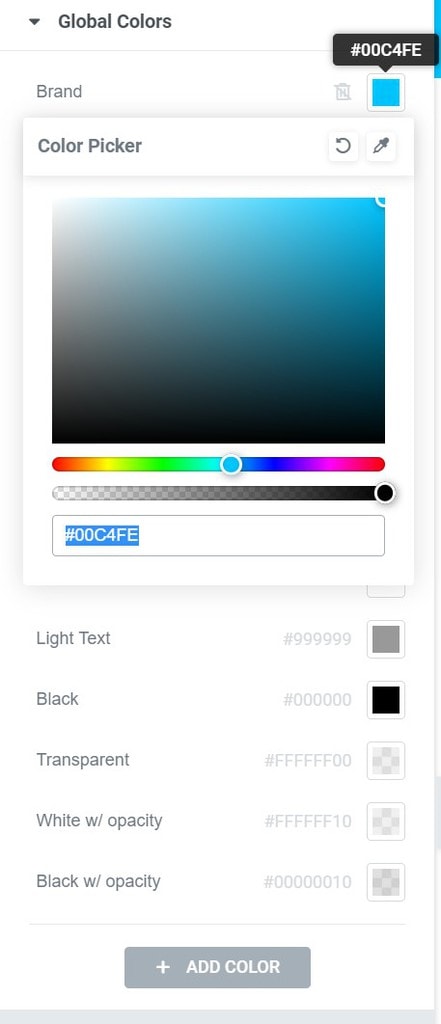
The global one includes system colors and custom colors.,There are only four system colors,Cannot be deleted,But it can be modified。
Custom colors can be added and renamed according to your needs。

设置全局颜色之后,你可以在Elementor 任意元素的颜色设置中调用设置好全局颜色。

Global Fonts全局字体设置
与全局颜色一样,全局字体可以自定义添加多个,当你设计页面时,按需选用全局字体能够提升效率、也方便后期统一更换。

全局字体有四个系统字体设置,Cannot be deleted,But it can be modified。
同时你可以增加自定义的全局字体。

针对某一个全局字体,你可以设置字体,尺寸,重量,大小写转换,样式(斜体等),装饰(下划线、上划线等),行高,字母间距,单词间距这些内容。

Theme style全局主题样式设置
可设置字体、button、picture、表格字段的样式。
have to be aware of is:通常主题本身都提供了类似的字体、配色功能,两者同时使用可能会令你混乱,需要你自己进行对比试验。
由于每个主题与elementor的兼容性有所不同,没有一概而论的方案,at the same time,See below,elementor也提供了禁用本身的颜色与字体的功能,而选择继承主题的配置,通过这两个选项,也可以帮助你调试样式。

有时候,主题和Elementor的全局样式设置要搭配着使用。如果你用的是Hello Elementor主题,那就不需要担心这个问题,因为它是Elementor官方配套主题。
Typography/文本排版
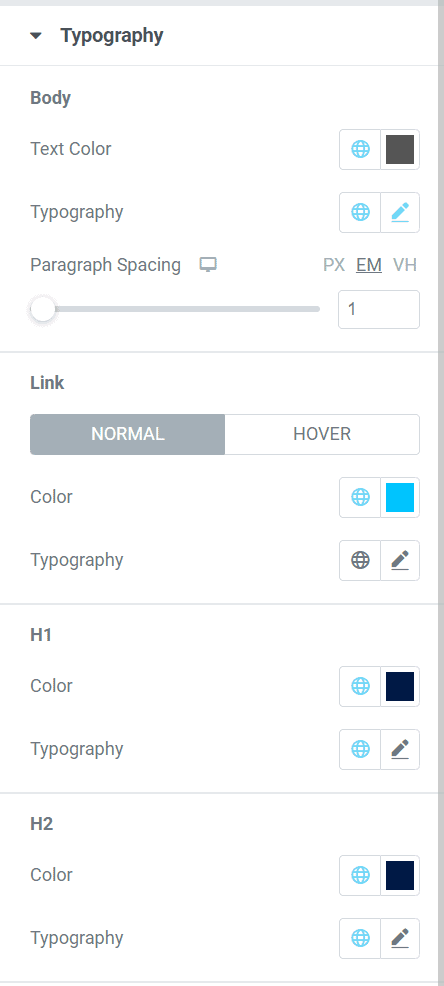
在【排版】里面你可以设置网站的内容的文本颜色、字体风格、段落间距,链接的颜色、字体风格以及悬停效果,H1-H6标签的颜色字体风格。并且你可以直接使用全局设置里面的设置好的颜色和字体来设置这些排版风格。
Button全局按钮设置
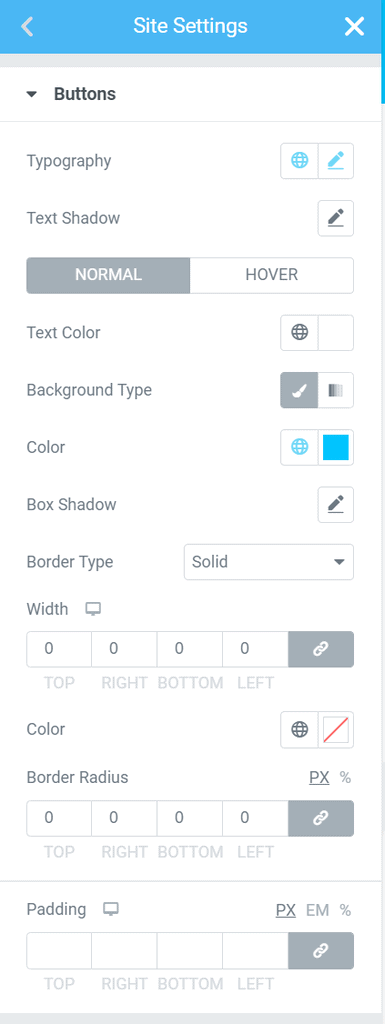
你可以对按钮的文字排版、文字投影、常规颜色的背景色、hover悬停时的文字颜色、背景色、边框类型与颜色、边角半径、内距进行设置。
Images全局图像设置
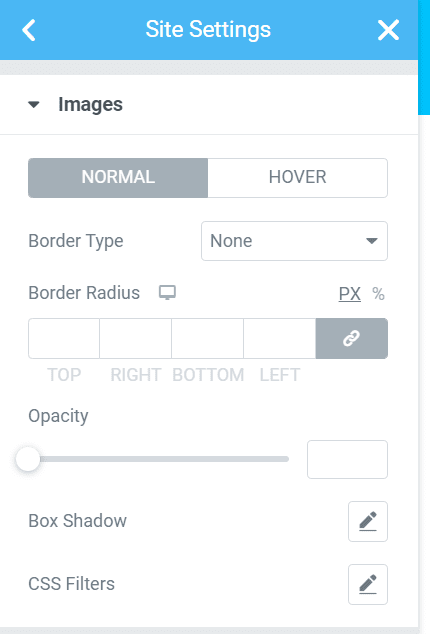
对图片,可以配置常规和悬停时的边框、边角半径、透明度、投影、css滤镜、以及从正常到悬停效果的过渡时间。
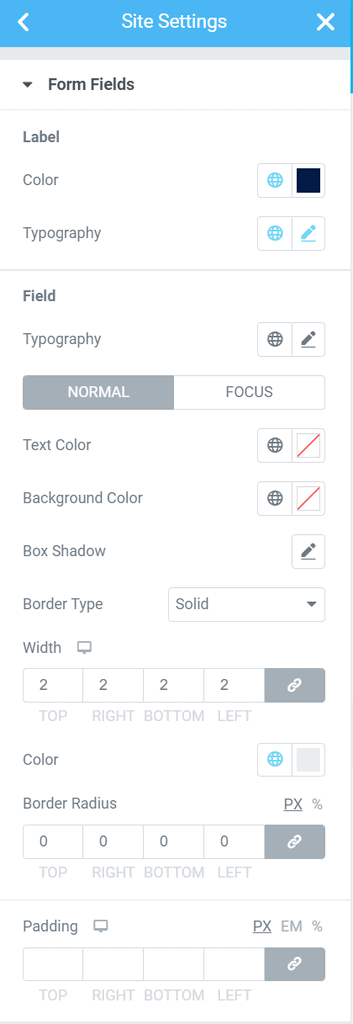
Form Fileds全局表单字段设置
当网站使用表单时,譬如外贸网站常用的联系表单、询盘表单,可以使用此处配置表单字段的样式。
诸如字段标题的颜色、排版,字段本身的排版,常规以及输入情况下的字体颜色、背景色、投影、frame、边角半径,以及内距。
Related tutorials:
Setting设置
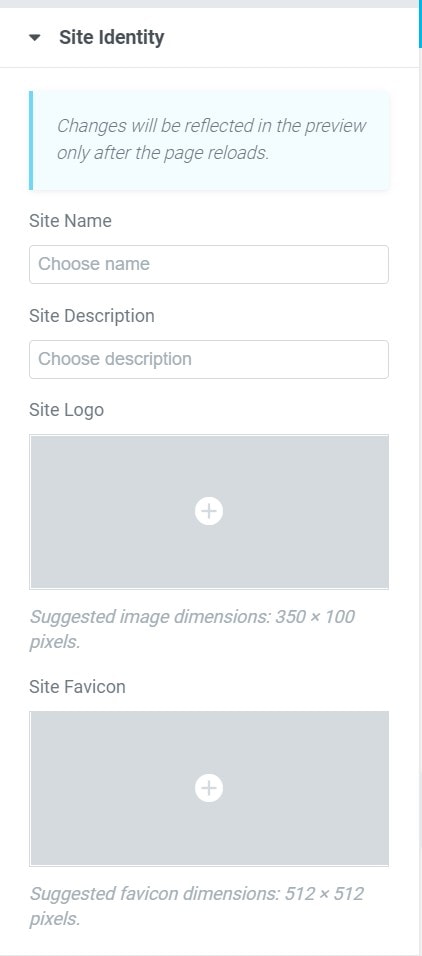
Site Identity站点标识设置(LOGO及图标设置)
在这里可以上传网站的名称、describe、logo以及站点图标。
Related tutorials:
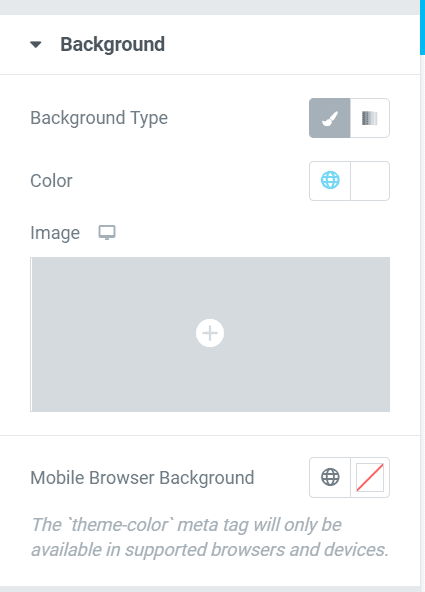
Background全局的背景设置
此处可设置网页的背景色,纯色或渐变色均可,也可以设置背景图片,并且还能单独设置移动端的背景色。
Layout默认布局设置(移动端断点)
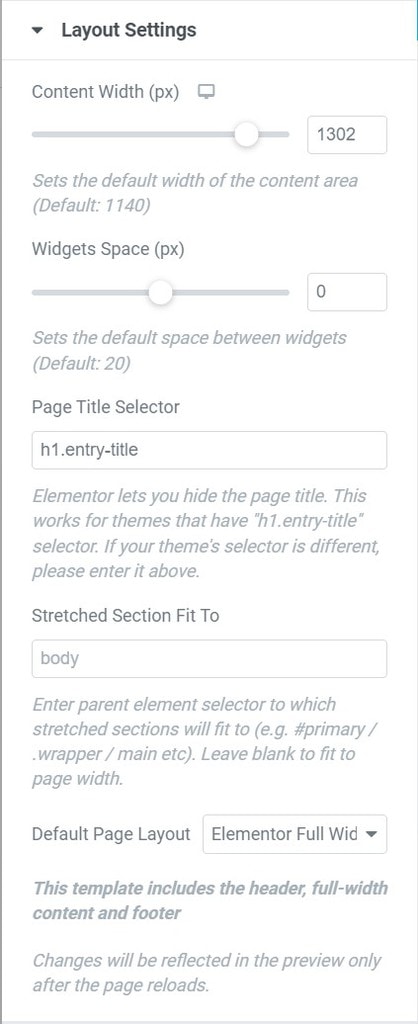
- content width/内容宽度:用于设置网页内容区域的默认宽度,The default value is 1140px,当你想网站页面更宽一点或更窄一些,就调这里。
- widget space/小工具间隔:可以理解为元素快之间的间距,The default is 20px
- Page title selector/页面标题选择器:这里是服务于隐藏页面标题功能的,如果你的主题的页面标题的样式选择器不是entry-title,那么你就需要更改此处了,如果你用的hello elementor主题,此处也不用改;只有当你发现使用隐藏标题功能不生效时,才需要考虑修改这里。
- Stretched Section Fit To/拉伸部分以适用:在使用elementor的section时,有一个stretch setion的开关,用于拉伸对样setion到指定的宽度,此处就是用于指定宽度的,只是这里输入的是父元素选择器,拉伸的部分将与之相适应(例如#primary / .wrapper / main等)。留空以适应页面宽度。默认是body,基本不用改这里。
- default page layout/页面默认布局:用于设置页面的默认布局,默认是全宽(elemlentor full width),它包含页头页脚,如果设置为elementor canvas,页面上就不会有页头页脚了,而是一张空白的画布。如果选择theme,则表示继承主题的设置。also,不同主题还会提供不能的布局选项,请按需调试使用吧。
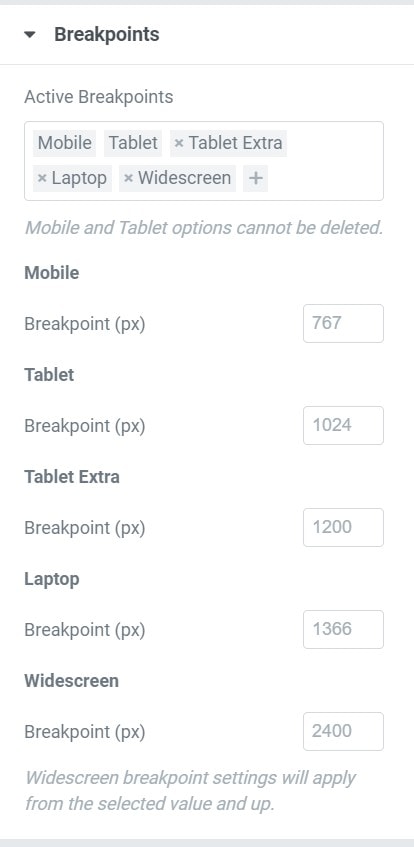
breakpoints/断点,你可以人为添加断点,用于为网站适配不同分辨率的设备,也就是常说的响应式。
Lightbox灯箱设置
可以理解为图片的弹出窗,Global Lightbox 选项卡使您能够调整以下设置:
- 图像灯箱:滑动开关以全局启用或禁用灯箱。
- 计数器:仅适用于多图像画廊。如果设置为是,则将图像计数添加到灯箱的左上角。For example,如果图库包含 6 pictures,则计数器将显示 1/6、2/6 等以指示“第 6 张图片”、“第 6 张图片中的第二张”等。
- Fullscreen:如果设置为Yes,添加一个可点击的图标以允许用户在全屏灯箱中打开图像。
- Zoom:如果设置为Yes,则添加一个可点击的图标以允许用户放大灯箱中的图像。放大图像后,您将能够平移视图并滚动图像的不同区域。
- 分享:如果设置为是,分享功能将添加到灯箱,允许用户在 Twitter、Facebook 和 Pinterest 上分享图像,或将其下载到他们的计算机上。
- title:可选择在灯箱中的图像下方显示标题。fromNone、Title、Caption、AltorDescription中选择
- describe:可选择在灯箱中的图像下方显示描述。fromNone、Title、Caption、AltorDescription中选择
- background color:选择灯箱的背景颜色和不透明度。
- UI 颜色:chooseUI 颜色。这会影响灯箱箭头和点导航、关闭按钮等。
- UI 悬停颜色:chooseUI 悬停颜色。当用户将鼠标悬停在每个按钮上时,这会影响灯箱箭头和点导航、关闭按钮等。
Custom CSS自定义CSS
当已有的设计配置都无法满足你的需求时,你可以额外添加css来定义样式,前提是:你得学会怎么写css。