Using Elementor’s latest Container element has several significant advantages over the Section element in earlier versions.。The Container element was designed by the Elementor team to improve flexibility.、performance and design capabilities,These improvements mean more powerful and flexible layout options,An important advance for designers and developers。However, it is still difficult for many novices to get started.。If you have learned some CSS, you may understand,In fact, it is flex layout。
one、Benefits of Containers
- More flexible layout control:
- Container elements provide more layout options,Such as Flexbox and Grid,Allows more complex and granular layout control。
- It can manage multiple child elements inside a container,not just columns。
- Improved responsive design:
- Container elements allow finer adjustments to different screen sizes,Provides better responsive design control。
- It supports more complex responsive layouts,For example, showing or hiding specific elements on different devices。
- Reduce the number of DOM elements:
- Compared to Section,Container elements can reduce the generated DOM (Document Object Model) number of elements,This helps improve page loading speed and performance。
- Fewer DOM elements also means cleaner code and better SEO optimization。
- Better margin and padding control:
- Containers provide more flexible margin and padding settings,Allows finer spatial control over child elements。
- This helps create more precise designs,Especially for complex layout structures。
- More design options:
- Container elements offer a wider range of design options,as background、frame、Shape Divider etc.,Make designs more creative and diverse。
two、How to enable Elementor’s Container function
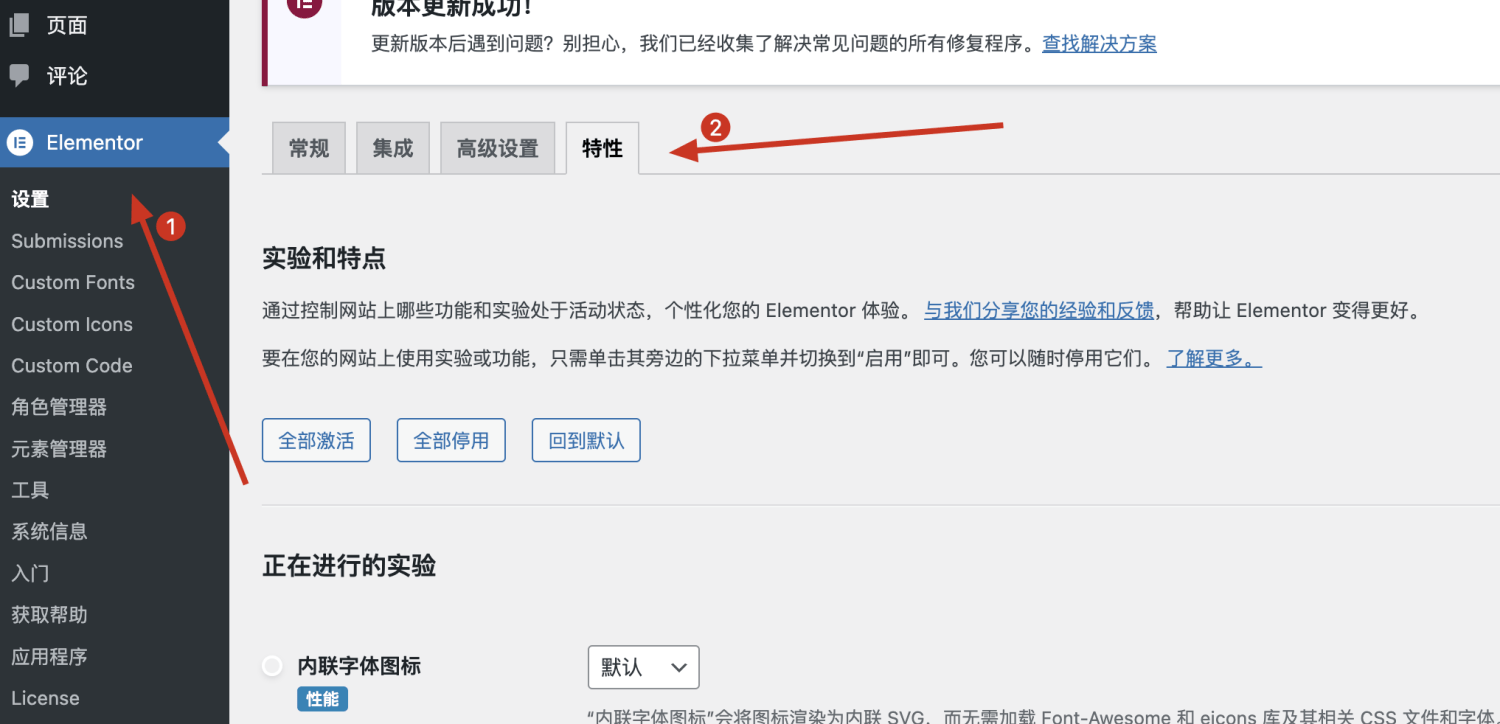
From the settings,Elementor and Elementor Pro latest version defaultGrid Container andFlexbox Container is on,If it is an old version, you can enable it yourself。
Enable the Elementor Container feature in the Elementor settings in the WordPress backend
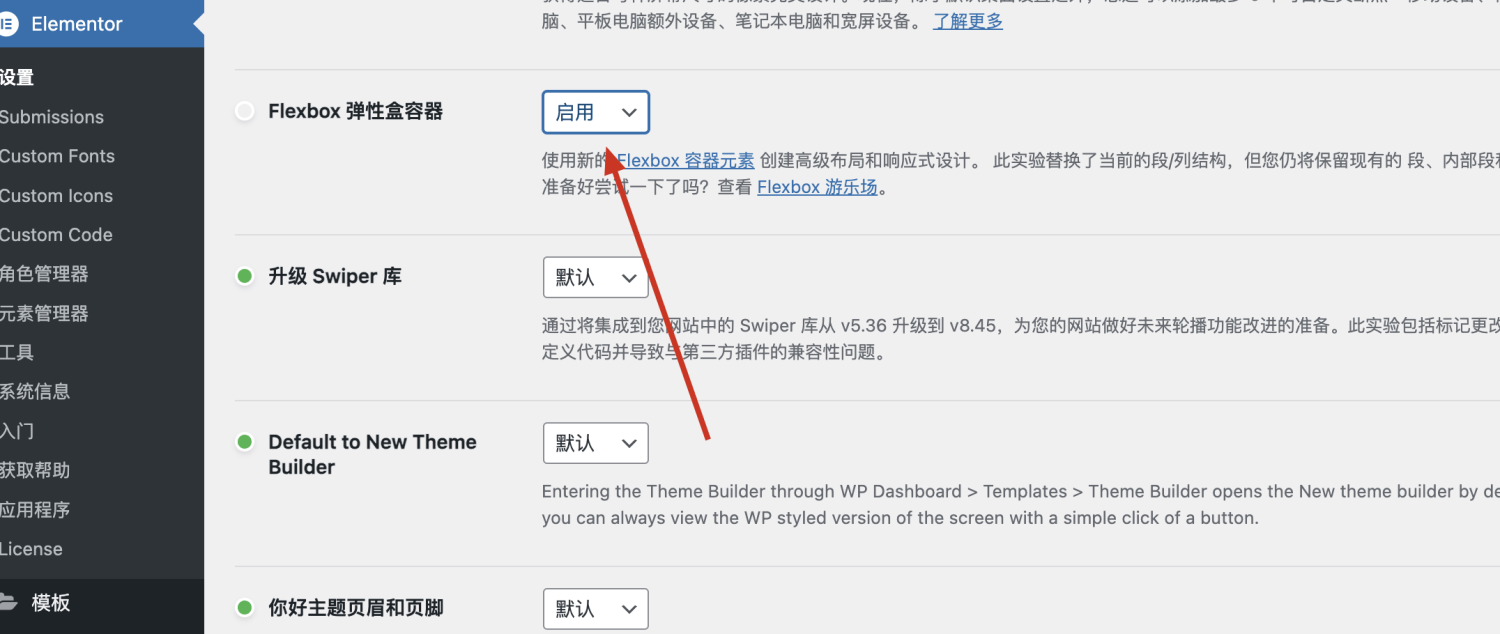
Find the Flexbox container and select Enable it
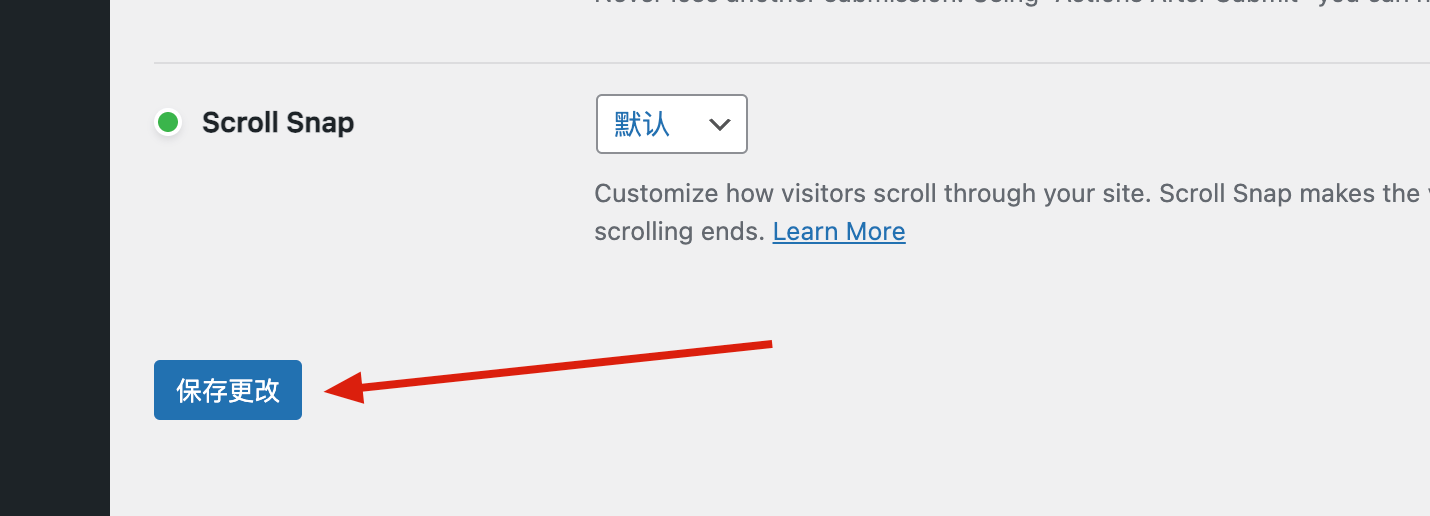
After enabling, slide to the bottom and click Save
After the same operation, find the Grid container, select it, enable it and save it.
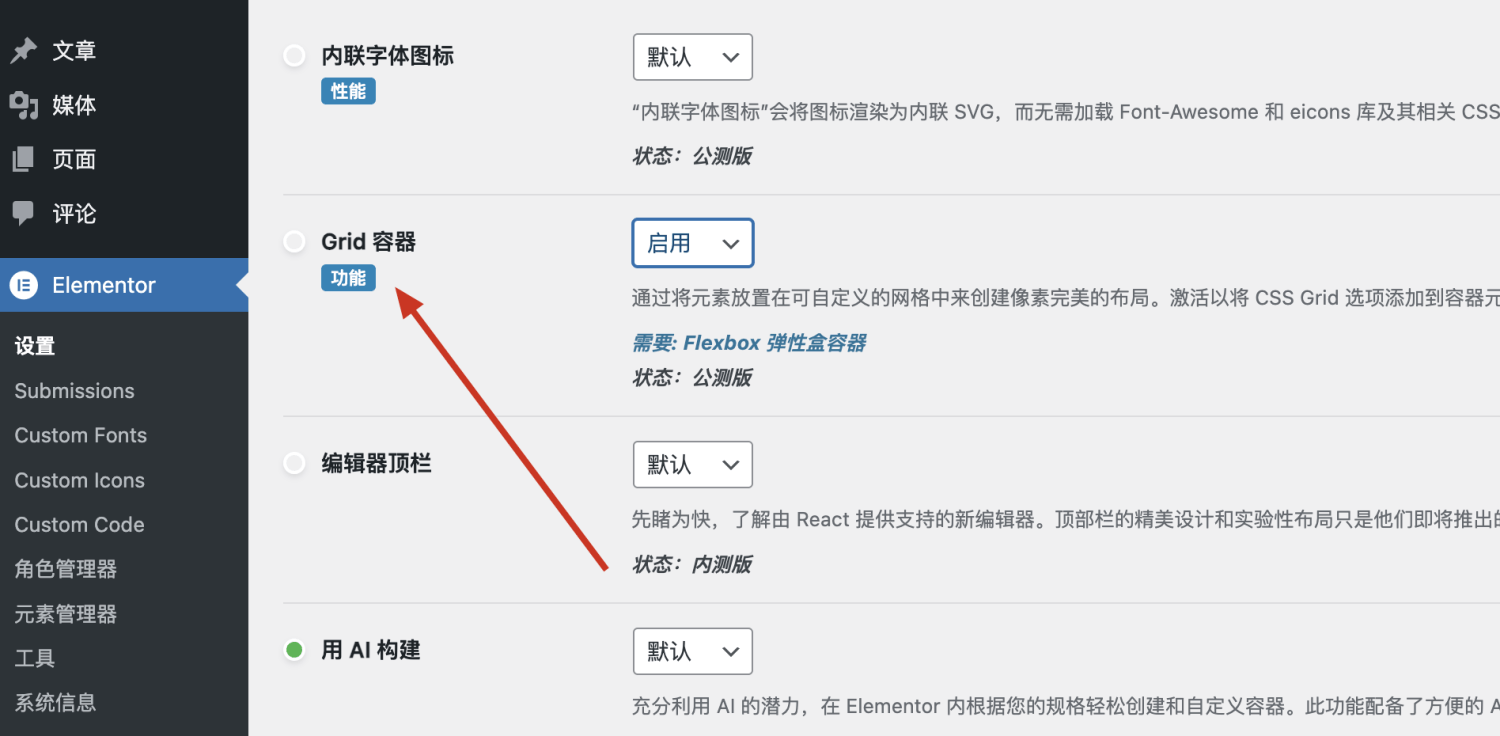
After saving, return to the Elementor editing page again.,You can see that the original internal sections have disappeared,There are two more components。
Different from rows in columns,Each new row,Will choose the frame first,There are two options: Flexbox Container and Grid Container,Will explain in detail later。

three、Basic settings of Elementor Container
3.1 Container layout settings
1) Container general settings
Select the Container with the mouse,Switch to the Layout tab in the left window,Container can be configured with layout settings。

Container Layout is used to switch the layout mode of Container,There are two options: Flexbox and Grid,The default option is Flexbox。

Content Width is used to set the width of Container,You can use Boxed or Full Width。The default setting is Boxed which means the width of the content is based on a fixed width,You can set this width in the width below,The default value is 1140px,You can set a global content width in the Elementor Site setting。

The default width of Boxed is the content width you set in the global Site Settings (the default global content width of Elementor is 1140px)。You can change the width via the slider。
Full Width setting represents full amount,Its default width will be based on the wrapped Container.,If it is the top-level outermost Container in the canvas,The width defaults to fill the browser window.。You can adjust the width via the slider。
MIn Height is used to set the minimum height of Container.,When there is no content or less content in the Container,then display with minimum height,If there is a lot of content in the Container,The default is to display the height of the matching content.。You can modify the height via the slider or by entering a numerical value.。

Container Layout can switch Flexbox to Grid,There are differences in the Item settings of Flexbox and Grid。

The Item setting items of Flexbox and Grid are different,Here I will introduce it under two headings:
2) Flexbox Item settings
When you set Container Layout to Flexbox,You can see that the Item settings are as follows:

Direction represents the display direction,There are 4 options,Follow the arrows to indicate where the wind direction is:from left to right,from top to bottom,right to left,from bottom to top。
Use Direction to change the direction and order in which you arrange elements in a Container.,Give an example:
I put 2 elements title and text in a Container,By default, if the Container's Item Direction is set to left to right,Then the display will be based on 1,After switching different Directions, there will be different display methods and sequences.,You can test it yourself


The setting of Justify Content is in the direction perpendicular to the Direction direction.,Set the effect of the elements inside the Container。
If Direction is set to horizontal left to right or right to left,Then the setting of Justify Content is based on the vertical alignment method.。

If Direction is set to top to bottom or bottom to top,Then the setting of Justify Content is based on the horizontal alignment method.。

Simply put, Justify Content is based on the alignment setting of the internal elements of the Container in the vertical direction of the Direction.。
Justify Content has five setting options:
- Start:Arrange the elements inside the Container from the very beginning of the Container layout direction.
- Center:Center the elements inside the Container in the vertical direction based on the Container layout direction.
- End:Arrange the elements inside the Container starting from where the end of the Container layout direction ends.
- Space Between:The first element is placed at the starting point,The last element is placed at the end point and the elements inside each Container are evenly arranged.
- Space Around:Allocate equal space to each element,Then arrange it in Container
- Space Evenly:The distance between each element is the same,Then arrange it in Container
What is the specific effect of each option setting?,It is recommended to set it up on the website yourself and observe,I won’t give examples here.。
Align Items is the setting of the internal elements of the Container that are consistent with the Direction.。
Align Items contains four options:
- Start:Arrange the elements inside the Container based on the beginning of the Direction layout direction
- Center:Arrange the elements inside the Container in the center based on the Direction layout direction
- End:Arrange elements inside the Container based on where the Direction layout direction ends.
- Stretch:Stretch the elements inside the layout Container based on any of the above three methods (‘auto’-sized elements will be stretched to fit the size of the container,If a fixed size is set, it will not stretch automatically.。)

Compare the picture above and the picture below,Observe the background color of the title and text to see the layout effect of Stretch.。

Gap between elements sets the spacing between elements inside the Container。
The default is 20px,You can modify it according to your own needs。

Wrap is used to set whether the elements inside the Container are wrapped.。
The default is No Wrap.,If your Container is arranged from left to right,You want to add 6 elements to the Container,These elements are arranged in a row。

如果你希望Flexbox Containner中的元素换行,则设为Wrap即可。

3)Grid的Item设置
当你将Containner Layout设为grid的时候,You can see that the Item settings are as follows:

在Item设置的第一个项目是Grid Outline,也就是轮廓。
Grid Outline是用来控制显示或者隐藏网格线的,注意这个线也是一个虚线,只在画布中显示,用于展示Grid的网格布局排列,实际上是不存在的。

如果你关闭Grid Outline,则不显示网格线,但是Grid Containner的布局还是按照你设置的进行布局,所以你可以理解为它是一个辅助线。

然后是Columns和Rows,行和列数设置。

设置Grid为3列2行。

Gaps用于设置Items之前的间距,你可以取消同步,单独设置行的间距和列的间距。
by default,Grid Containner中的Items之间会有一个默认的间距,大概10px,如果你想Items之间的间距为0像素,则需要手动设置Gaps为0.

Auto Flow用于控制Grid Items自动流动的方向,默认情况下是Row自动流动,也就是说行数根据Items的数量会自动增加。

比如你设置Grid的Items布局为3列2行,并默认Row自动流动的话,默认是6个元素排列,但是如果你添加的元素超过6个,那么Grid就是自动添加一个行就继续排列。
如果设置Auto Flow为Column的时候,那么列就是会根据Items数量自动增加。
Justify Items和Align Items用于设置Grid Containner内部的Items的对其方式的,每个Items的对其的参照为Grid Outline的虚线。

4)Additional Options其他选项设置
在Containner的Additional Options中有2个选项。
Overflow溢出设置
控制Containner的内容是否不适合浏览器器窗口,溢出的内容是否应该隐藏或可见,从而导致水平滚动。
Overflow有三个选项:
- Default 允许容器外的项目溢出。
- Hidden隐藏溢出的项目,无法访问溢出的项目。
- Auto 在内容溢出时创建滚动条以保持项目可访问,此设置允许在移动视图中滑动内容。
Hidden状态下,如果内容溢出了,是看不到溢出的内容的
Default和Auto状态下可以通过左右滑动看到溢出的内容

3.2 Containner的风格设置
切换到Containner的Style选项卡可以设置Containner的风格。

1)Background(background)
你可以通过背景为Containner设置背景颜色。比如下图,我设置Containner的背景颜色为红色。

- 当然你还可以为Containner的设置背景图。
- 设置Containner背景为渐变。
- 为Containner设置一个视频背景。
- 为Containner设置一个轮播相册背景,
这些不同的背景设置模式下还有一些细节的设置项目我就不展开说了,建议自己设置之后看效果。
另外你还可以切换到Hover属性标签下面设置Containner背景在鼠标移动上去的效果。比如设置Hover的背景颜色为黑色,或者设置一张Hover背景图片(鼠标移动到Containner之后将会切换到Hover设置的背景图片)。
2)Background Overlay(背景覆盖)
背景覆盖可以实现给你设置的背景叠加一层颜色或者图片蒙板,你可以设置颜色或者图片的透明度来匹配你想要实现的效果。
比如我给Containner添加了黑色覆盖,透明度为20%
在Hover标签中设置覆盖颜色为黑色,透明度为60%,那么用户将鼠标移动到Containner时,背景会变暗,这样Containner中浅色的文字内容将会更加凸显。

3)Border(边框设置)
Border用于设置Containner的边框和投影效果。
一般情况下我不会设置最外面嵌套的Containner的边框和投影。
在是当Containner嵌套在内部的时候,通过边框和投影的设置可以凸显出Containner的内容,如果是并列排列的局部,可以让布局看上去更加整齐。
比如下图,我给内部的三个Containner都设置了投影和圆角,让他们看起整齐,并且凸显内部的内容。

4)Shape Divider(形状分割线)
形状分割线可以用来做一些Containner之间的分割效果,这是UAE插件提供的功能,本站读者可以免费领取一个终身授权,通过页脚二维码联系即可。
你可以通过切换Top和Bottom来选择设置Containner顶部还是底部的分割形状,在Type中你可以选择一个你喜欢的形状(只能选择提供的)
比如我在下图的Containner顶部设置了一个山峦的形状分割,当然它还有针对形状的宽度,高度等设置,这里就不细说了,自己亲自尝试这些设置选项。

3.3 Containner的高级设置
在高级设置中你可以设置当前元素的布局,Movement effect,转换响应式,属性以及自定义CSS等等内容。在Elementor中所有元素都有高级设置,元素不同设置项目会有所不同。
下面的内容可以作为你学习其他元素的高级设置项目的参考。
1)Layout(布局)
这里是布局是针对Containner元素本身的布局,和前面的布局有所不同,前面的提到的布局是针对Containner内部的元素的布局设置。
Margin:用于设置元素和外部元素之间的距离。
Padding:用于设置元素和内部元素的间距。
Align Self:用于设置元素基于自身的对齐。
Order:用于设置元素自身在同级元素中的排列顺序,可以通过自定义设置元素排列在第几的位置,排列顺序从0开始。
下图中我将内部的2个Containner一个设为0一个设为2,他们就会排列在相应的位置,而1的位置会空着。
Size:设置元素本身的伸展(Grow)和收缩(Shrink)效果,伸展设置即元素撑满布局,收缩设置即元素收缩到内容的宽度或高度。
Position:设置元素的位置有三个选项:
- Default 默认(根据容器布局和元素设置自然排列)
- Absolute 绝对(将元素设置在浏览器中的一个固定位置,不会跟随页面滑动而滑动会固定在浏览器窗口中的某个位置)
- Fixed固定的(将元素设置在页面中的一个固定位置,元素可以跟随页面滑动而滑动)
以上三条在我在制作页面时经常会用到,理解和掌握之后对制作丰富的页面内容布局非常有帮助。
Z-index:用于设置元素的在页面中处于显示层级,数值越大,越在最上层,数值越小越在最底层,底层的元素可以被上层的元素覆盖。
CSS Classes:用于设置元素的自定义CSS类,设置自定义类之后你可以通过程序代码控制这个元素。
2)Motion Effects(运动效果)
Scrolling Effects(滚动效果):设置元素滚动特效。它包括垂直滚动、horizontal scroll、透明度、模糊、rotate、规模等内容,还可以设置在哪些终端生效,以及这些效果是基于整个页面还是基于当前窗口的。具体的参数设置你可以自己设置之后看效果,然后理解。

Mouse Effects(鼠标效果):用于设置鼠标移动到元素的动态效果,它包含鼠标轨迹和3D倾斜2种效果。

Sticky(粘性固定):用于设置元素粘性固定,可以黏在顶部,也可以设置黏在底部。同时可以设置它在哪些终端有效。
其中offset用于设置元素按照多少像素向下或向上移动(如果你设置为向下滚动时固定,并不希望它遮挡你的固定页眉时,可以设置其像素为一个大于页眉高度的像素);Effect Offset用设置在粘性效果开始之前用户必须滚动的像素数(通常设为0或者1即代表一旦向下或向上滚动即发生粘性效果)。
下图中我设置该元素黏在顶部,Offset设为120像素,这样它黏在页眉的下方,不会覆盖住页眉。

如果你希望元素在一个固定的内容区间粘性,那么开启Stay in Colum,代表这个元素只会在它的父级Containner内部有粘性效果,一旦页面滑动离开该Containner,则粘性效果不在生效。

Sticky功能还可以帮助你实现固定页眉和粘性侧边栏的效果。
Entrance Animation(进入动画):用于设置改元素进入视觉范围的动画效果。默认是不设置的,如果你需要设置点击开下拉选择你要的进入动画效果即可。

4)Transform(转换)
Notice:避免在粘性Containner上应用转换属性。这样做可能会导致意想不到的结果。
转换属性可以设置Containner的旋转、倾斜、翻转等效果,通过对应选项的设置你可以在编辑窗口直观的看到Containner的变化。
你可以通过Normal和Hover来设置默认或者鼠标滑过的转换效果,只需要切换对应标签进行设置即可。

5)Responsive(响应式能见度)
Responsive 设置在不同终端的可见性,默认情况下Containner元素在任何终端都是可见的,你可以通过开启隐藏在某一个终端来实现当前Containner元素在对应终端对用户不可见。
我最常用的就是在制作页眉时,通过2个Containner来制作2个不同的页眉,然后通过Responsive设置,让其中一个Containner在移动端影藏,另外一个在PC段隐藏,这样就能实现PC端和移动端不同的Header效果。
Four、实操Container结构布局和用法
FlexBox 和Grid是两种布局模式,FlexBox适合高度自由的布局方式,Grid则是按照网格进行布局,不同的布局方式适用不同的场景,你可以根据自己的需求选择对应的布局方式。
4.1 Flexbox Containner
FlexBox Containner是一个弹性的布局方式,可以为你的网站提供一种非常自由的布局的方式。Flexbox 像积木一样拼接组成了一整个网站,把一个网站页面一行一行来切分,每行几乎都可以使用 Flebox 的结构做出来,非常实用。


在Flex布局中,对于一个容器而言,只要往它内部拖入元素,他就会默认垂直的排列方式。也就是像下图这样,组件会自动垂直的向下堆叠,也就是默认,你每拖入一个组件,这个组件的宽度就默认占满当前容器的100%宽度了。
4.1.1 Flexbox 的功能
这里有现成的左右布局(现成布局实操实例1,选不到布局实操实例 2),还有上下两行的布局,先以第一个为例子来说下基础功能。

选择了方向向下的 Flexbox ,添加的所有组件,自动向下堆叠

Flexbox 可以嵌套Flexbox,而Grid cannot,Flexbox 可以做更加复杂的结构。对比之前的 Section 有可飞跃的布局效果。

选择了方向向右的 Flexbox ,使用 Elementor 的复制容器里面的嵌套的容器时,复制出来的容器自动向右堆叠

Flexbox 的宽度非常有用,可以更好的设计布局,
例子:从上面 2 行下面 1 行,通过把上面第 1行的宽度设置为 100 px,上面第2 行和下面第 1 行设置为 50px,就可以变为上面 1 行下面 2 行

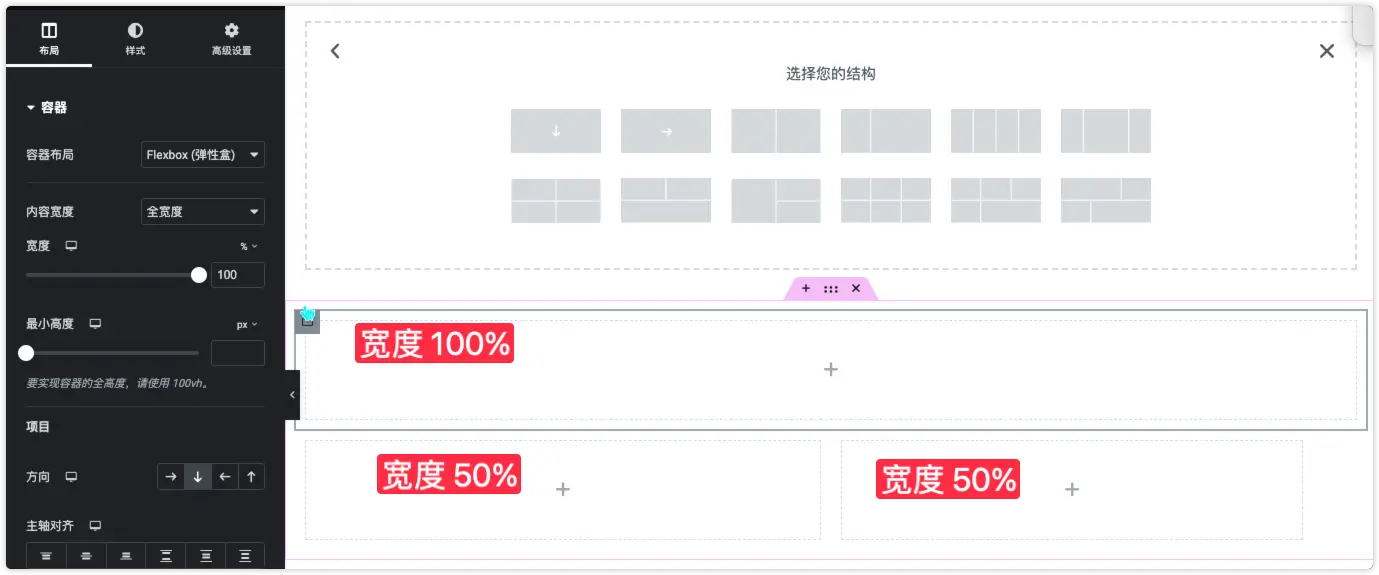
上面的例子是第1 行设置为 100px,那么中间某个 Flexbox 设置 100px 就可以单独成为一行,而且其他的 Flexbox 布局不变


Flexbox 嵌套的 Flexbox 可以单独设置方向

对 Flexbox 嵌套的 Flexbox 一次性对齐设置内间距

4.1.2 Flexbox Container 现成布局实操
想做嵌套的 Flexbox 的内不同方向的叠放,比如下图非常典型的 Banner 该怎么办呢
只要学会这个结构,就可以掌握 Flexbox 的基础用法

首先是左右结构,选择第三个
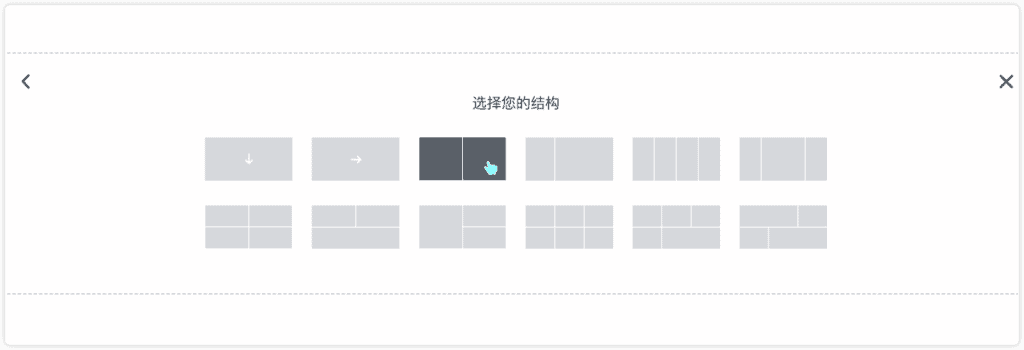
依次把标题、文本编辑器、容器(容器中放入 2 个按钮组件)放入左边,图片组件放在右边

因为第一步我们选择容器方向向下,所以按钮所在的容器方向自动向下,我们把按钮所在的容器方向调为水平即可

调完里面的细节,点击最外面的容器,调节最小高度600 左右即可,设置副轴为居中,典型排版的 banner 就做好了,有了外部的基础框架我们才好去润色。

现在从外到内调整,选择最外面的 Container ,点击样式→标准→小画笔→上传图片


选择图片组件,上传图片,如果想要透明背景,一定要抠图


上传之后我们发现特别的空,没有展示完整的背景,继续进行调整,如图的位置、Display Size 是常见的调整。

最外面的 Container 调整之后,再往里面调节细节,选中标题,在内容里面复制粘贴文案

选中文本编辑器,在内容里面复制粘贴

最后把按钮文案修改下

最后调整的结果

4.1.3 Flexbox Container 无现有布局实操
实际实操中,一般是选不到完美的布局的,比如如下布局,Flexbox Container 给出的结构没办法做到,继续要进行一些操作。

first,分析布局结构
需要3 个Container ,1 个在上面,2 个在下面,必须选择有上下结构的结构

选择第一个 Container ,设置宽度为 100,剩下2 个为 50 即可
或者直接拖拽最下面的Container到上面,也可以形成这个结构。

填入对应组件,再修改从内到外修改细节即可。

4.1.4 Flexbox Containner Summarize
1. 根据结构,外层的 Flexbox 布局要先选好,有上下布局必须选择有必须选择有上下布局的结构
2. Flexbox 可以包含 Flexbox 、Grid
3. 每个 Flexbox 都可以单独设定方向插入组件
4.2 Grid Containner
Grid 是网格式设计的,它允许你在两个方向上👉🏻纵向和横向上面控制元素的布局,特别适合简单网格的设计和对齐。

4.2.1 什么时候选择使用 Grid
当你需要在行和列上对齐元素时,展示图片等行列宽度一样的元素,layout比 Flexbox 更简单,网格式分布

4.2.2 Grid 的使用和功能

默认提供的结构如下,会了上面的Container结构后,这种结构随意选择,自己也可以用container容器轻松搭建出来。
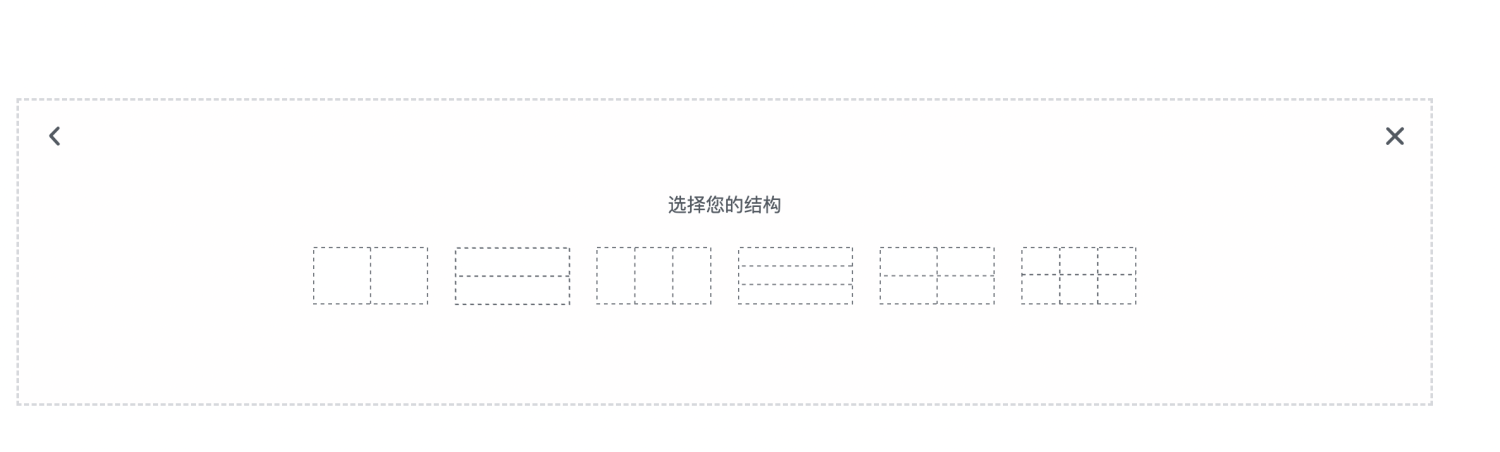
选中后左侧布局区域下方可以调整当前Grid的列数和行数,再往对应的内容区拖入我们的组件即可。
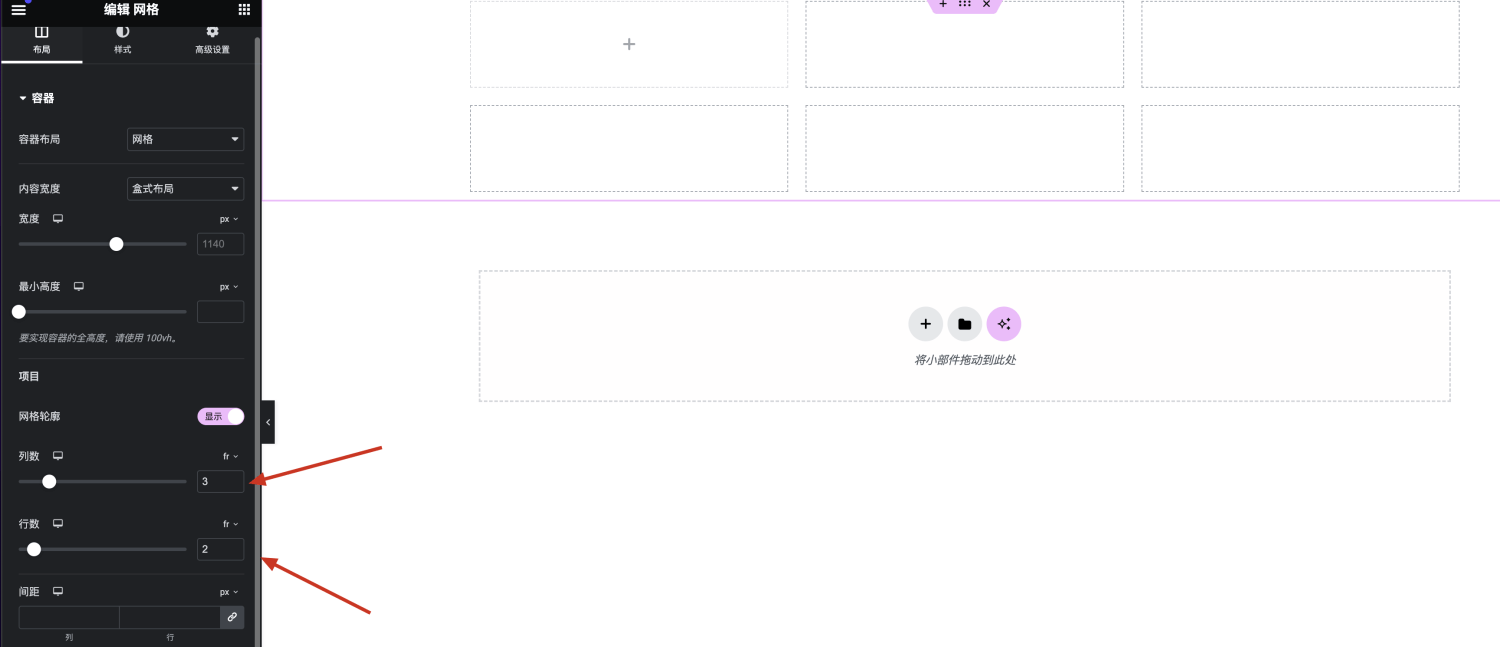
Grid 对齐方式

Grid 间距

调整行中 Grid Container 的宽度

组件的排列顺序,选择行为横向,列为纵向


4.2.3 Flexbox 和 Grid 的关系
相互包含,根据对齐方式和布局,组合嵌套使用。


也可以相互转换

five、Containner的其他常用功能和操作
5.1 如何对Container容器内部组件换行
当我们在一个容器中添加了6个图片,但是这样图片展示的空间就会过小,如果我们想让它每3个为一行,要如何做到?

需要两个步骤
1.选中当前容器,点击左侧工具栏中的换行
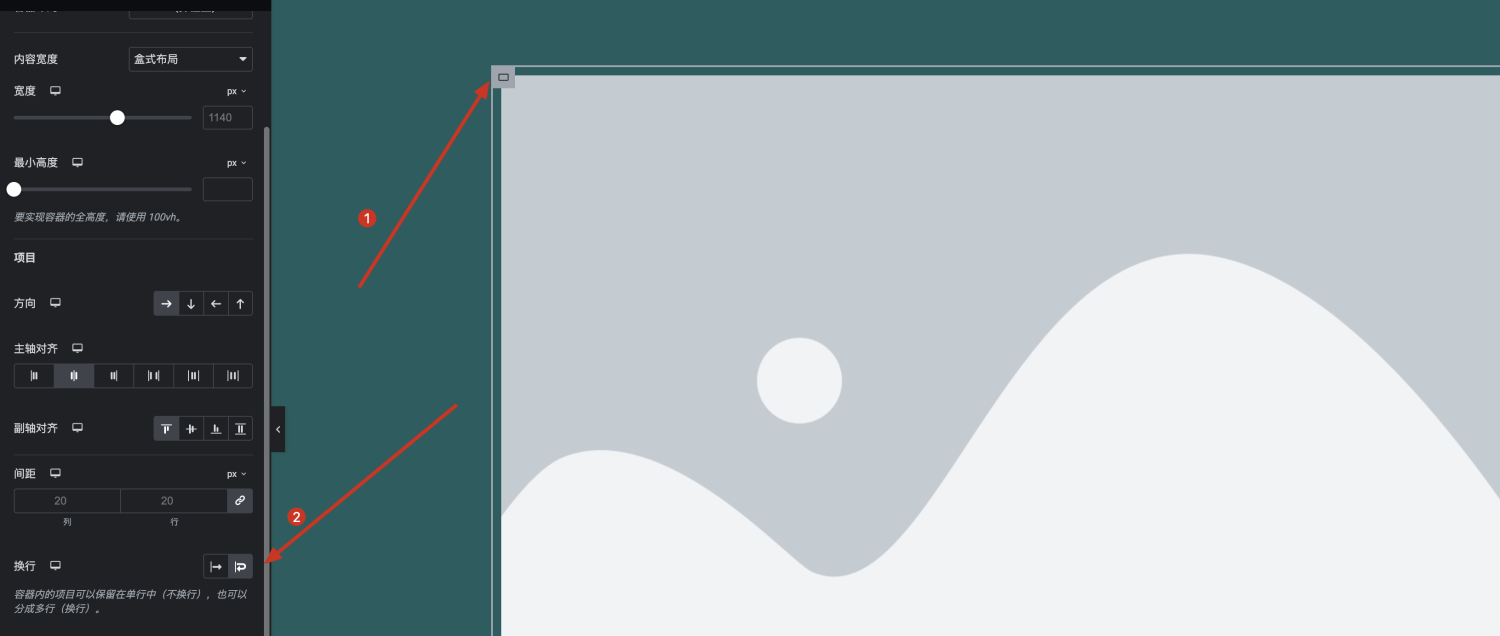
点击完换行后我们发现是每个图片占了一行,和我们想要的3个图片一行不一样,是因为,容器宽度是100%,直接点击换行后每张图片的宽度也会占到百分百,so:
2.改变每张图片的宽度百分比为32%,这样100%的空间就刚好可以容纳三张图片
3.选中图片组件,然后在高级设置中将图片组件的宽度改为32%,注意这里改的宽度是高级设置里面的宽度,不是样式里面的图片宽度。
不直接使用33%是因为我们想给各个图片留下一些间距,因为间距的长度也是算在100%的宽度内的,所以我们甚至可以直接宽度为30%都可以。只要你的图片宽度是大于25%并且小于33%的,在不涉及边距的情况下展示的都是一行3个图片。
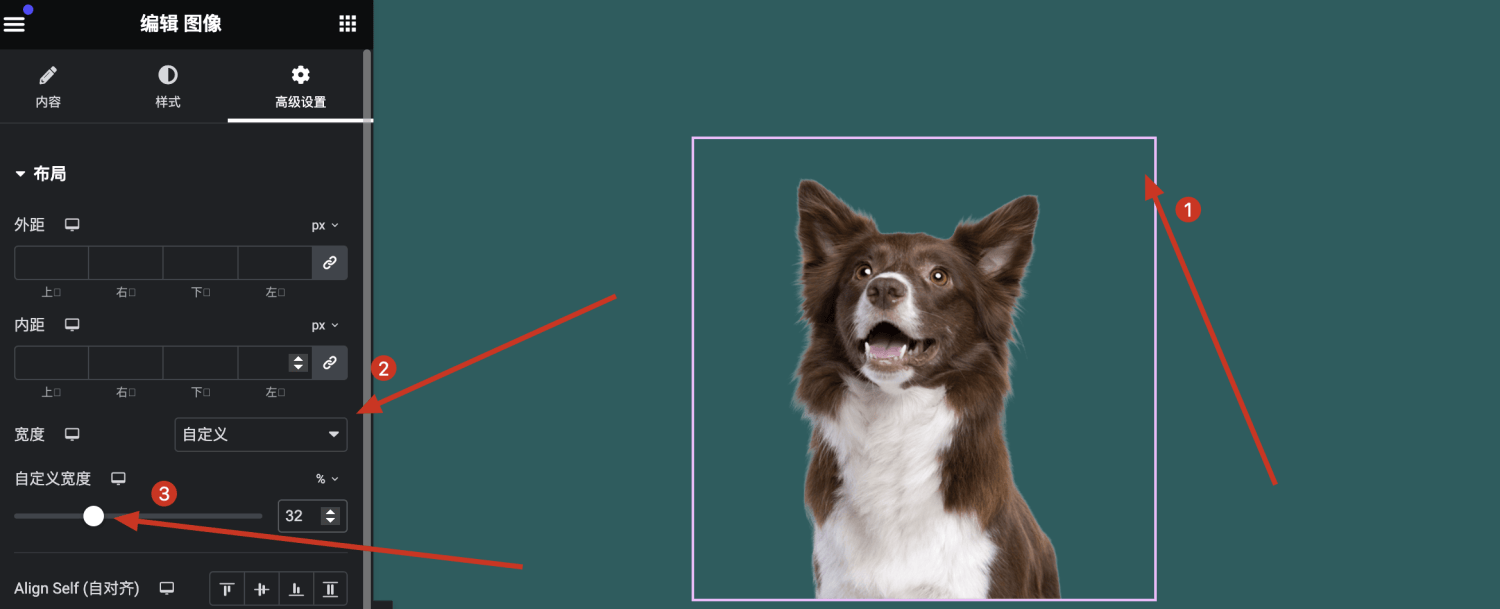
当我们将6个图片高级设置中的宽度都改成32%的时候,图片就已经自动两行排列,并且每行3张图片。这就是容器换行的概念,是通过组件的百分比来控制的。

5.2 Container容器添加链接
这点相对来说也比之前的更加简单和直接
1.选中容器
2.在布局中找到其他选项
3.在HTML的下拉框中选择a链接
4.在链接框中输入要跳转的链接地址后完成容器链接添加

six、Section 如何转换为Container
Grid Container and Flexbox Container 这么好用,Section 转化过去很简单,进入页面编辑之后,选中 Section 点击转化按钮,
转换之后,会在转换的Section模块下方自动复制生成一个一模一样的Containner模块。

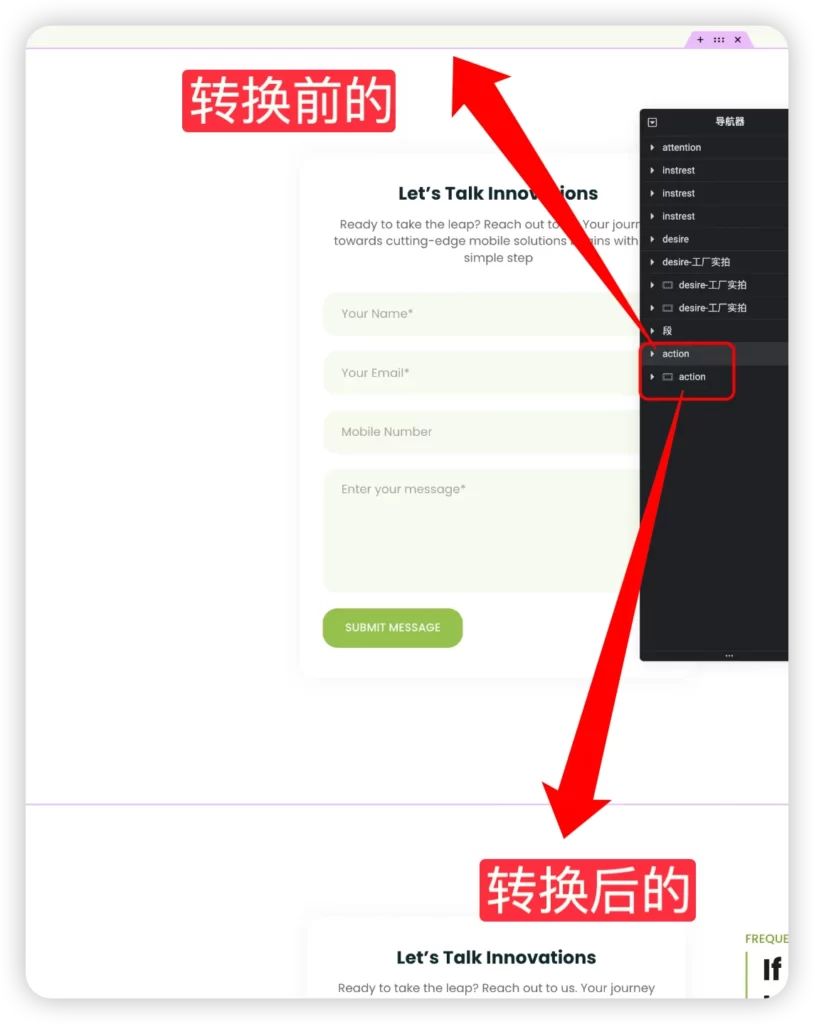
确认Containner模块没有问题之后,直接删除上方的Section模块即可完成Section到Containner的转换。
目前Elementor不支持一键整站转换为Containner,需要手动去转换。in addition,一旦转换之后将不可逆。
5.1 Elementor导航器中的Containner
existElementor导航器中你可以看到你的Containner排列和嵌套。
同时你可以修改Containner在导航器中名称,这样可以方便通过导航器快速定位到对应的内容。

5.2 Containner的响应式设置
Elementor编辑器的所有元素都支持响应式set up,Containner也不例外,Containner的响应式比起老板版本的Section设置项目更多,更加灵活。
在编辑视图中你可以切换到响应式模式去调整Containner的响应式效果。

在Containner的所有设置项目中只要是带响应式标记的都是可以在不同终端设置不同的展示效果。并且你可以直接在对应设置项目的通过响应式标记来切换并修改参数。

由于设置项目较多,我这里介绍几个我常用的响应式设置。
1)修改Containner在不同终端的内容的排列顺序
这个我在响应式中经常会使用到,尤其是做图片文章布局时候,在PC端为了美观,我会一个段图片在左边文字在右边,下一段图片在右边而文字在左边。
但是到了移动端之后图片和文字是上线显示的,如果还是按照默认的排序方式显示,那么就会出现图片、letter、letter、图片的顺序,这种方式对于用户来说并不是正确的阅读顺序。
所以我会在移动端通过Containner的Direction设置项去修改内容的显示顺序。
for example说下面这样一个模块,一个Containner中上下排列了2个Containner,上面的Containner左边是图片右边是文字,下面的Containner左边的文字,右边是图片,在PC端显示如下:

但是到了移动端下面的Containner文字就会默认在上面,图片在下面,显示就会不协调,情况如下:

那么我们可以通过Direction选项来设置下面的Containner内容在手机端的显示顺序。

2)修改Containner在不同终端隐藏
在Containner元素的Avanced标签卡中的Visibility设置中你可以设置针对哪些终端显示和隐藏Containner元素。

3)设置Containner内的元素在响应式中的对齐方式
在Containner的Layout标签卡下面的Items设置项目中,有Justify Content和Align Items可以设置在不同终端的Containner内部的元素对其方式。

5.3 Containner的复制与粘贴操作
1) 复制一个Containner
在编辑窗口中选中你需要复制的Containner元素,右击菜单中点击Copy,即可复制当前选中的Containner。
复制是包含Containner内的所有元素内容的。

2)粘贴Containner元素
复制Containner之后,编辑页面移动到你需要粘贴Containner的位置。
如果需要粘贴到某一个Containner的上方位置,可以点击下面的Containner的+号。

在虚线内空白的地方右击,然后在下拉菜单中选择Past菜单。

如果要将复制的Containner粘贴到某一个Containner的内部,可以选中Containner,然后右击,在下拉菜单中选中Past。
illustrate:原来的Section是不允许这样嵌套粘贴的,这也是Containner灵活的地方。

3)创建Containner副本
选中Containner之后,可以右击点击下拉菜单中的Duplicate菜单,自动创建当前Containner的副本在页面中,并且副本会直接添加在原Containner的下方或者后面。

另外和其他元素一样Containner也支持苦跨站点复制粘贴。在当前网站复制Containner之后,在另外的站点的编辑页面需要粘贴的地方,右击菜单中选择Past Form Other Site。

5.4 Elementor嵌套元素中的Containner
Elementor目前支持了嵌套元素功能,基于这个功能你可以使用Mega 菜单元素,可以在Tab元素Item内部编辑内容。
我们以Tab元素为例子,以前Tab元素的Item内容只能是文本编辑,如果你想用Elementor编辑需要做一个Elementor模版来动态调用。
而现在通过Containner和嵌套元素功能,你可以直接在Tab元素Item内使用Elementor编辑内容,这给页面内容制作带来了很多便捷性。
Elementor原生的Mage Menu也是用相同功能和原理。
七、Summarize
Container使用起来布局结构会更加的简介,整个页面的dom节点会变少,速度相对应的也会有一点提升,不是很大,很适合熟练使用建站的朋友,新手小白还是之前的形式更加简单,初上手还是先按照我的文章把做整个页面的结构理解透彻,再回过头学习container会简单很多