
What is a sitemap?
A sitemap is the blueprint of your website,Can help search engines find、Crawl and index all content of your website。A sitemap also tells search engines which pages on your site are the most important。
There are five main types of sitemaps:
- Plain XML sitemap: This is by far the most common type of sitemap。It usually takes the form of an XML sitemap,Link to different pages on your website。
- Video sitemap:dedicated toHelp Google understand the video content on your pages。
- News site mapHelp Google find content on sites approved for Google News。
- Image sitemap:Help Google Find all images hosted on your website。
- HTML sitemap:HTML sitemapUsed to be a popular way to improve website navigation and provide links to all pages in one place。don't wantUse HTML sitemaps in place of good website navigation elements such as menus、Footer link、bread crumbs、category) , ETC。)
Why is sitemap important?
Google、Search engines like Yahoo and Bing use your sitemap to find different pages on your website。
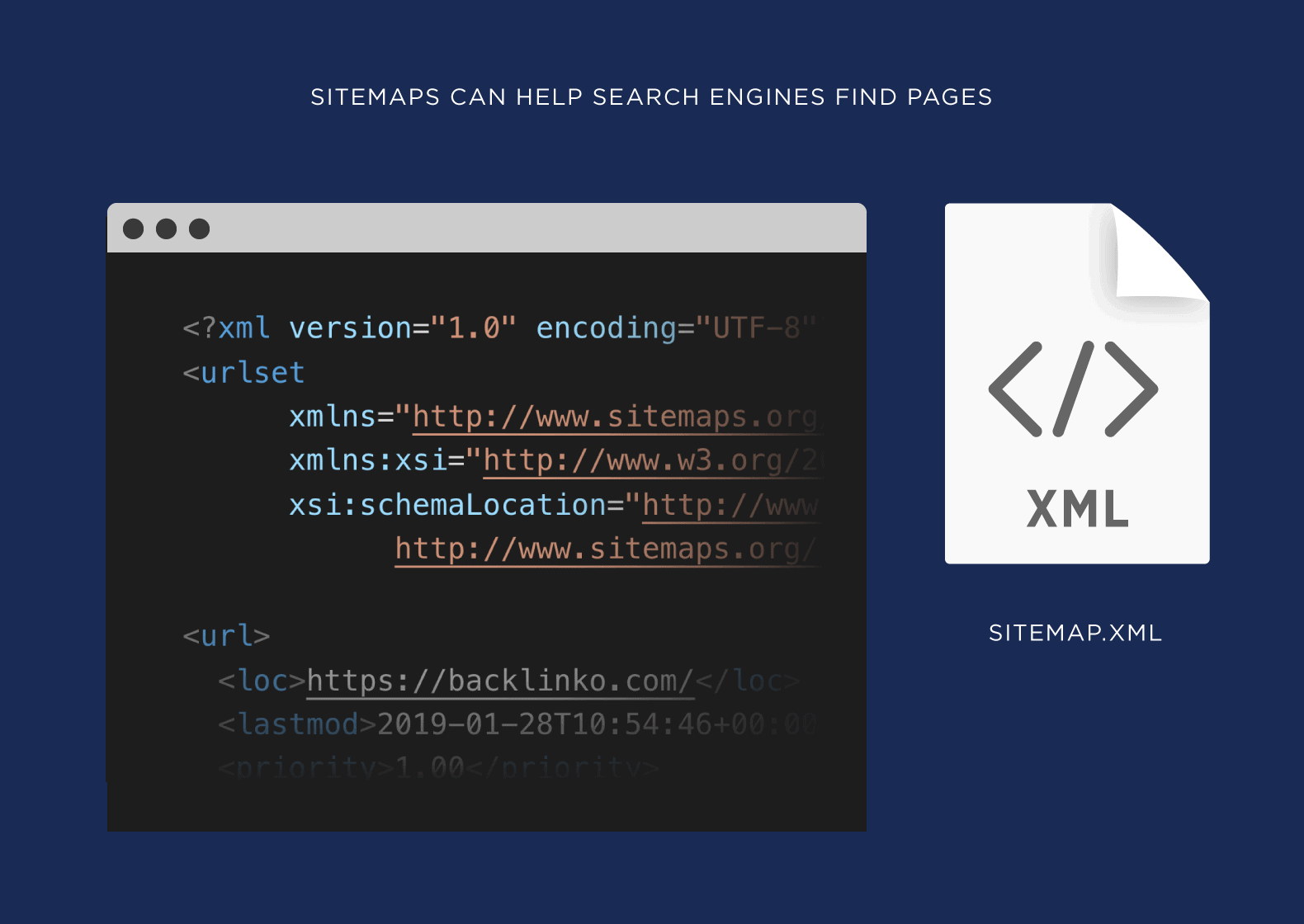
The better Google knows about your site,The easier it is to grab,The more effectively you can rank for your target keywords,and bring more traffic to your website。Having said that,According to the above information,We can take a closer look at the benefits of sitemaps:
Get your pages crawled and indexed faster
Google can't crawl the entire internet every day。on the contrary,it targetsdifferent websitesand content types have different crawl “schedules”,So sometimes it can take a few days for Google to、It can take weeks or even months to discover new pages on your site。Sitemaps help Google discover and index new web pages faster。
Keep high-value pages performing well
Have you ever updated pages on your website (perhaps to refresh your evergreen content),But don’t see the changes reflected in the SERP? This is because Google hasn't crawled the page since your update。With more efficient crawling and indexing,You can ensure that users are seeing the latest version of your highest value and/or frequently modified pages。
Help search bots find orphan pages
Google bots often discover pages on your site just like visitors – By following links on the pages it crawls (this is why internal links are so important)。An orphan page is a page on your site that has no other links pointing to it,So it's hard for Google to access them。But through these pages in the sitemap,Google can find and index them more easily。

Help Google identify duplicate pages
in many situations,Commercial websites will have duplicate or near-duplicate pages,For example,on e-commerce sites,You may see product pages copied using different colors of that product。in these cases,Google may not know which version of the page is the primary one you want to rank for。Via sitemap,You can use canonical tags to show Google which version is major,Which versions are duplicates。
How to find a sitemap
Here are some effective ways to find a sitemap on your website:
Manual check
The easiest way to find an XML sitemap is to find it manually。最常见的是,网站站点地图位于以下 URL 地址:
https://domain.com/sitemap.xml
经常 – 特别是如果网站使用 WordPress 的Rank Math 插件,Yoast SEO 插件 – 您将被重定向到站点地图索引 ( /sitemap_index.xml)。
in this case,它将如下所示:


如您所见,站点地图索引是一个简单的文件,其中列出了网站的所有站点地图。 (是的,可以有多个站点地图。)
To see the actual sitemap,Just click on the link for a specific sitemap in the index。
search operator
Search operators are special phrases or symbols,You can add this to your search query to return more specific results。
Here are some search operators you can use to find sitemaps on your website:
- “site:domain.com filetype:xml”
- “site:domain.com inurl:sitemap”
- “site:domain.com intitle:sitemap”
You can use these operators in all popular search engines,For example Google、Bing or Yahoo。
Just type the operator into the search bar and replace "domain.com" with the address of your actual website。

Search results should return the location of the website sitemap if it exists and has been indexed by the search engine you are using。

Google Search Console
If you have access to your site's Google Search Console,then the sitemap may have been submitted there。
Go to "Index" in the "Index" section of the left menusitemap"Report。

it's here,You will see a file called "Submitted sitemap" part。If anyone has submitted an XML sitemap before,You will find its URL in the list。

Notice:We’ll discuss how to submit a sitemap to Google Search Console later in this guide。
Robots.txt
Robots.txt is a website file,It tells search engine crawlers which parts of the website to crawl and which parts to avoid。
You should place it in the root folder of your website:https://domain.com/robots.txt
If your robots.txt file follows best practices,It will link to the website sitemap。Just search for "sitemap" in your robots.txt document。
The section linked to the sitemap will look like this:

How to set up a sitemap
Using Yoast pluginCreate sitemap
Your first step is to create a sitemap。
If you use WordPress,You can use the Yoast SEO plugin to get a sitemap made for you。

The main benefit of using Yoast to make an XML sitemap is that it updates automatically (dynamic sitemap)。
therefore,Whenever you add a new page to your website, whether it’s a blog post or an e-commerce product page,Links to this page are automatically added to your sitemap file:

useGoogle XML Sitemapsplug-inCreate sitemap
If you don't use Yoast,You can also use many other plugins for WordPress (e.g. Google XML Sitemaps)Create a sitemap:

useRank Mathplug-inCreate sitemap
How to enable HTML sitemaps
It’s easy to enable HTML sitemaps in Rank Math free version。first,Make sure you have downloaded fromWordPress Dashboard → Rank Math SEO Enable sitemap module,As follows。
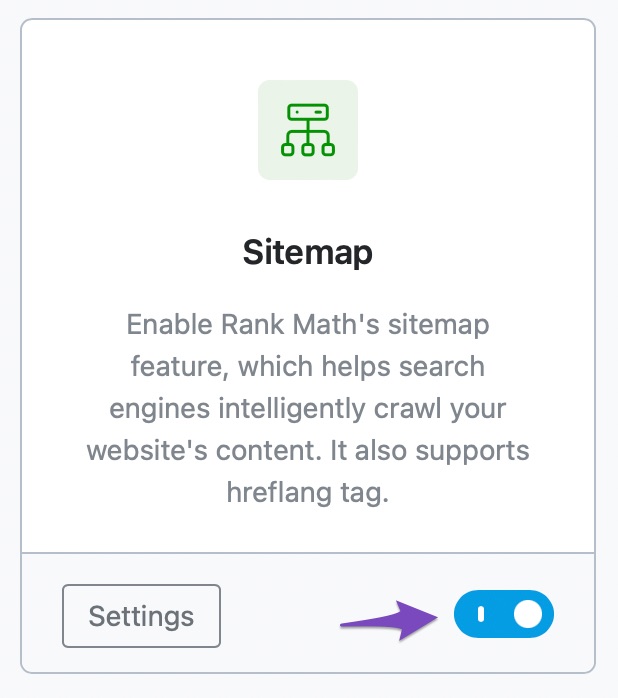
Next,Navigate toRank Math SEO → Sitemap Settings → HTML Sitemapand switchHTML sitemap Options。
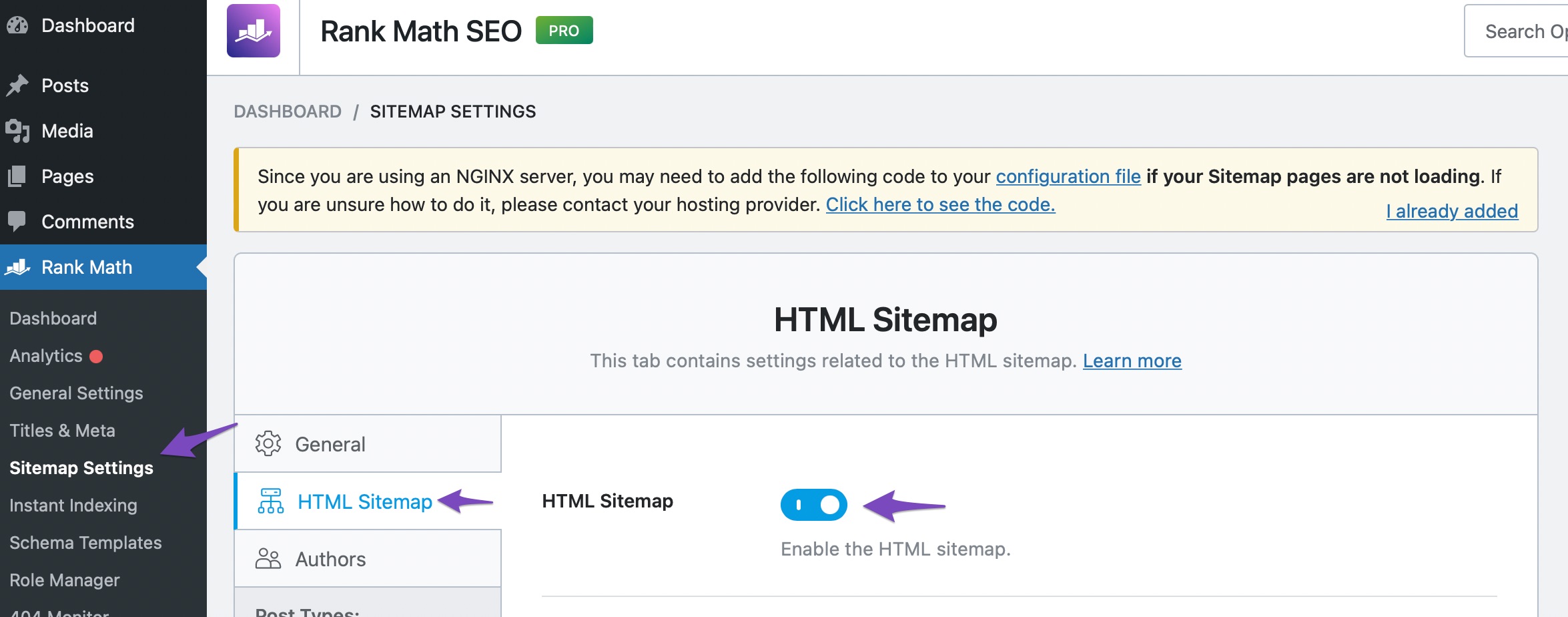
Configure HTML sitemap options
After enabling the HTML sitemap option,You'll notice a list of options,Helps you configure HTML sitemaps,As follows。
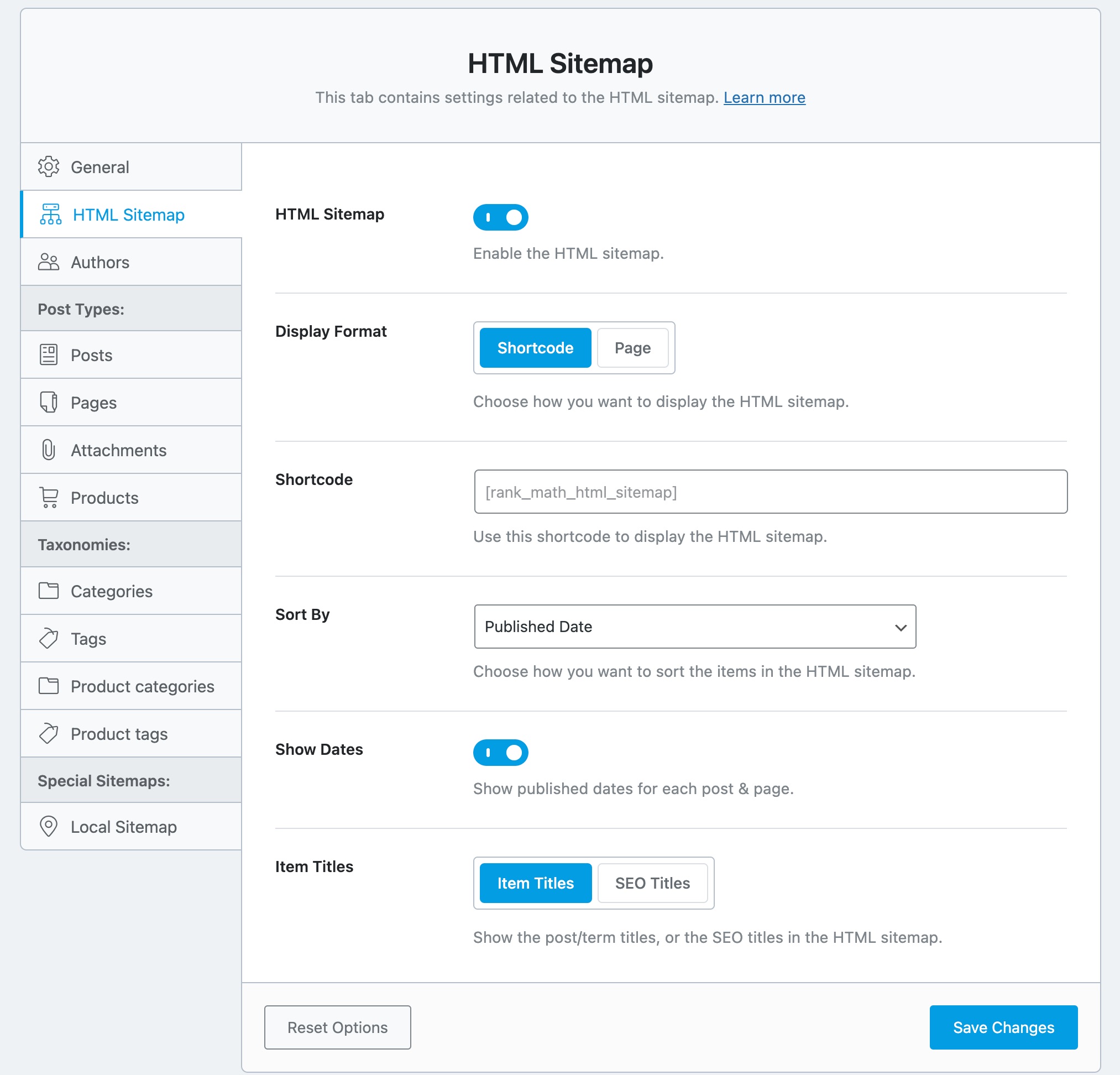
We will now discuss each option in detail。
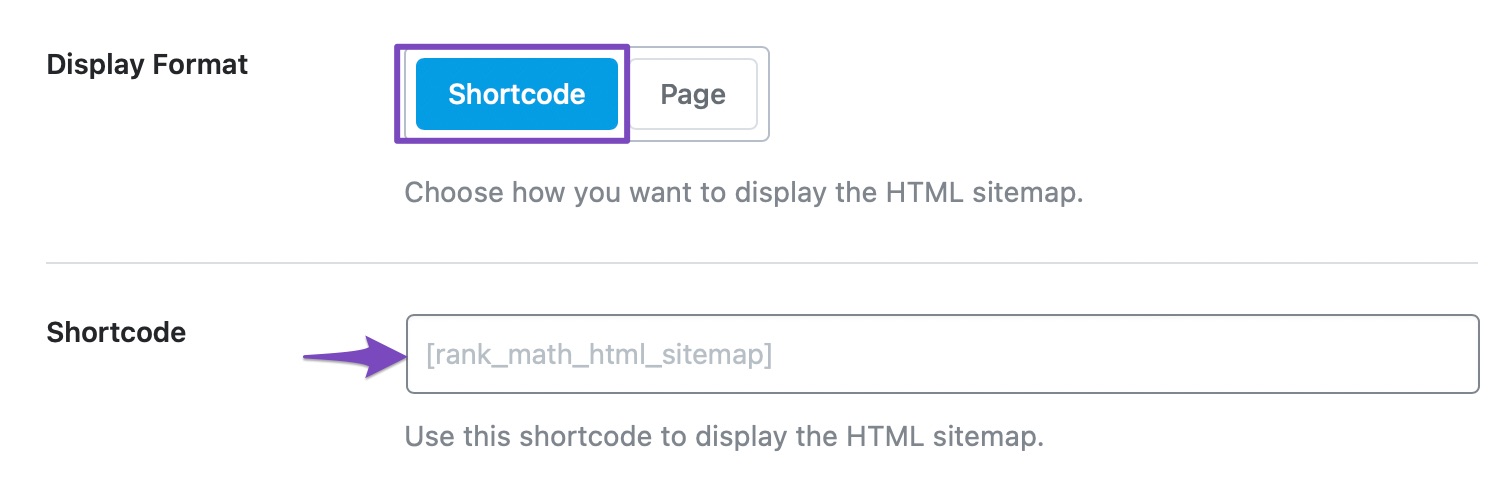
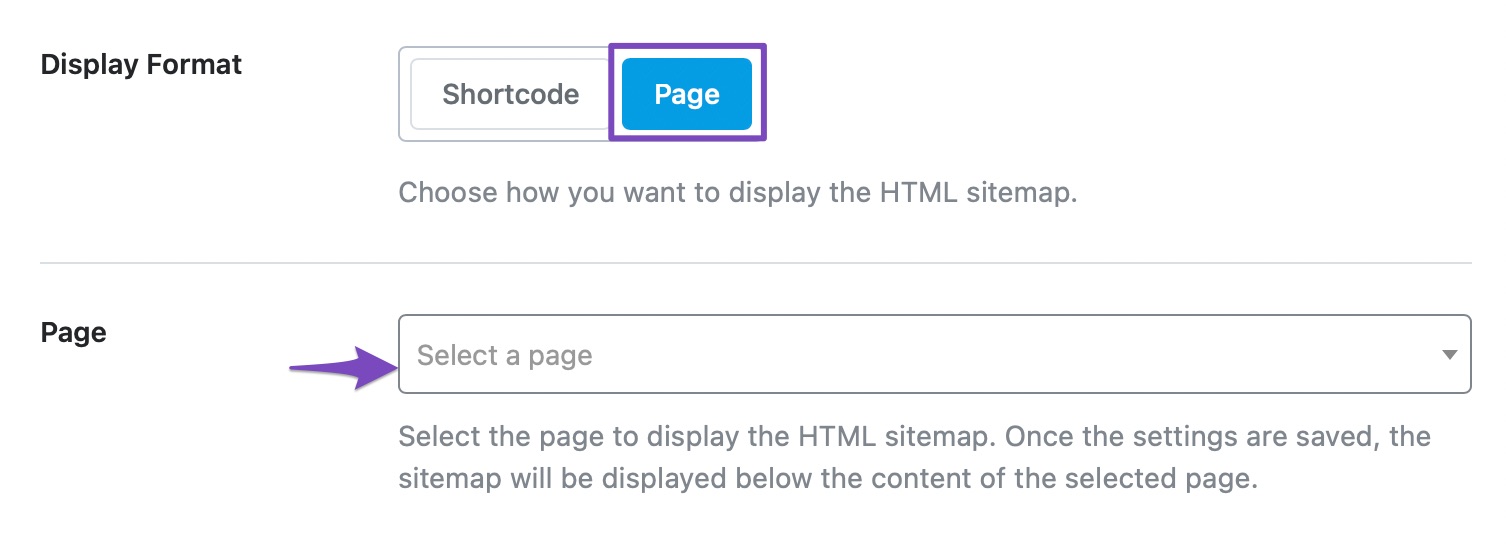
display format
You can chooseshort codeorpageOption to display HTML sitemap。

short code
If you selected in Display Formatshort codeOptions,you will find this option。Copy and paste the shortcode where you want the HTML sitemap to appear。
Page
If you selected in Display FormatpageOptions,you will find this option。Select the page where you want the HTML sitemap to appear from the drop-down list。
sort by
Choose how you want items in your HTML sitemap to be sorted。Available options includerelease date、Modification date、alphabetical order、andPost ID。
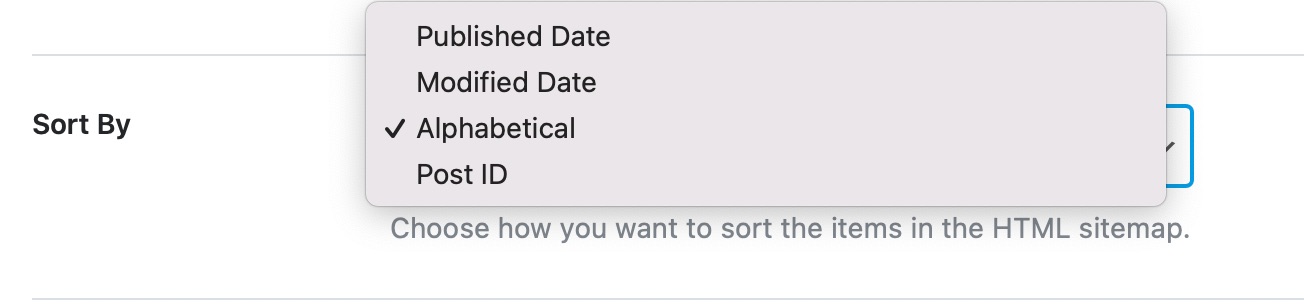
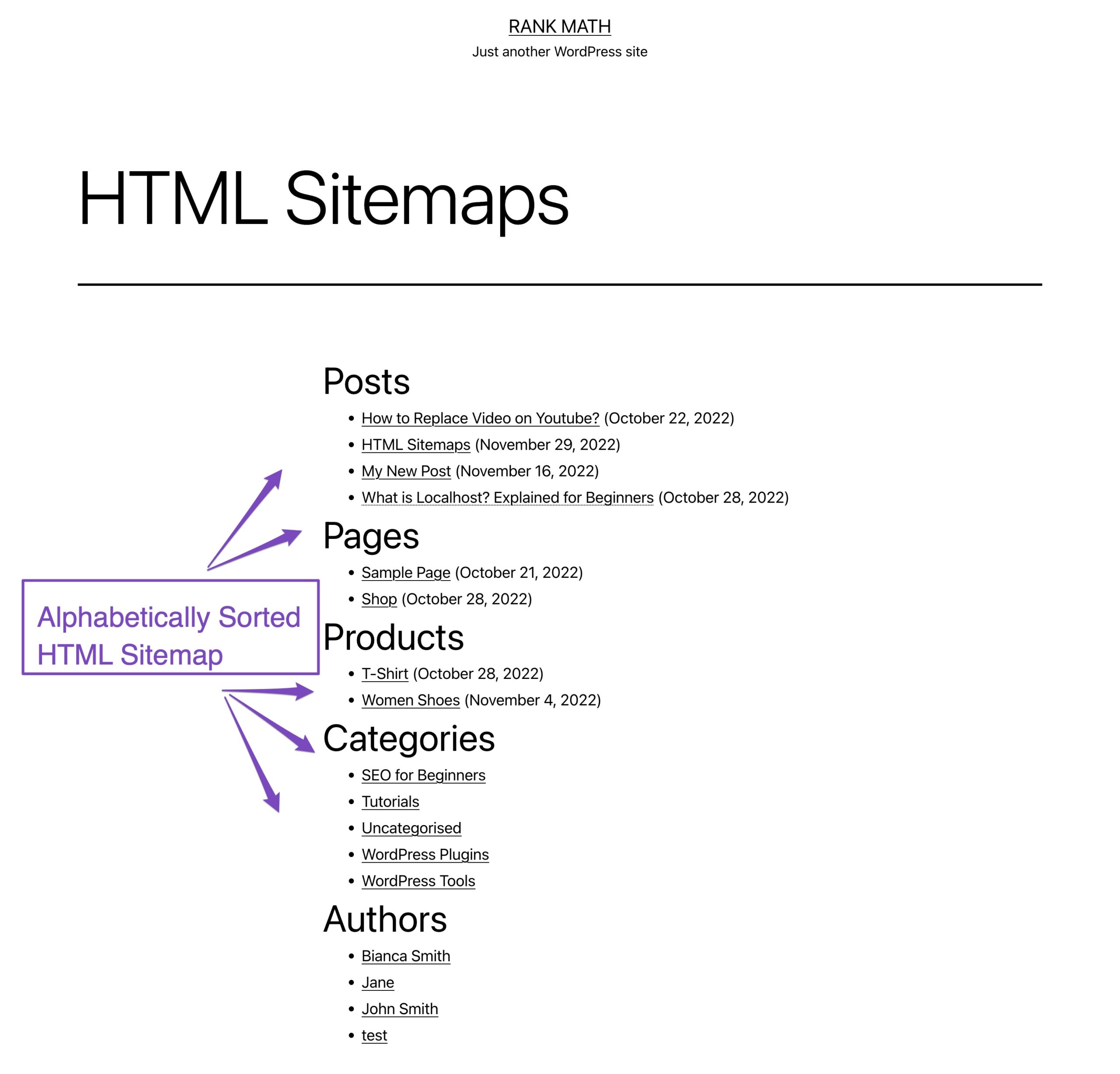
For example,If you select from the drop-down menualphabetical order,then the items in the HTML sitemap will be sorted alphabetically,as shown below。
Show date
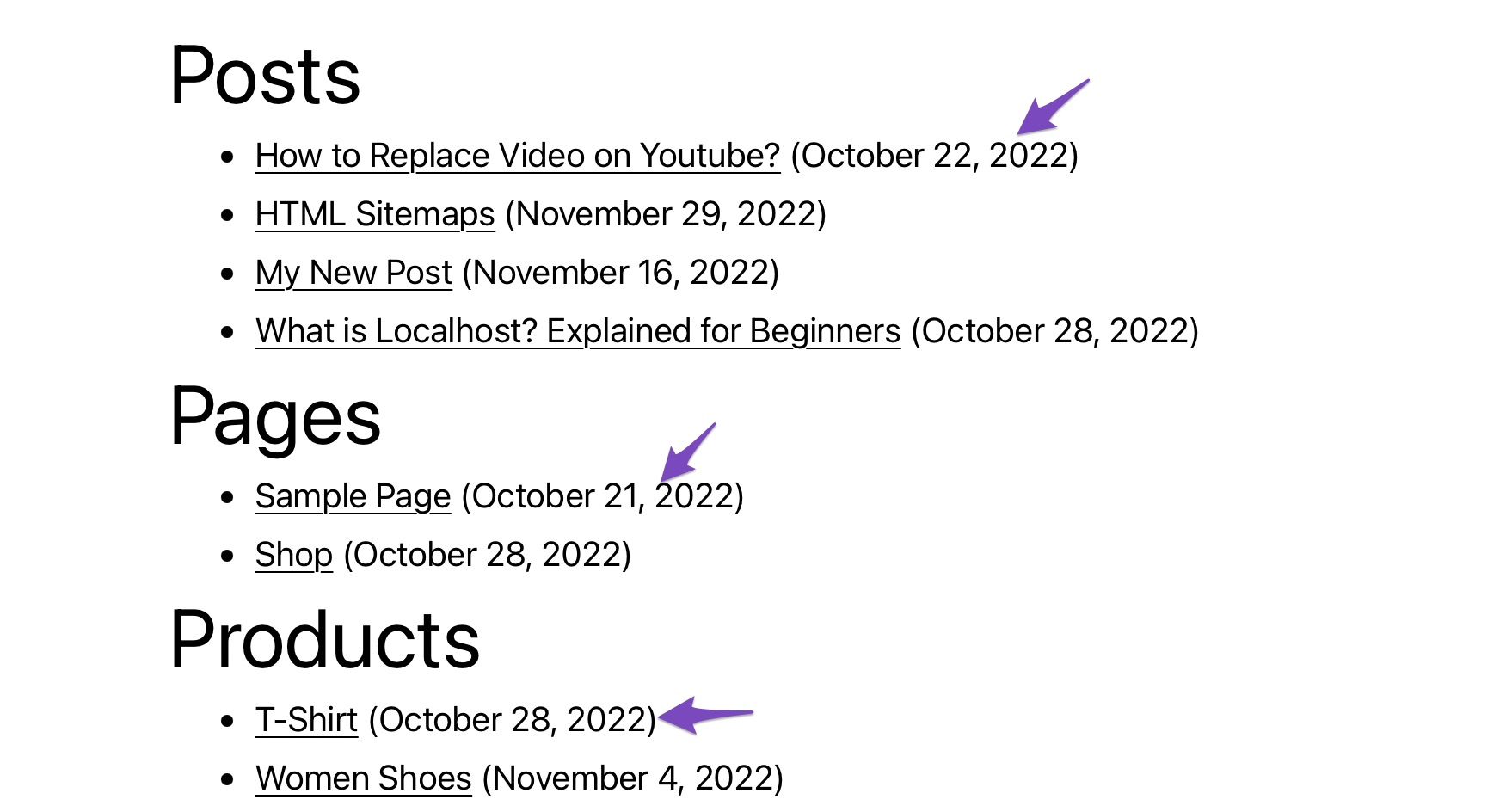
Enable the switch to display the publication date of each post。

enableShow dateafter option,will show all publication dates for each post and page。
Project title
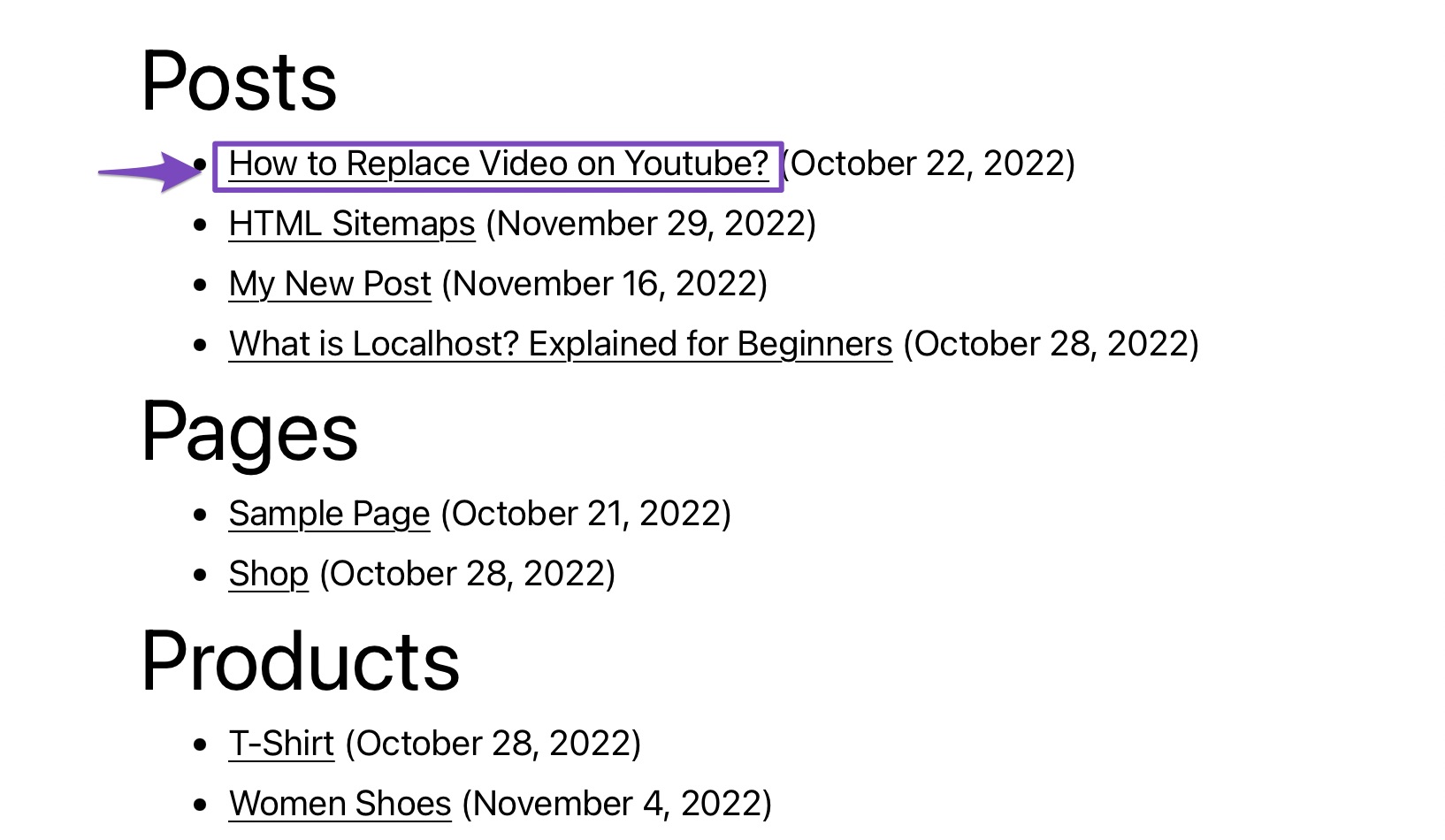
This option displays the title of each post。Available options includeProject titleandSEO title。

For example,If you chooseSEO titleOptions,will display all SEO titles,As follows。
After configuring your HTML sitemap settings,Please clickSave changesbutton to save your settings。
How to choose post types and taxonomies to include in your content HTML sitemap
Now that we have configured the HTML sitemap settings,You can also select the post types and taxonomies to include in the HTML sitemap。
to this end,Please navigate toRank Math SEO → Sitemap Settings。In taxonomies under each post type,You can find an optionIncluded in HTML sitemap,As follows。Enable the toggle button to include it in the HTML sitemap。
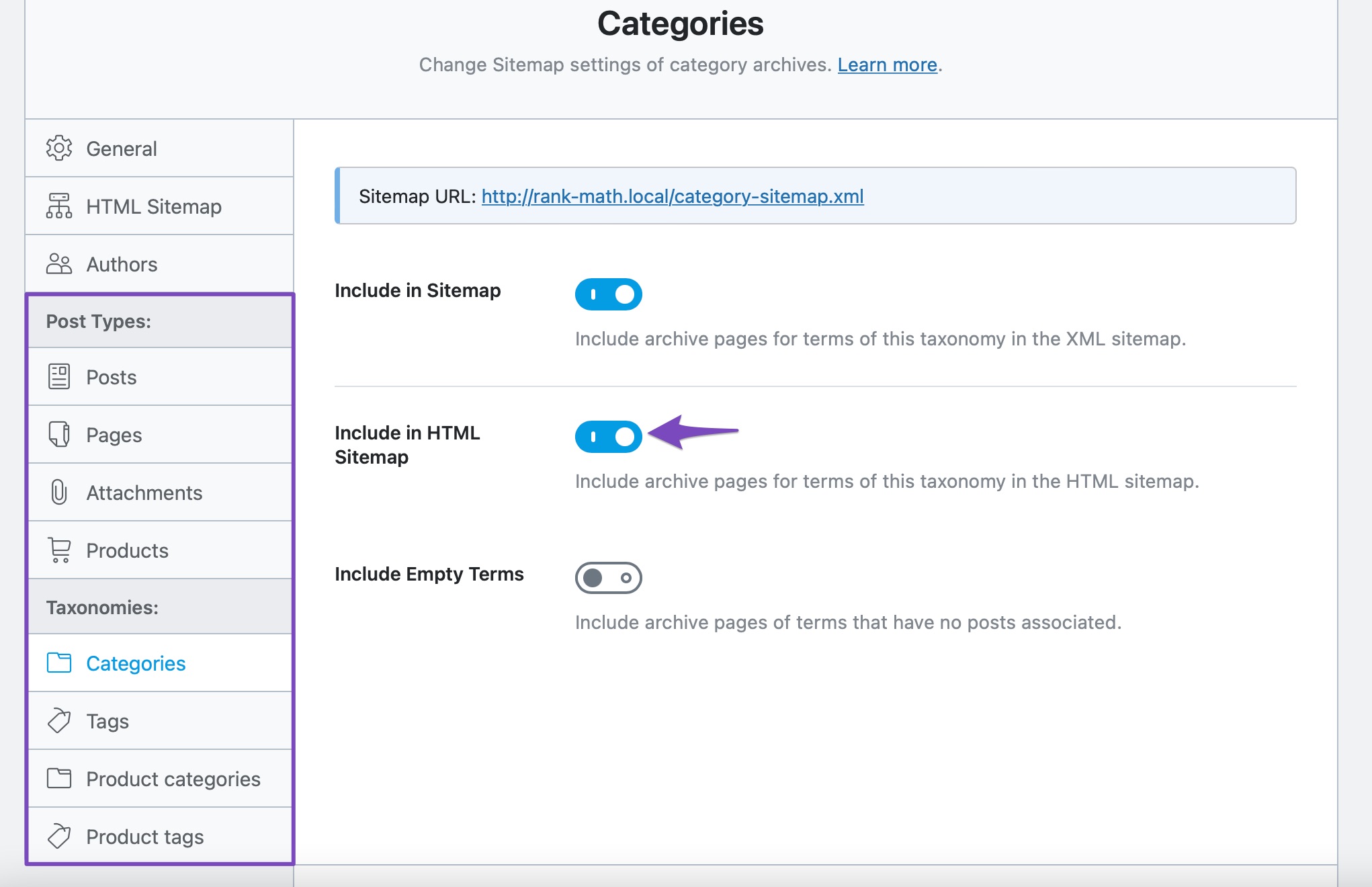
after finishing,ClickSave changesbutton to save your settings。
How to access an HTML sitemap
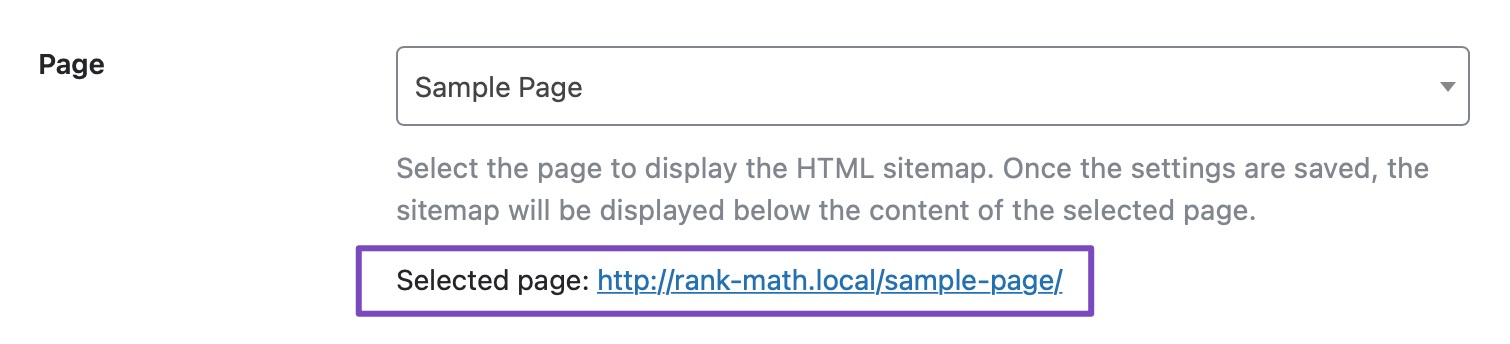
If you selectedpageOptions,Please select your page from the drop-down menu,As follows。
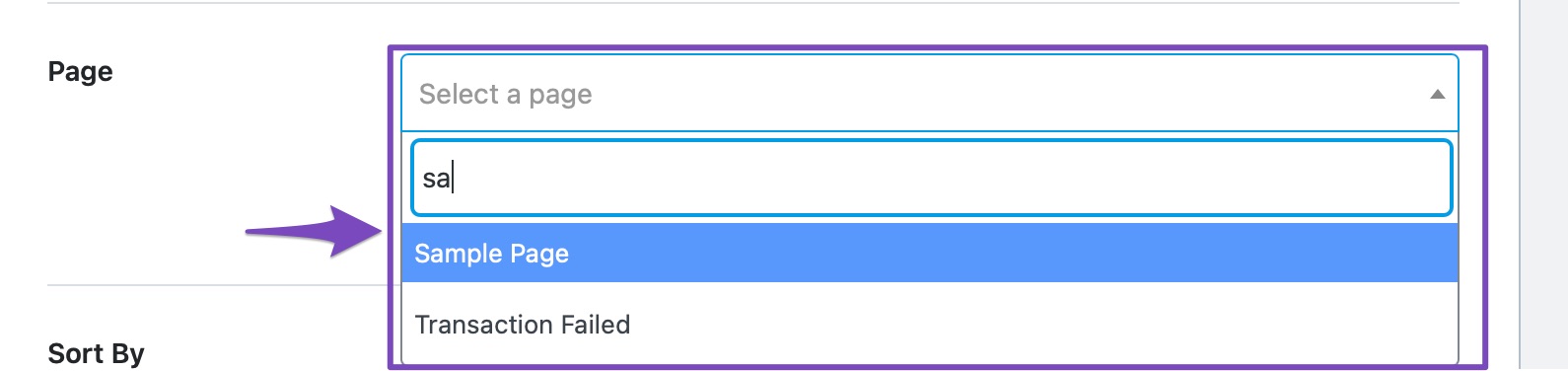
After selecting the page and saving changes,You will see a page where you can access the sitemap,As follows。
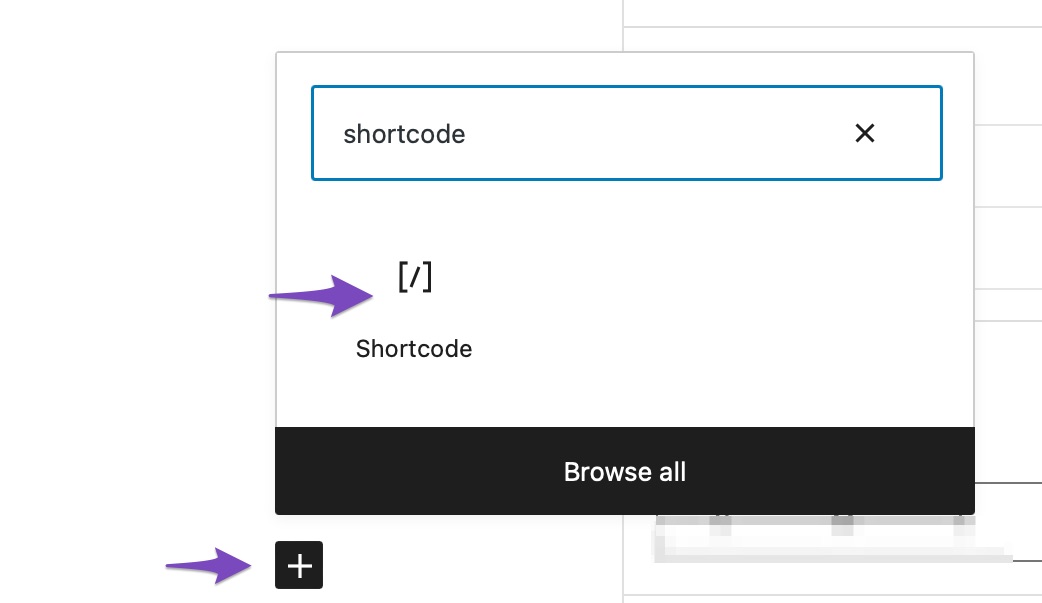
If you selectedshort codeOptions,Please create a new post/page,Or navigate to an existing post/page edit screen from:Your WordPress dashboard。
In the post/page edit screen,Click‘+’ symbol and addshort codepiece,As follows。
Next,Add HTML sitemap shortcode to display HTML sitemap,As follows。
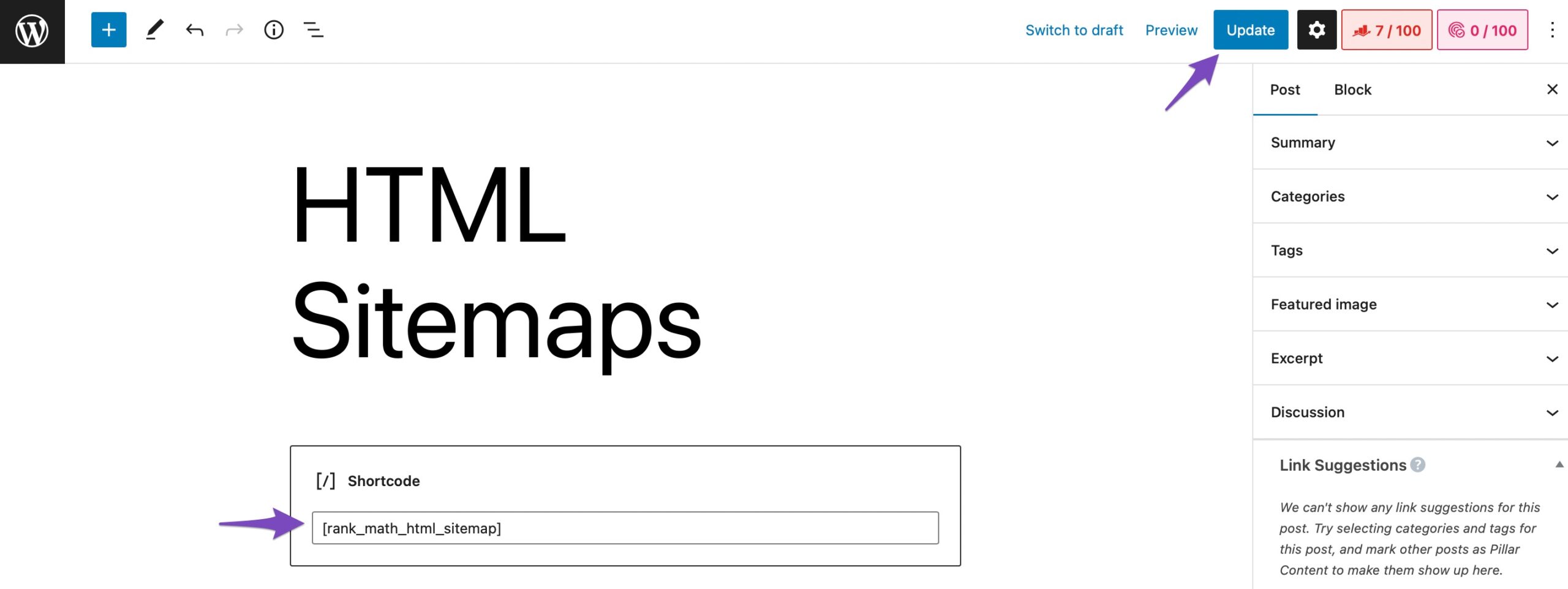
You can also use this shortcode with any WordPress page builder such as Elementor、Divi, etc.) used together。after finishing,Update/Releaseyour post。
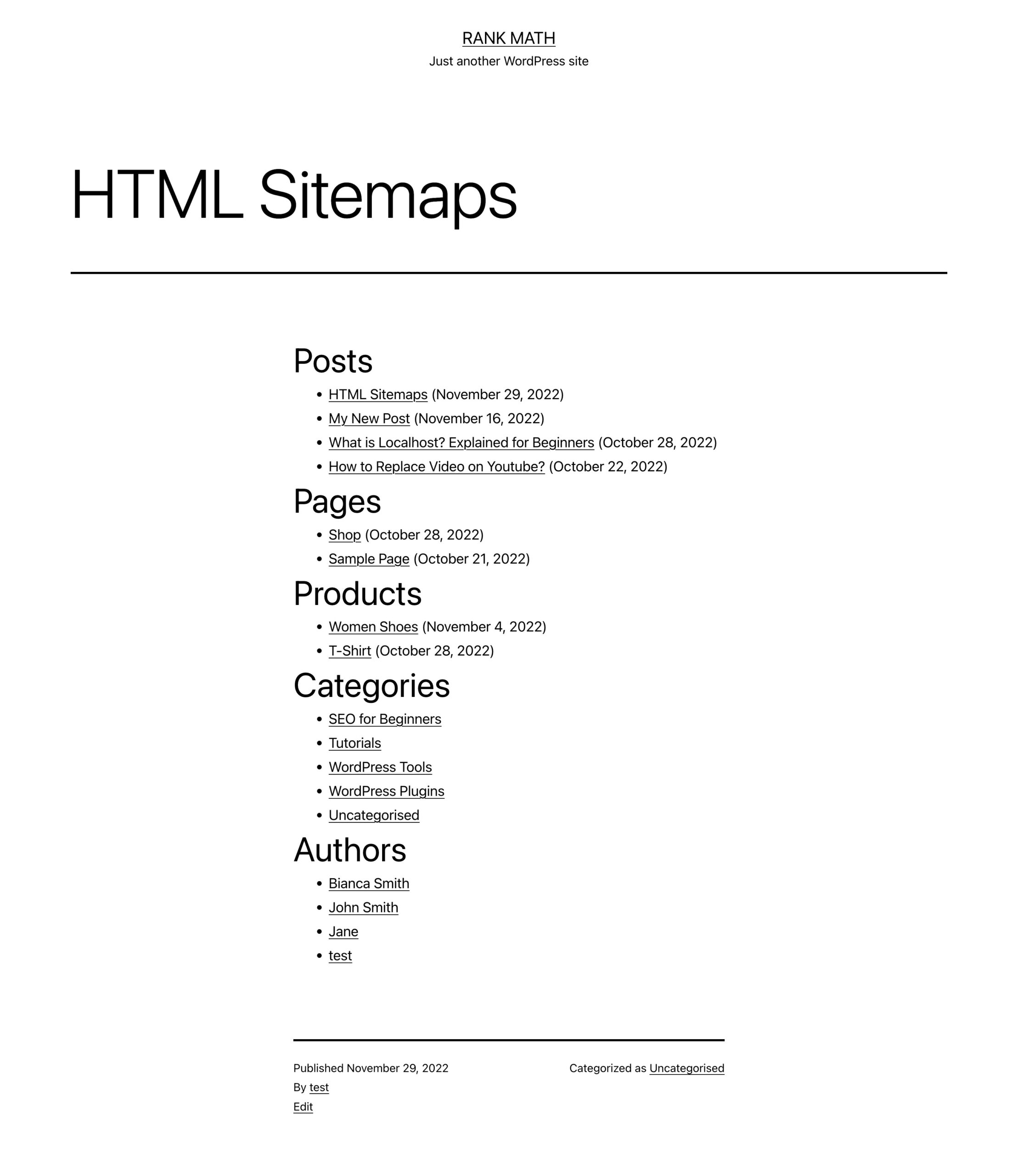
That's it! Then you can view the post/page,Because HTML sitemaps are now available,As follows。
What if you don’t use WordPress?
Don't worry。You can use a third-party sitemap generator tool,For exampleXML-Sitemaps.com。These will generate an XML file,You can use it as a sitemap。
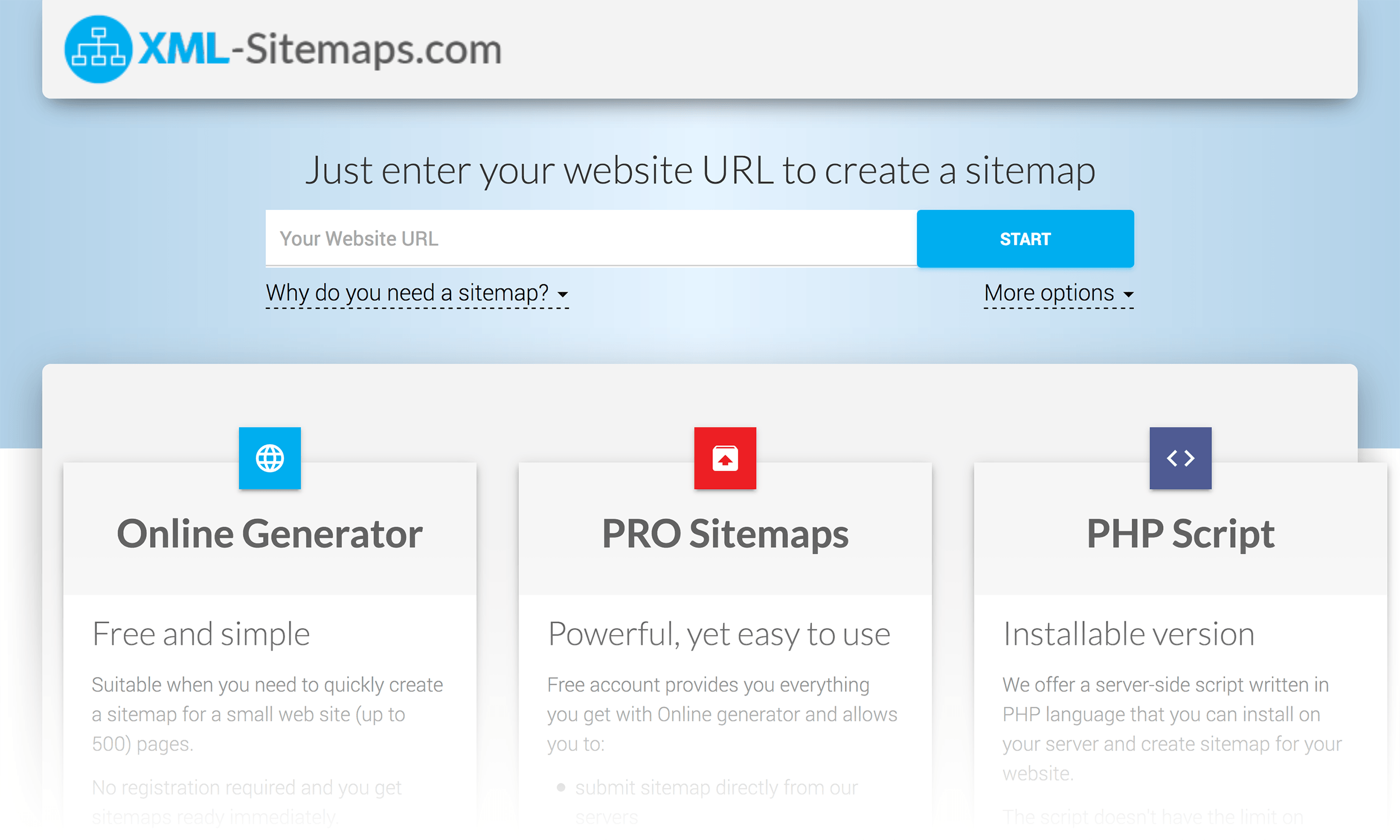
either way,Once you have created your sitemap,I recommend viewing it manually。
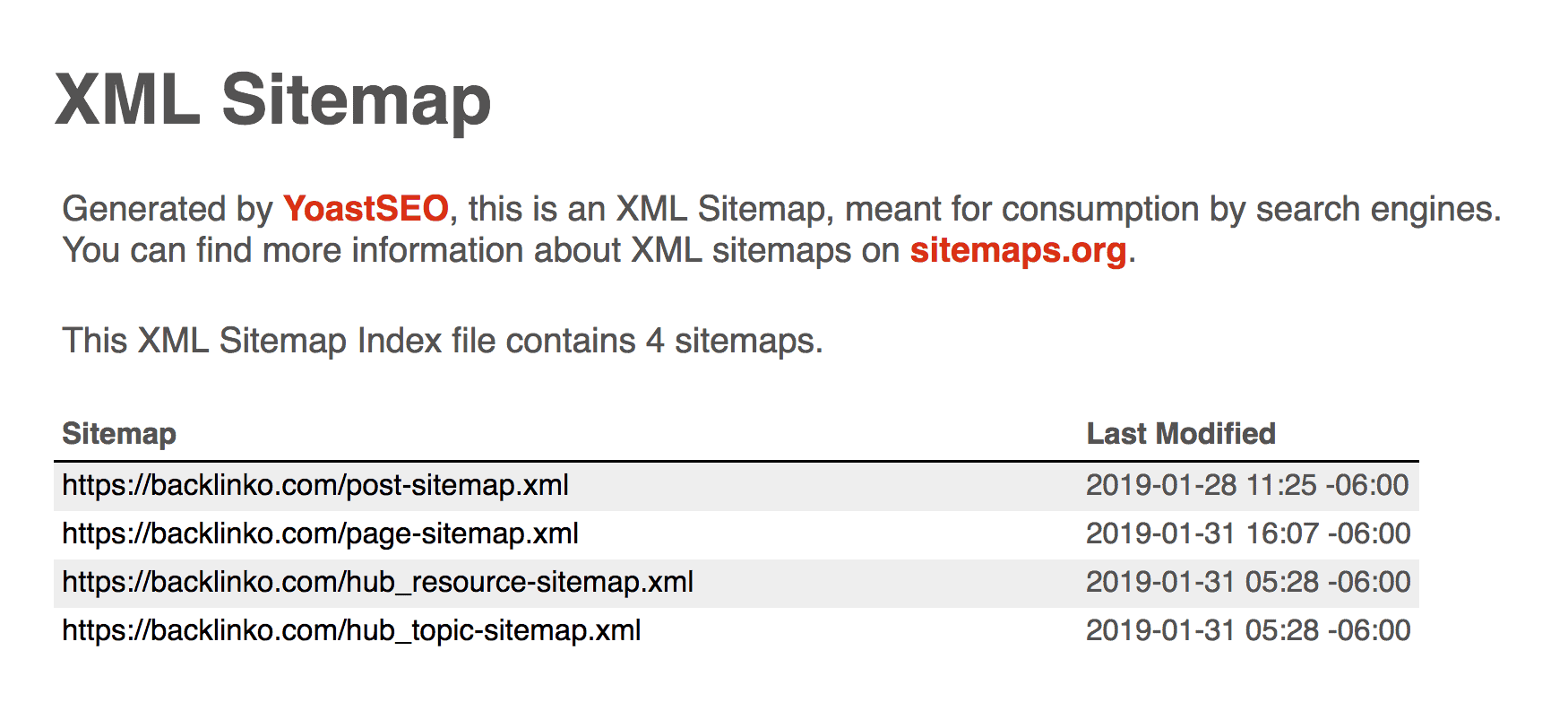
(Your sitemap can usually be found at site.com/sitemap.xml。But this depends on your CMS and the program you use to create your sitemap)
It should show all pages on your website:
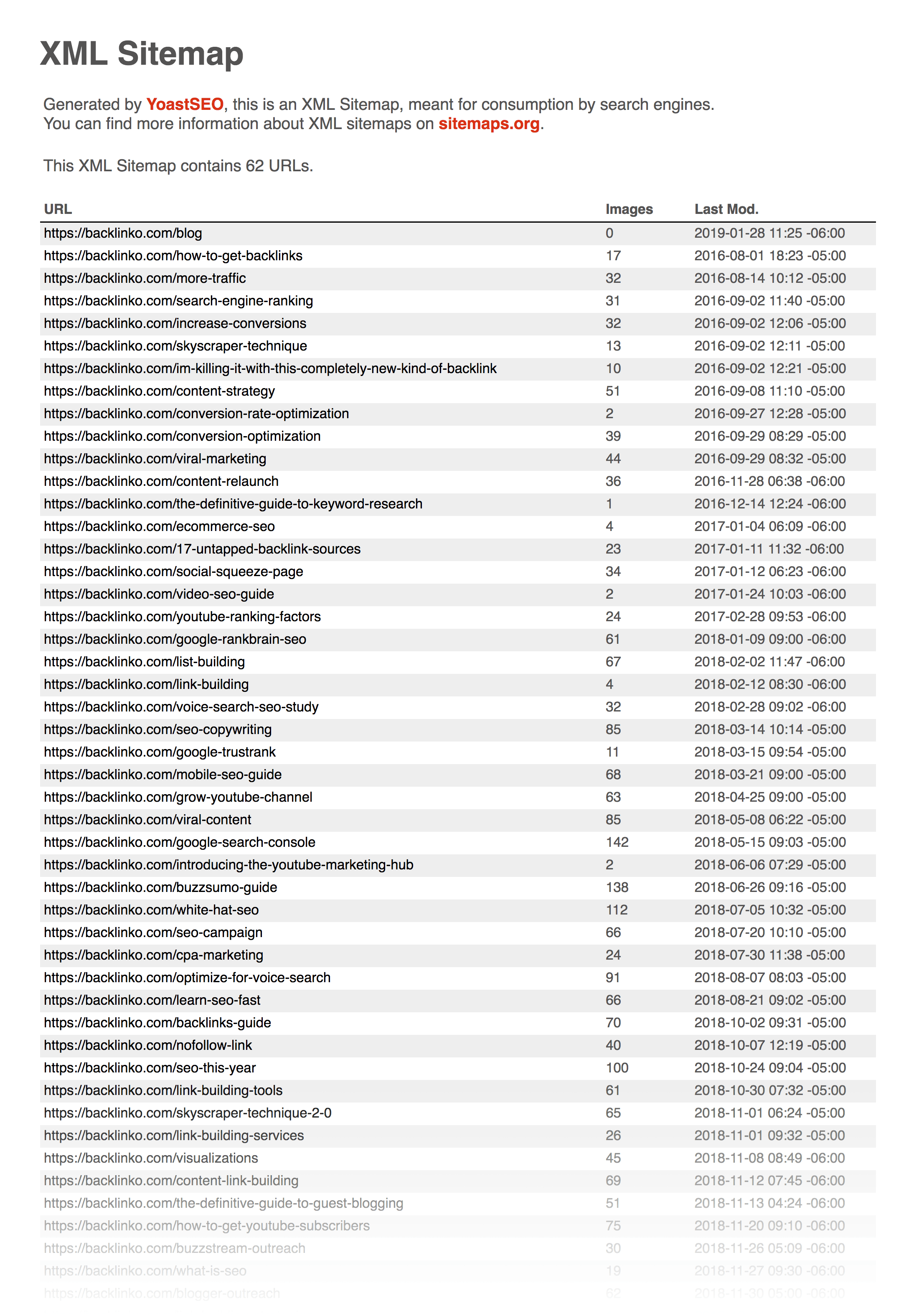
if everything looks good,to submit your sitemap to Google。
How to submit and review a sitemap to Google
Submit your sitemap to Google
Submit sitemap login information to yourGoogle Search Consoleaccount。
Then,Go to Index → Sitemap in the sidebar。

If you have already submitted a sitemap,You will see a list of Submitted Sitemaps on this page:

either way,To submit a sitemap,Please enter the URL of your sitemap in this field:

and click "Submit"。

If everything is set up,You will start to see information about sitemaps under the "Submitted Sitemaps" section of this page:

Use sitemap reports to find errors
Once Google has crawled your sitemap,Click it under "Submitted Sitemaps":

If you see "Sitemap Index Processed Successfully",then Google has successfully crawled your sitemap。

You can also click the small bar chart icon to go to your sitemap's coverage report:

This report shows you how many URLs Google found in your sitemap...and how many of those pages ended up in the Google index:

For example,You can see that my sitemap contains links to 116 links to web pages。 109 is "valid",6 are "excluded"。

I can obviously ignore valid pages。
But I do want to see all "exclude" pages,look what happened。
It turns out,This in my sitemap 6 URLs received a "Duplicate,The submitted URL was not selected as canonical" message。

When I look at the URL,I found these pages that I never wanted indexed in the first place。

So I should remove them from my sitemap。
Use sitemaps to find indexing issues
One of the great benefits of using a sitemap is that it can give you a rough estimate of:
- How many pages do you want indexed
- How many pages are indexed
For example,Let's say your sitemap links to 5,000 pages。
But when you look at Google Search Console,Your website only has 2,000 indexed pages。
This is a sign that something is wrong。this 5,000 There may be a large number ofDuplicate content。therefore,Google 并未将所有这些内容编入索引。
或者您网站上的页面数量可能超出您的Crawl budget。
网站地图专业提示
网站很大?将内容分解为更小的站点地图:sitemap限制为 50k 个网址。therefore,如果您运行的网站包含大量页面,Google 建议将您的站点地图分成几个较小的站点地图。
注意日期:站点地图中的网址都有一个与之关联的“上次修改”日期。

我建议仅当您对网站进行重大更改(或向网站添加新内容)时才更改这些日期。otherwise,Google 会警告更新未更改的网页上的日期可能会被视为垃圾邮件策略。
不要担心视频站点地图: 视频架构已在很大程度上取代了对视频站点地图的需求。视频站点地图绝对不会损害您的页面获取视频丰富摘要的能力。但这通常不值得这么麻烦。
保持在 50MB 以下:Google 和 Bing 都允许站点地图最大 50MB。therefore,只要您的大小低于 50MB,就可以了。
HTML sitemap: 这基本上相当于 XML 站点地图……但对于用户而言。

您不一定需要这些,因为 Google 和其他搜索引擎现在依赖于您的 XML 站点地图。但如果您认为它们对人类访问者有用,那么 HTML 站点地图可能不会损害您的 SEO 工作。
优化站点地图的技巧
- 使用 XML 文件构建内部链接和外部 URL
XML 文件是一个 URL 列表,将爬行机器人引导至内容以及网站上的路径。therefore,在站点地图中使用内部和外部链接可以让网络爬虫了解网站上哪些内容被认为是重要的,并有助于减少孤立页面的出现。这种清晰度提高了 SEO 的整体健康状况,这对排名来说是个好兆头!
笔记
XML 站点地图不能保证网页的索引,但可以提高可索引的机会。
- 保持根目录干净有序
根目录存储域上的其他文件夹和文件,即,它是形成网站的所有文件和目录的中心位置。所有 Web 请求都从根目录开始。
假设,将站点地图包含在根目录之外是无害的,但这违反了既定的协议。站点地图的位置决定了它可以容纳的文件。我认为,当 sitemap.xml 不在根目录中时,搜索引擎不会太在意。
避免多个文件堵塞根目录,因为这会影响网站的响应能力。
- 在站点地图页面 URL 中包含所有网页
as mentioned above,站点地图充当 Google 机器人的路径;将它们带到网站上的所有网页,即使内部链接不太好。将所有网页包含在站点地图文件中可以增强网站和搜索引擎之间的通信。
常见问题解答
我需要站点地图吗?
Generally speaking,Google 本身在互联网上查找网页方面做得相当不错,但正如我们上面建立的那样,站点地图可以帮助提高您的 SEO a>——对于某些站点而言比其他站点更多。according toGoogle 的说法,如果出现以下情况,您需要站点地图:
- 您有一个大型(500 多个页面)网站。 数千个网页意味着 Google 抓取工具更有可能忽略新的或更新的网页。
- 您缺少内部链接。 又名大量孤立页面。
- 您的网站是新网站或几乎没有反向链接。 因为网络爬虫通过跟踪从一个网站到另一个网站的链接来发现网站页面。
- 您拥有大量富媒体。又名您想要在搜索结果中显示的图像、视频或新闻页面。
网站地图会影响SEO吗?
Yes。站点地图列出了网站上的所有优先页面,以指导搜索引擎抓取和可索引性。这提高了网站的排名,使其对大量互联网用户可见,从而对 SEO 工作起到了补充作用。
站点地图的目的是什么?
站点地图是您网站的蓝图,Can help search engines find、抓取和索引您网站的所有内容。A sitemap also tells search engines which pages on your site are the most important。