Create a contact form using Elementor
Creating a contact form using Elementor can be achieved by using the form widget in Elementor Pro。Just drag the form widget from the editor panel to your page,Then use the controls to create beautiful and responsive forms on your website。
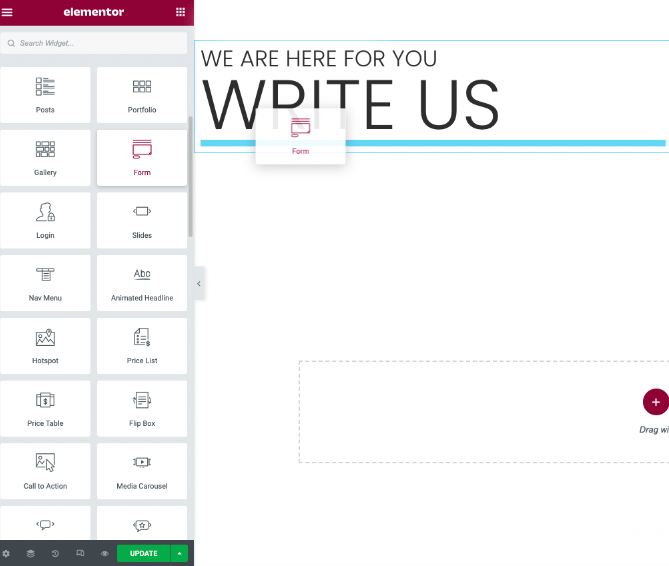
Edit your form
In the editor panel,You can create and edit all fields you wish to capture in your form。Form widgets support most popular field types,For example text、text area、single button、selectors etc.。If needed,These fields can also be made required。
You can style your form to use fields on the same row by setting the column width layout。
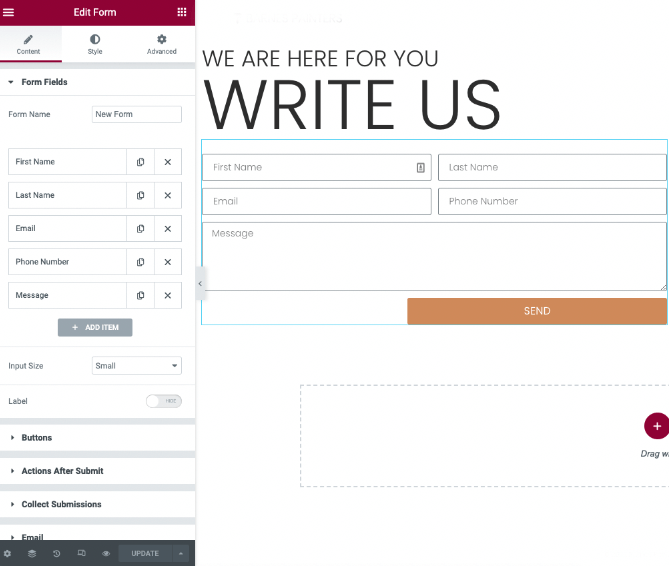
Form content content settings

Form Fields
This section of the Elementor form widget allows you to add and manage each form field that will be included in the form。Instead of adding content manually,Many options also use dynamic tags。These tags allow you to retrieve WordPress data,Or retrieve data from plugin sources (such as advanced custom fields) or WooCommerce products。Items that are able to use dynamic data will have a "stack" icon next to the field input。
form name– Name the form。
form fields– List of fields in the form。You can copy as needed、Add or remove fields。You can drag and drop to change their order。
Click a field to view its settings。
- type– Select the field type you want
- Labellabel – the name of the field,Appears on forms and emails you receive from users。
- Placeholderplaceholder – the front-end display name of the field。
- Required– Turn it on to make the field required。
- column width– Allows you to set the width of the field。If you want a table with two fields in a row – Set each field to 50%。
Field Type

- text– A simple text field。i.e. name
- e-mail– Email type。Includes email verification
- text area– Text area type。You can set the number of rows
- URL – Website URL field
- Tel – Phone number type
- radioradio – radio type。Single choice。You can slide inline lists for horizontal styling
- choose- Choose a type。Options drop-down list。Can be set to multiple selections。
- checkbox– Checkbox type。Check one or more options。You can slide inline lists for horizontal styling。
- accept– Add terms checkbox for user to accept
- Number – Numeric type
- date– Add date picker field
- time– Add time picker field
- File Upload– Allow your users to upload files
- password– Add password field
- HTML – Add HTML fields
- hide– Add hidden fields。Hidden from users,But visible to administrators
- reCAPTCHA – Add reCAPTCHA。reCAPTCHA verifies the user is not a robot
- honey jarHoneypot- Add a honeypot to your form(emphasis)。Honeypot is a hidden field,Designed to serve as a bait for spam bots who fill out forms。This field is not visible to humans,so they won't fill it out。Because the robot cannot tell that the field is hidden,so it will fill it in。If the honeypot field is not empty when submitting,then the form is obviously a spam submission filled by a bot,will be automatically rejected。
submit button button
- size– Set the size of the submit button
- column width – Set the width of the button
- Alignment——Set alignment
step button
- Next step:Enter the text you want to display
- Previous:Enter the text you want to display
submit button
- submit:Select the text that appears on the Submit button
- icon– Add an icon from the Font Awesome icon list or upload a custom SVG
- Button ID:Assign an ID to the button by entering a value in the field
Action after submit
After the user submits the form,Then what?
A common question for first-time form designers is:“I have set up the Elementor form,But nothing happens after submitting。Why?”
The answer is usually:“You haven't set up a post-submit action yet。”
After submitting the Elementor form,You will need to perform one or more actions,Each operation requires a small amount of setup。Some common operations include:
- Email form results to one or more email addresses。
- Redirect user to "Thank you" page。
- Add subscriber information to a newsletter autoresponder service
- Add user information to CRM
- Send form data to a Slack or Discord channel
- Open or close pop-ups。
Elementor form actions give you powerful options。You can connect the 3 third-party services (such as Mailchimp、Drip、Hubspot、Slack or Convertkit) to process form information。Elementor has these and several other service integrations built-in,But you're not limited to just connecting using the built-in integrations。Your forms can also connect with services like Zapier via webhook actions。Zapier connects to 1000 Many other services,and act as a bridge between your forms and these services。Read a detailed guide on using Elementor with Zapier here。
Detailed explanation of operations after submission
Add a new action by clicking inside the Add action field。This will display a list of available actions to choose from。
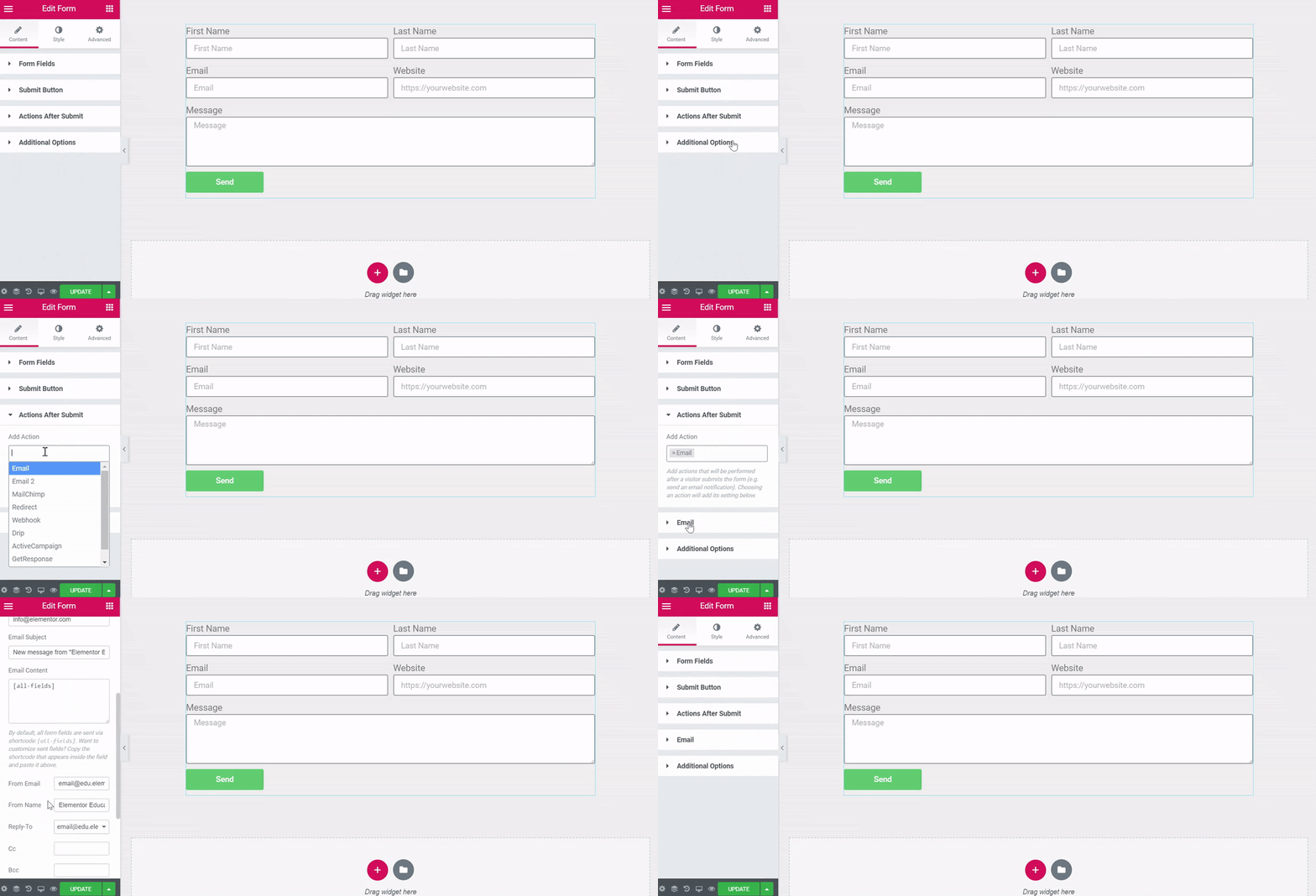
Email results
Select email action。This will add an email tab。
Click on the Email tab to open its options。
- recipient:The email address to which form submission results will be sent。Add additional email addresses separated by commas。
- Email subject:The subject of the email
- Email content:The body of the email。by default,All form fields are sent via shortcodes:[all-fields]。Want to customize which fields are sent? Copy the shortcode shown in the field you want to send and paste it here。
- Sender email:"From" email address
- Sender's name:"Sender" name
- Reply-To:Email address to send reply to
- CC: Cc email address
- BCC:Bcc email address
- metadata:Includes available metadata by default。Click the "x" on each to remove anything you don't want included in the email。
- sending method:Choose a format for sending emails,HTML or plain text
Send a confirmation email to the user who submitted the form (emphasis added)
Configure email 2
Email 2very useful。For example,It could be a confirmation email that visitors to your site receive immediately after sending a form on your site。
To create an email,Please follow the same process as the email above。
Notice:In the "To" field,You should enter the shortcode in the email field advanced tab[field id="email"]。
hint:You can use the submitter's name ( ‘Howdy [field id="name"]’) to personalize your confirmation email。
Here is an example of how to build the entire email content using HTML1:
<p>
     <p>You got a new message!</p>
</p>
<p>
     <p>Username: [field id="name"]<br />
</p>
<p>
     <p>Email:  [field id="email"]<br />
</p>
<p>
     <p>Phone:  [field id="tel"]<br />
</p>
<p>
     <p>Message: [field id="message"]</p>
</p>
<p>
     <p>Don’t forget to call them back soon 🙂 </p>
</p>
HTML example 2
<h1>You have a new wedding to plan.</h1>
<p>[field id=”first_name”] would like you to contact them about planning their wedding on [field id=”eventdate”] at [field id=”location”].</p>
<p>The couples vision and plans so far are as follows:<br>
[field id=”message”] </p>
<h2>Contact Information</h2>
<ul>
<li>First Name: [field id=”name”]</li>
<li>Last Name: [field id=”last_name”] </li>
<li>Email Address: [field id=”email”] </li>
<li>Phone Number: [field id=”phone”]</li>
</ul>
<p><strong>Good luck at the event!</strong></p>
Notice:Only shortcodes located in the Advanced tab of the form field widget can be used。You cannot use the shortcode anywhere else here。Adding other shortcodes from other plugins or elsewhere will result in server error messages。The shortcode needs to be written exactly as shown in the Advanced tab of the form field。
Add template to form
Now,We can add this HTML to the form using the email option in the control。Paste the HTML into the message field,replace [all-fields] default value。Make sure the "Send as HTML" option is enabled near the bottom of the control。
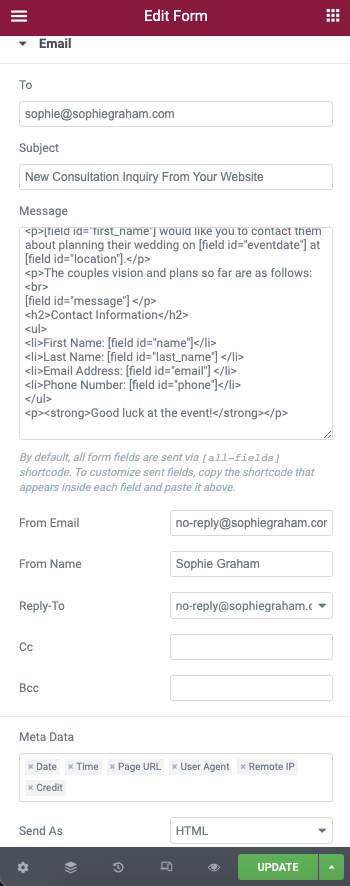
important! Only shortcodes located in the Advanced tab of the form field widget can be used。You cannot use the shortcode anywhere else here。Adding other shortcodes from other plugins or elsewhere will result in server error messages。The shortcode needs to be written exactly as shown in the Advanced tab of the form field,but there is one exception。If the shortcode format in the Advanced tab is [field id=email],you must enclose the field name in quotes,So you need to [field id=email] change to[field id="email"]。
Redirect to thank you page
Select redirect action。This will add a "Redirect" tab。
Click on the Redirect tab to open its options。
- redirect to:Enter the URL of the page that will redirect the user after form submission.。
Add subscribers to a newsletter email marketing service or add user information to a CRM
Choose any third-party service。This will add a new tab to the service。
Click the tab of the selected service to open its options。
- API key:Enter the API key for your selected service here。You must first set the API credentials in the integration settings。You can also set different API credentials by selecting Custom。
- List/Account:Select a list or account to send form information to。
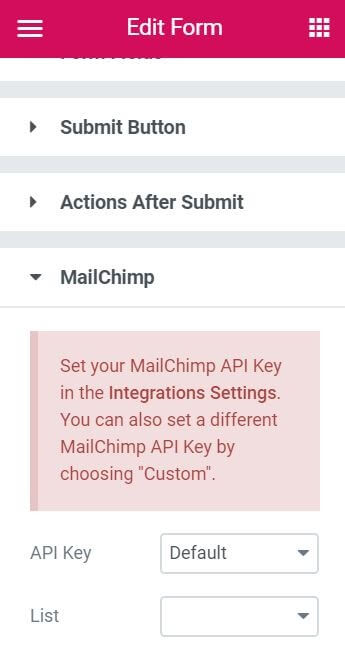
Use Zapier to connect your forms to any of thousands of other services
Select a webhook action。
Click on the Webhook tab to open its options。
- Webhook URL:Enter the integration URL that will receive the form submission data (such as Zapier)。
- Advanced Data:Slide to YES to send advanced data to the webhook,This will include date and time、Metadata such as remote IP。It will also send the data as an array,For example:[ ‘Name’ => ‘ John Doe', ‘Email’ => ‘ john@doe.com ‘, ‘Message’ => 'Please contact me’ ]If Advanced Data is set to NO,The data will be sent in Simple form,i.e. sending the form sends the fields as text messages to the webhook,For example:"Name:John Doe,e-mail:john@doe.com,information:Please contact me。”
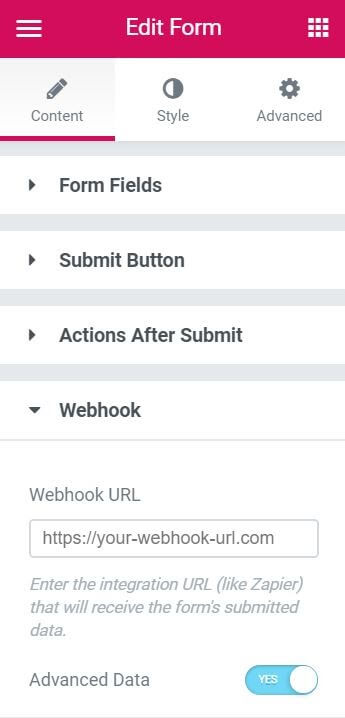
Send form data to a Slack channel
Select a Slack action。This will add a new Slack tab。
Click on Slack to open its options。
For more details,SeeSlack integration documentation。
Open or close pop-ups
Pop-ups can be opened or closed after submitting the form。
Select popup action。This will add a popup tab。
Click on the popup to open its options
- choose"Open pop-up window"to select the popup that will open after submitting the form。Enter one or more characters to generate a drop-down selection of available pop-up options to choose from。
- chooseClose popup windowThe current pop-up window can be closed after the form is submitted.。You can also set the popup toDon’t Show Again。
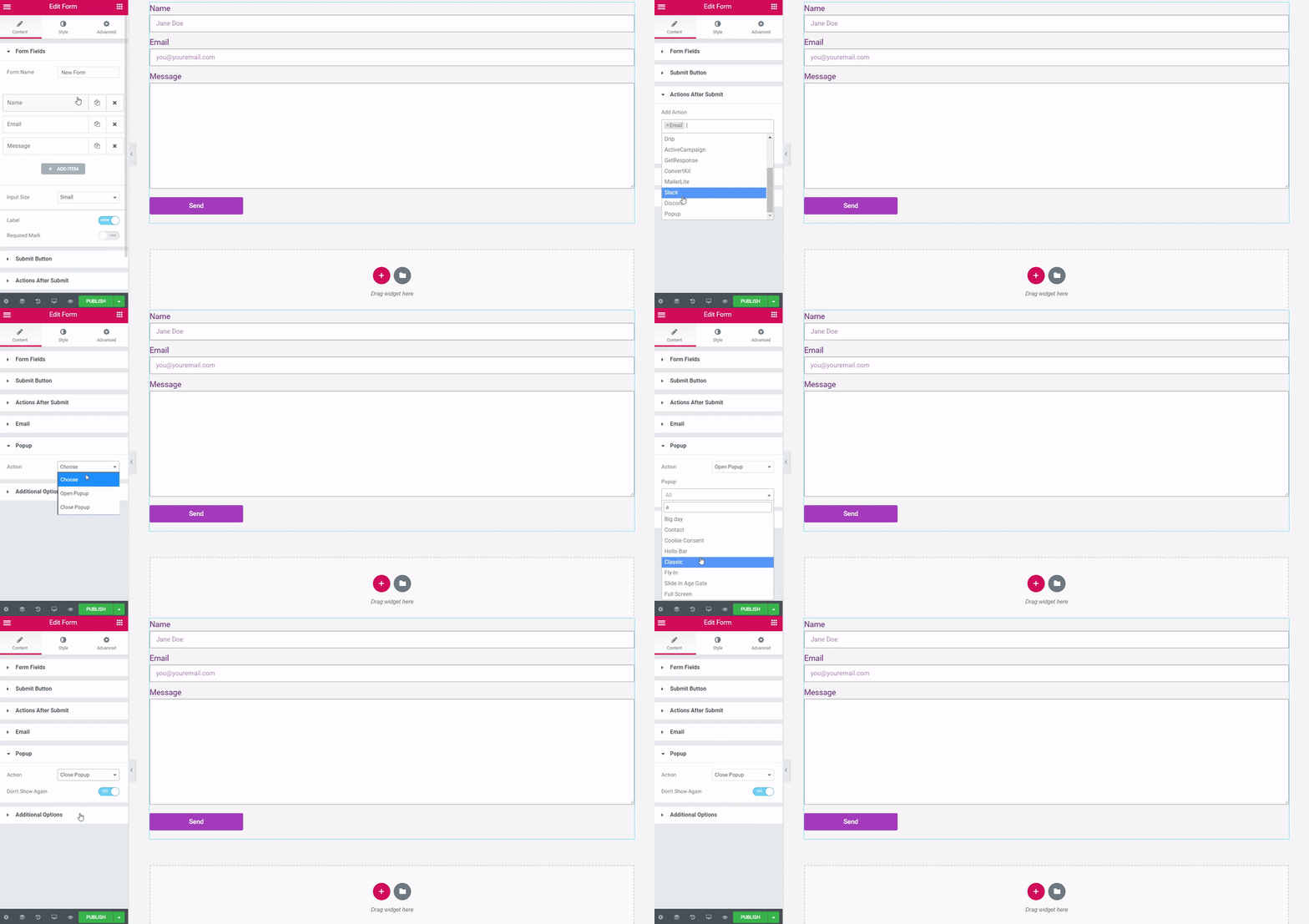
Form email settings
Form widget email settings allow you to specify where the form is sent to and customize the data sent。
In addition to manually adding the form's email settings,These options also useDynamic tags。These tags allow you to retrieve WordPress data,or retrieve data from plugin sources such as advanced custom fields。Items that are able to use dynamic data will have a "stack" icon next to the field input。
set up
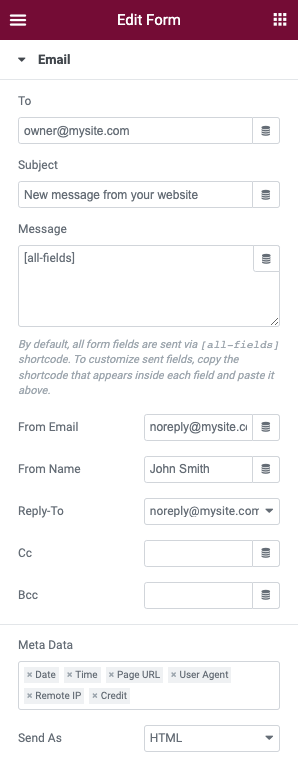
- To recipient:Enter the email addresses of the recipients of the form (separate the two with commas)
- Subject theme:Enter the text you want to appear in the email subject
- Message information:Here you can useform fieldsshortcode to create a form to send a message。The "All fields" option is used by default。Learn how to create a custom message for your form in this tutorial
- From Email Sender email:Enter the sender address or use norepy@
- From Name Sender's name:Enter the name you want to appear in emails、Position or company
- Reply To reply:Enter the sender address or use norepy@
- Cc CC:Enter the email addresses of the recipients you want to copy (CC)
- Bcc BCC:Enter the email addresses of the recipients you want to blind copy (blcc)
- Meta Data metadata:Here you can add or remove additional metadata that appears at the bottom of the form。Show all options by default
- Send As Send as:in drop down list,Choose whether to send the form as HTML or plain text。
Multi-step form settingSteps setting
Multi-step forms allow you to create forms with multiple steps,so that the user can fill in some fields,Click "Next",Fill in some more fields,Click "Next" or "Previous" etc.,until the last step is completed,You can now submit the form。
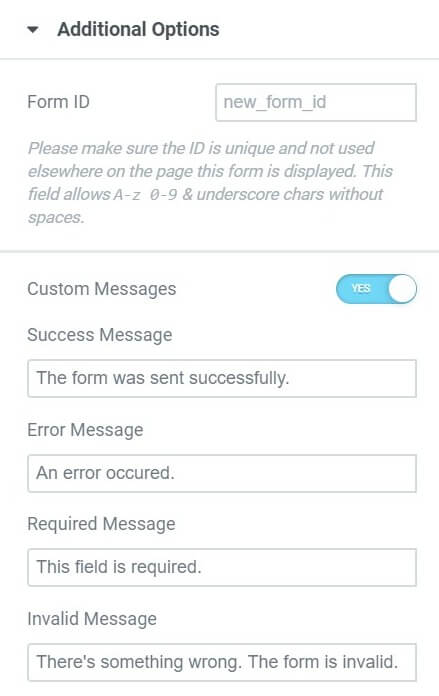
Additional options – tables
- Form ID – Set form ID。
- Custom message– Slide"custom message"button to customize the message in the form (e.g. success message、error messages, etc.)。
Notice:Custom messageNot a standard message provided by the server。Standard server messages cannot be controlled or customized。Users rarely see these custom messages。When there is a server conflict that prevents the form from being sent,Custom messages may sometimes be generated。Please also note,Custom messages are fallback messages for when the browser does not display its own errors。
Form Style

Form form style
- column gap – Set space between columns
- line gap – Set the spacing between lines
- Label– Set label spacing、Label color and layout。
- HTML fields – Set the spacing of HTML fields on the form (if present)、Color and typography。

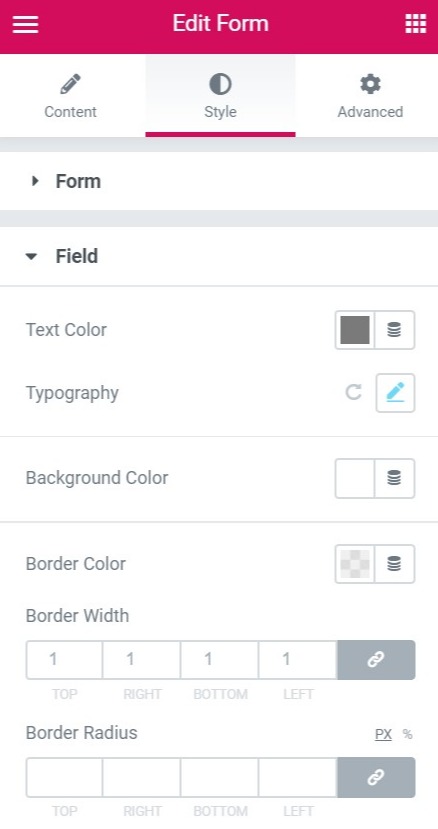
Form style Field settings
You can easily set the color of form fields、Font and border styles
- text color– Set the color of the input text (text filled in by the user)
- format– Set the format of input text
- background color– Set the background color of the field
- border color– Set the border color of the field
- border width– Set the width of the field border
- border radius– Set the radius of the border
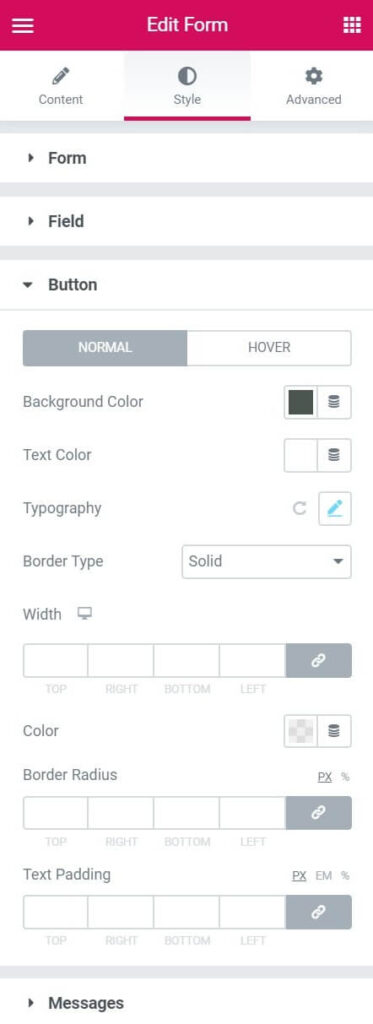
form button button style
You can set the submit buttonnormalandHover state style。
- background color – Set background color
- text color – Set text color
- format– Set the format of the text
- Border type – Choose between different border styles。
- border width – If borders are set,Then set the width of the field border
- border color – Set the border color of the field
- border radius – Set the radius of the border
- text padding – Set the padding of text
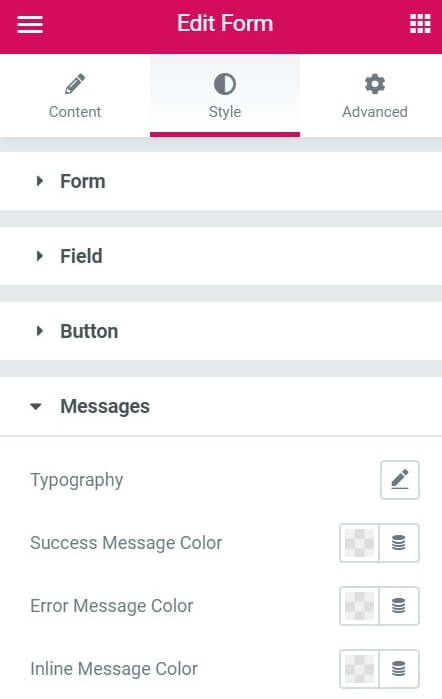
Form message messages styles
You can style the message displayed to the user after submitting the form。
- format:Set the layout of message text。
- success message color:Choose color for success message
- error message color:Choose color for error messages。
- Inline message color:Choose color for inline messages。
Form Submissions form submission
With Elementor form submission feature,You can backup your form submission data、Access anytime and manage all your data from one place。With your submission information,You can collect insights、Analyze activity data,Or just manage your submissions in your WordPress dashboard。
Notice:this is an experiment。Make sure toElementor >set up>experimentOpen it under the tab。
- Create a new page or edit an existing page,then click"Editing with Elementor"
- Drag the form widget to your page
- by default,"Post-submission actions"Some include"Collect Submissions"Options

- To view collected submissions,Please go toElementor >Submit content

- Click to view、edit、Remove any form submissions and "mark them as read"


Notice:This doesn't work with old forms,To enable this feature,Just add this under "Actions after submission"
Export submissions
You can export your submission via:Page name、form name、time range and all。click"Export all to CSV"to export the submissions of your choice。
Got a server error or form not sending email?
How to Fix WordPress Unable to Send Email from Form and “Server Error” Issues。。
first,Run tests on your WordPress site,See if it can send email。
To confirm email deliverability,You can use any SMTP plugin and choose a different SMTP server (e.g. SendGrid) to check if it is delivered correctly。If it works fine with other protocols and shows default SMTP error,then it needs to be reported to escrow。
Why is this server error occurring?
Elementor uses WordPress’s wp_mail function to send emails。Your web host receives sent email,Process it and send it。90%All problems occur here。
sometimes,Hosting server disables PHP functionality for sending emails。They basically block your email。
This is usually done to ensure that you don't send spam through your site (your host doesn't want you to use their server as a spam server)。
Technically – the wp_mail function uses the PHP send_mail function by default。But if you disable it on that server,The email failed to be sent。To resolve this issue,Please contact your hosting service and ask them to enable it,Or use an SMTP server instead。
What exactly is SMTP?
SMTP stands for "Simple Mail Transfer Protocol"。SMTP is an email server,It routes emails from the form to the inbox of the listed customer。It is an external email server (e.g.,Gmail can be used as an SMTP server),Helps ensure your emails arrive faster,and helps prevent your emails from ending up in users' spam folders。
Try using any popular SMTP plugin ( https://wordpress.org/plugins/search/SMTP/ )。
More troubleshooting tips for server errors
In addition to contacting your hosting provider,You can also try the following few steps to resolve this issue:
- The form's sender email address usually needs to be from the same domain as your website。therefore,If your website is example.com,Then you need to use the sender email address like admin@example.com or bob@example.com。You can use the reply field to select the visitor's email address to reply to as per the user's request.。
- you can use itElementor form submissionFunction to check if the form is functioning properly。
- Use a different email address (your email may be registered as spam)。To avoid being marked as spam,Try changing the length of your email subject line (shorter or longer)。
- If you are using any third party integration,Please try disabling them。For example,MailChimp or ActiveCampaign。if this succeeds,Read more in our integration guide。basically,You have to check the field mapping inside the autoresponder account and form widget。Make sure you don't set required fields to "None" in the form widget。Also make sure you don't add an "Address" field or a "Birthday" field in your MailChimp account's field mapping settings
- If the page refreshes after submitting the form,Usually due to plugin or theme code conflicts。in this case,Please deactivate all plugins except Elementor and Elementor Pro,and check if the email was sent correctly。if this doesn't work,Please switch to WordPress's default theme and check if that resolves the issue。
- Make sure the form field's ID (in the field's Advanced tab) is populated;If there is no valid field ID,If using "[all-fields]"short code,then the form field values will not be visible in the email sent to the recipients of the submission。

- Make sure you use the correct shortcode for each field in your email box,As shown in the Advanced tab。

Advanced settings

Layout settings
- margin– Set the margins of the form
- filling– Set up form filling
- Z-Index – Set the Z-index of the form
- CSS ID – Set form ID
- CSS classes– Set form class
Motion EffectsMotion Effects
Movement effect It is a set of powerful controls,For adding beautiful transitions and animations to your designs。
so far,Web designers who want to incorporate animation and motion effects will need to use external libraries and/or custom code。
Scrolling EffectScrolling Effect

when user scrolls the page,useScroll effects create stunning animations and interactions。The following is a list of scrolling effects:
Vertical ScrollVertical Scroll

This is the classic parallax effect you've been waiting for。Vertical scrolling causes elements to move at a different speed than the page as they scroll,In the direction and speed of your choice。
Horizontal ScrollHorizontal Scroll

Horizontal scrolling means when a visitor scrolls up and down,Elements move left and right accordingly。Usage example – when a visitor scrolls down,The part with the clouds will move to the right。
Transparency

Transparency lets you gradually make an element more transparent or more visible,Relevant to visitor's scrolling。An example would be a title that appears and then disappears based on the scroll。
There are 4 possible effect directions:
fade in --means the element starts out transparent,then gradually becomes visible。
fade out – The element is initially visible,then gradually become transparent。
fade out – Element is visible at first,then fade out,then become visible again。
fade in and fade out – Element starts out transparent,then become visible,then transparent again。
Blur

This setting is similar to transparency,Just the element becomes blurry instead of transparent。A good example is a background image,Only gets the correct focus when the user scrolls down。
Rotate
it's here,Elements rotate as you scroll。The rotation of the star in the image below is a good example of this:

Notice: X and Y anchor pointsThese two settings determine the axis around which the element is scaled or rotated.。If you set the direction to top left,then the rotation will be around the upper left corner of the element。If the direction is set to center-center,then the rotation will be about its center,like a wheel。This setting only works with the "Rotate"Effects as well as those listed below"Zoom"Effect related。
ScaleScale

ZoomAllows you to zoom in and out of elements based on scrolling。Example:Background that gets bigger when scrolling。
Notice:use"Apply the effect to” to determine whether to apply motion effects to mobile devices、On your desktop or tablet。Mouse effects only affect desktop devices。
Mouse EffectsMouse Effects
Mouse TrackMouse Track
By making the element move as the visitor moves the mouse,create a sense of depth。

33D Tilt
Similar to how mouse trails move elements relative to mouse movement,3D The tilt effect tilts elements based on the same movement of the cursor。

Motion effects browser compatibility
| chrome | Firefox browser | Safari | opera | Edge | Internet Explorer |
| supported | supported | supported | supported | supported * | not support |
form backgroundform background
You can set the form background"normal"andStyle for "hover" state。
- background type– Choose between classic and gradient
- color– Set color
- picture– Upload background image
- Location– Background image position options
- appendix– Choose scrolling or fixed
- repeat– Set image repeat attributes
- size– Set size of image background
Form border Form border
You can set the form border"normal"andStyle for "hover" state。
- Border type– Choose different border styles
- width– Set the width of the form border
- color– Set the color of the form border
- border radius– Set the radius of the border
- Box Shadow – Set a shadow for the form
Overview of form error message collections
Form Error Message – X Error
When filling out a form on your website,You may encounter the following error message:'x' error。
When some field IDs are empty,This error may occur
Please open form settings,Select each field,Then switch to the "Advanced" tab。If you findIDOptions are empty,Please try entering a value (this must be a unique ID value not used anywhere else in the form)。

form error message – This error is not visible to site visitors
When filling out a form on your website,You may encounter the following error message:“This Error Is Not Visible For Site Visitors. This error is not visible to site visitors。”
When there is an issue with field mapping between Elementor and MailChimp,This error usually pops up:
Form error message – Invalid form
When filling out a form on your website,You may encounter the following error message:““an error occurred” / “there is something wrong the form is invalid. An error occurred"/"A problem occurred,Invalid form。”
When some field IDs are empty,This usually happens。
Please open form settings,Select each field,Then switch to the "Advanced" tab。If you findIDOptions are empty,Please try entering a value (it must be a unique ID value not used anywhere else in the form)。
Other potential causes:
– Both fields have the same ID。
– Integration not working properly。To confirm this,You can cancel integration with email marketing services。
– Field mapping for integration has not been completed correctly。