
How to buy siteground hosting
Choose a package
First open the siteground official website to purchase

We choose the $5.95/month package,The advantage of this package is that multiple websites can be placed,Leave room for new website development later,Click get plan to proceed to the next step
Fill in the domain name

Siteground itself can purchase domain names,But I believe many people already have domain names,If you want to buy a domain name,It is recommended not to buy from siteground,Can be recommended before menamecheapBuy domain name on,So in the picture above we choose the second one "I already have a domain",Then fill in your domain name,keep moving
Fill in basic information

Basic information: Here we need to fill in the account and password that the user will log in to later and the country map purchased.,It is recommended to use gmail hotmail for email,Conveniently and quickly receive email,It is also recommended to use a common email address,In the future, you can check the follow-up fee and other information in time,I have many cases where the website was closed due to forgetting to renew.,They are all lessons of blood and tears.
Purchase package confirmation

You can choose the country for the packages here,If you are an English site,It is recommended to choose USA first,Time selection: 36 months,Because the renewal fee for the second year is higher than the price of $5.95,So if you buy it for 36 months, you can save a little bit.
As for the sg site scanner in extra services,No need to buy yet,This is used to scan website viruses,Maybe buy it later,Of course, the rich are free to do so

Then just check the box to confirm payment.

When you jump to this page, it means your purchase is successful.,Remember to open your email and there will be a confirmation message.。
How to install WordPress on siteground
Create a new website
After entering the siteground background,Click on the navigationWebsites,All future websites will appear here,Let's click on the orange oneNew WebsiteClick the button to create a new website:

Add domain name
The screen after clicking is to add a new website.,There are three tab options,Generally choose the Existing Domain in the middle,This means we want to add the domain name we have purchased,Siteground allows you to purchase domain names,But I think it's a bit expensive,buy elsewhere,Save some money haha。
Then we fill in our own domain name:

After clicking Continue, a piece of text will appear:
The domain you wish to use is not registered in your SiteGround account. You should make sure that you have access to this domain in order to update its DNS settings after your site is created, or your site won’t open. To proceed with this domain, click CONTINUE again.
Do not care,Click Continue
Install WordPress
At this point you can finally install WordPress,There are two options,As a newbie, choose the first oneStart New Website,Then select WordPress

Then an input box appears,Enter your website login account and password,Remember this account password,It is necessary to log in to the backend of the website later.。

Then wait 2 minutes,WordPress is set up

Bind domain name
After installing the website,Go to the domain name backend to update the domain name DNS.,Only in this way can the website be bound:

DNS resolution
first,Go to sg backend and find dns,Enter the Websites in the sg backend,Select Manage under the corresponding domain name。

Click to see DNS,Copy two DNS addresses,Go to the domain name backend to modify it。
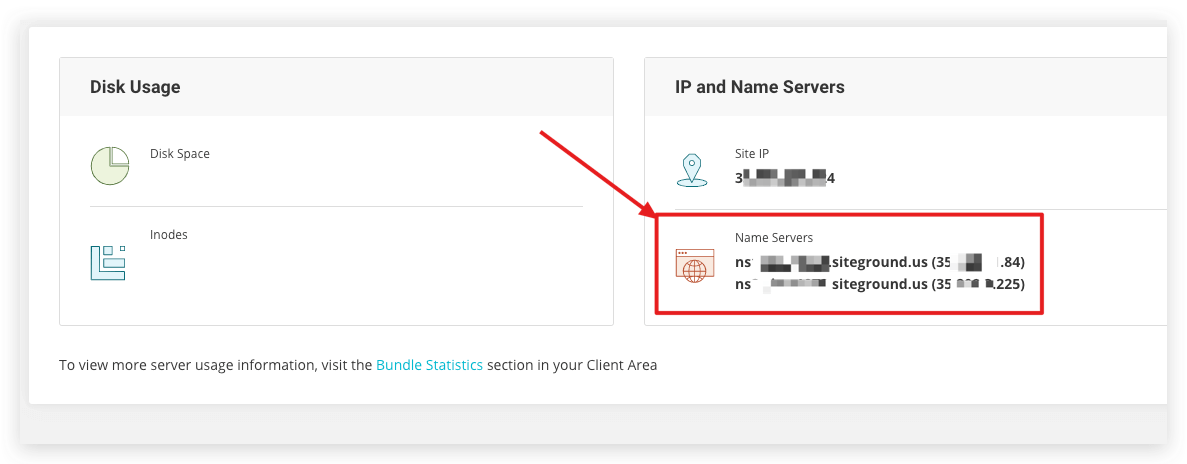
Domain name background modification DNS
Let’s take the Alibaba Cloud domain name as an example,Enter the Alibaba Cloud domain name backend,Click on domain name management:

then clickDNS modification,Modify the two DNS that were copied before,After modifying DNSIt can take anywhere from a few minutes to a few hours to take effect.。

Re-resolve the domain name in the siteground background
After our DNS change,The parsing previously added in Alibaba Cloud will become invalid.,include email、Subdomain names, etc. will all become invalid.。
Therefore, in order to restore normal access to the website’s email address and subdomain name as soon as possible,We need to quickly go to the domain name in the sg backend and re-add the resolution.。
Return to the URL background corresponding to sg,turn upDNS Zone Editor

Generally we only need to add the following three types,Let’s take adding an Alibaba Cloud mailbox as an example
- CNAME
- MX
- TXT
First add the email CNAME,But be careful,sg will come with its own email CNAME and MX records,Just delete it directly,As shown below,We add three CNAMEs,smtp,pop3 and imap

Then add three MX records,Leave Name blank,Priority is 5 respectively,10,15,The destinations are mx1.qiye.aliyun.com / mx2.qiye.aliyun.com / mx3.qiye.aliyun.com

Then add a TXT as shown in the figure:

If you are using another email service,It can also correspond to,Basically they are similar,For example, the mx record of Tencent corporate mailbox is as follows:

Check whether the mailbox is parsed successfully
After adding your email address,Use https://mxtoolbox.com/Check whether the email address is filled in correctly,The correct example is as follows:

Install SSL encryption certificate
Wait for the domain name to be changed to DNS,Next, we need to go to the space background to add some SSL.,SSL is https,Add a layer of security to your website。
Found in the SSL manager under background Security,Select SSL Select Let’s Encrypt,Click the GET button to install successfully

After successfully installing SSL,There will be a lock symbol in front of the URL

If the lock does not appear,Go to the background Https Enforce and click on the switch.,Go to the front desk and refresh and the display will appear.。
Log in to WordPress backend
Wait until the installation is complete,We are about to log into the backend of the website,Enter xxx.com/wp-admin in the browser to access the website:
After the WordPress logo appears,Enter your website login account and password,You can log in to the backend。

The above are all the tutorials for installing WordPress.。
Siteground moving
Install moving plug-in
First, we need to enter the WordPress website backend to install the super simple moving plug-in developed by Siteground.。
Click to install plugin

Enter in the keyword search boxSiteground Migrator

ClickInstall nowandenable

After activation,Found in the left column of the backgroundSG Migratorand click in

We can see the following page,At this time we have to go firstFind the password in SiteGround backend,Only by adding a password can we painlessly move the website to Siteground.。

Log in to the Siteground backend to find the moving password
In the previous step, we have installed the moving plug-in in the background of our wp website.,Then next we have to go to the sg backend that we have purchased to find the password.,If there is no password,The website can be moved anywhere,Isn’t all the data leaked?。
So where can I find this secret code?
Before looking for the password,I assume you bought a new sg host,The website is not yet bound to sg,So first bind the website domain name to sg first:
Add new website to Siteground
Enter the SiteGround backend,ClickNEW WEBSITE ➡️Add New Site Add new website

There are several options for entering the second step,do not be afraid,gun in hand,Come with me。
ClickExisting Domain,blank box belowEnter the URL you want to add,Then click the CONTINUE button to proceed to the next step

Click on the moving option
ClickMigrate WebsiteWebsite moving services,lower right cornerManual Transfer by our TeamYou can ask customer service to help you move for free.,But you need to wait 5 days,If you don't want to wait,You can directly select the one in the lower left cornerSuperfast WordPress AutomigrationMoving by yourself

Click the FINISH button

Next, wait for the website to be created

Get moving code
After the website is created,Moving codeJust come out,ClickcopyCopy it

Go back to the original website and add a password
Paste the moving password you just copied into the blank box,Then click the orange button INITIATE TRANSFER,The move will be carried out automatically!

need to wait for some time

Complete the move,Modify domain name server
After the move is completed, the following page will appear,We still need to modify it at this timeDomain Name Server (NS)。
Because we just told sg that we need to add the domain name,But we haven’t told the domain name yet that we are moving to sg.,Both parties must be notified,Just like the wedding ceremony only notifies the bride,Do you think the groom will hit you?。

Put the two NS in the lower right cornerCopy to your original host server,turn upName Server,Paste these two new sets of NS,The purpose is toPoint the original website IP to the new host location,After completing this operation, the entire moving process is over.。

SG Optimizer cache plug-in settings
Siteground officially claims that SG Optimizer contains all the features of WP Rocket,After installation, it can greatly improve the opening speed of WordPress website,Page load times will improve by 50% to 500%。
With the attitude of giving it a try,I did a speed test,The results are as follows。
On the premise that the website does not activate CDN,Just rely on this plugin,The loading speed of the Astra theme DEMO page can be increased from 1.5s to 754ms.。What's even more powerful is,GTmetrixThe website's rating can reach an astonishing 100 points。

Next, I will teach you how to set up the SG Optimizer cache plug-in.,Hope this helps friends who use SiteGround。
write in front,SG Optimizer is a free WordPress plugin,But it can only be used on SiteGround,Cannot be installed and used on other hosts,It’s also a way for SiteGround to give back to its more than 2 million users。
1. Install SG Optimizer

by default,SiteGround installs WordPress in one click,SG Optimizer will be installed automatically。If you accidentally delete,You can search for SG in the place where the WP backend WordPress plug-in is installed.,As shown below。
After the SG Optimizer plug-in is installed,There will be an additional option in the WP menu bar,As shown below。All setting options of SG Optimizer are operated here,Next, I will introduce to you one by one。

2. Supercacher Settings Supercacher Settings
The first thing to set up is dynamic cache and memory cache。Dynamic caching is the first position in the options bar,Just click to turn it on。Memory cache is automatically turned off by default,You need to go to the SiteGround backend to activate it first.,to open。

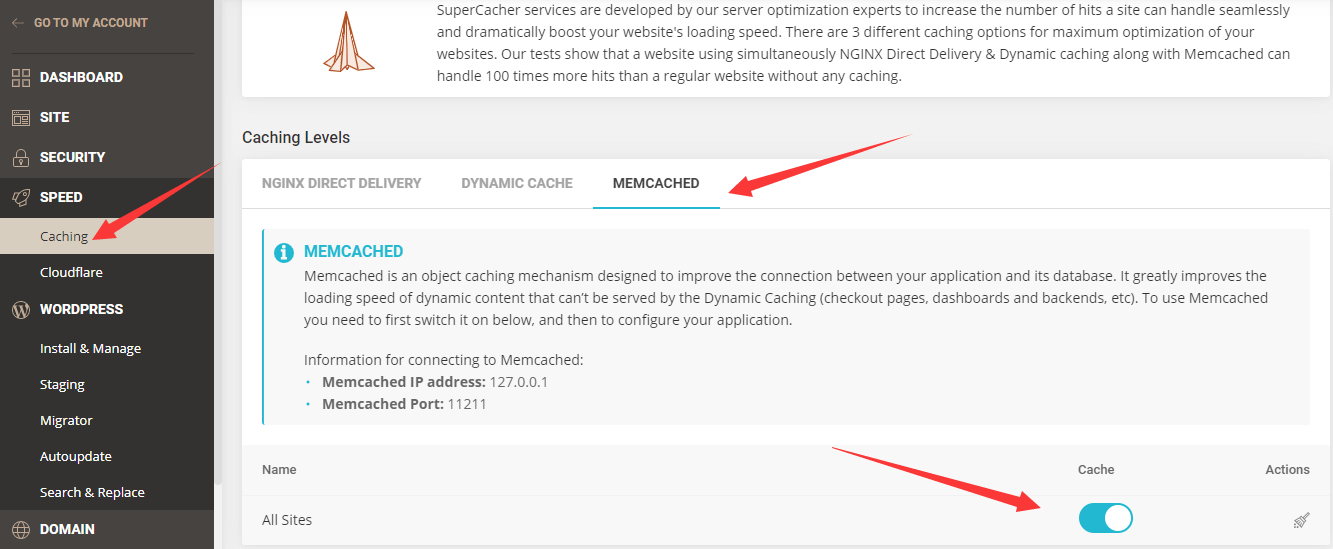
Enable memory cache,First, enter the SiteGround backend,In SPEED -> Find Memcached in the Caching column and click to turn it on,As shown below,Then return to SG Optimizer and click to turn on Memcached,As shown in FIG。
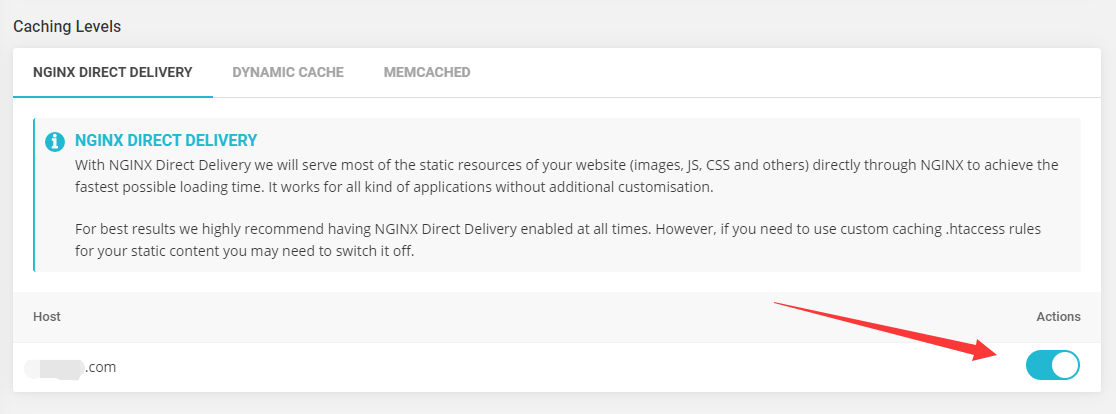
in addition,The static cache (NGINX DIRECT DELIVERY) in the three-tier caching mechanism can only be enabled in the SiteGround background.,There is no setting option in the SG Optimizer plug-in。
- Dynamic Caching:Dynamic caching (recommended to turn on)
- Manual Cache Purge:Clear dynamic cache manually
- Automatic Cache Purge:Automatically clear cache (recommended to turn on)
- Browser-Specific Caching:Generate caches for different browsers (recommended to turn off)
- Exclude Post Types:Exclude post types (no setup required)
- Excluding URLs:Exclude URLs (no setup required)
- Test URLs for Cache Status:Test whether dynamic caching has taken effect
- Memcached:Memory cache (recommended to turn on)
3. Environment Optimization Environment Optimization

- Enable HTTPS:Turn on HTTPS (recommended)
- Fix Insecure Content:Fix HTTPS display as unsafe (recommended to close,Turn it on again if a problem occurs)
- WordPress Heartbeat Optimization:Disable Heartbeat API (recommended to enable)
- DNS Pre-fetch for External Domains:DNS prefetching (needs based onPindomFill in the prompts for speed test results)
- Scheduled Database Maintenance:Database optimization (recommended to turn on)
- GZIP Compression:GZIP compression (enabled by default),No setup required)
- Browser Caching:Browser cache (enabled by default),No setup required)
4. Frontend Optimization Frontend Optimization
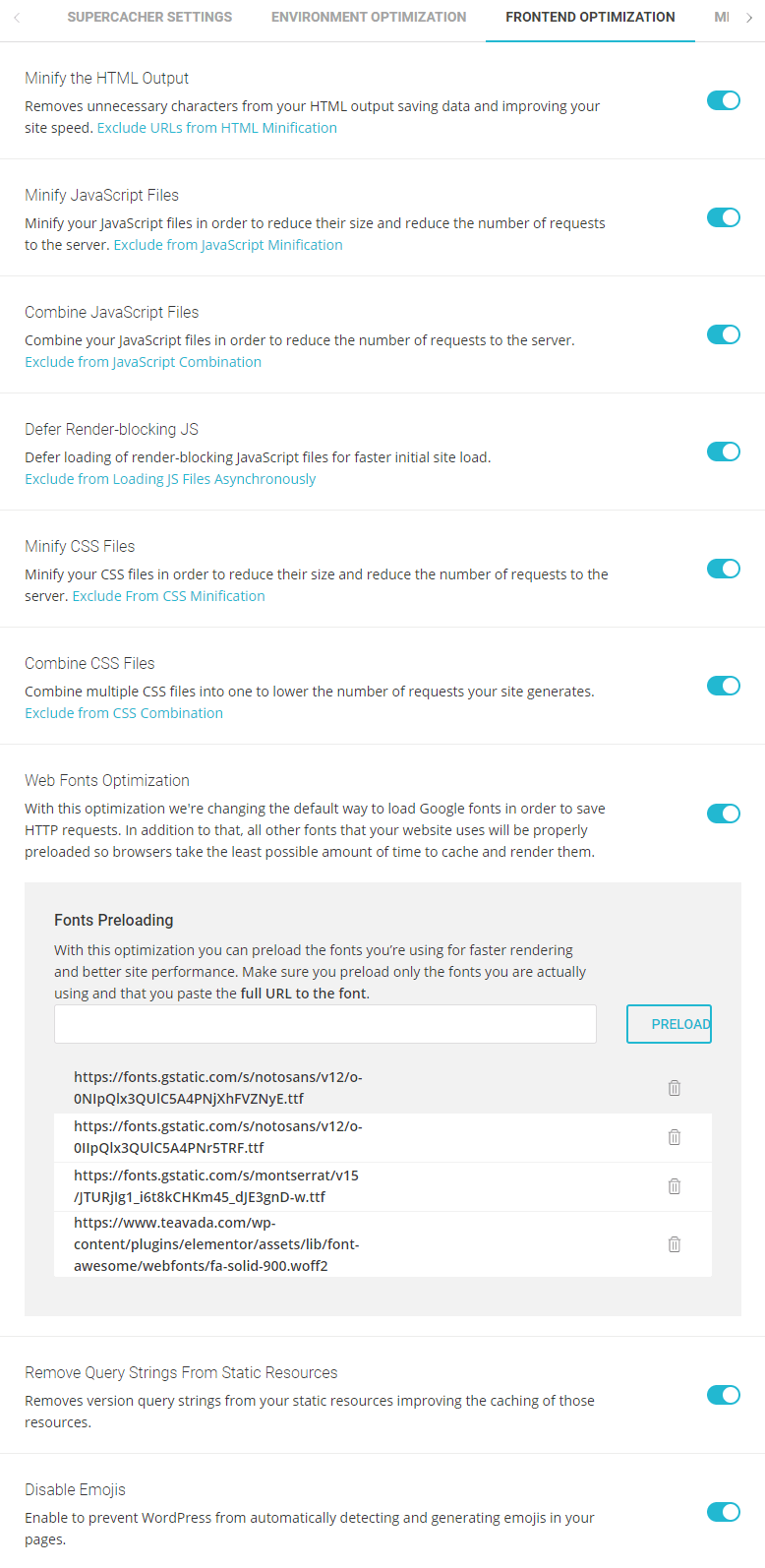
- Minify the HTML Output:Reduce HTML output (recommended to turn on)
- Minify JavaScript Files:Minify JavaScript files (recommended to turn on)
- Combine JavaScript Files:Merge JavaScript files (recommended to turn on)
- Defer Render-blocking JS:Delayed rendering blocks JS (recommended to turn on)
- Minify CSS Files:Reduce CSS files (recommended to turn on)
- Combine CSS Files:Merge CSS files (recommended to turn on)
- Web Fonts Optimization:Web font optimization,Fill in according to the prompts in item 6 Speed Test (it is recommended to turn it on)
- Remove Query Strings From Static Resources:Remove query strings from static resources (recommended to turn on)
- Disable Emojis:Disable emoticons (recommended to enable)
5. Media Optimization Media Optimization
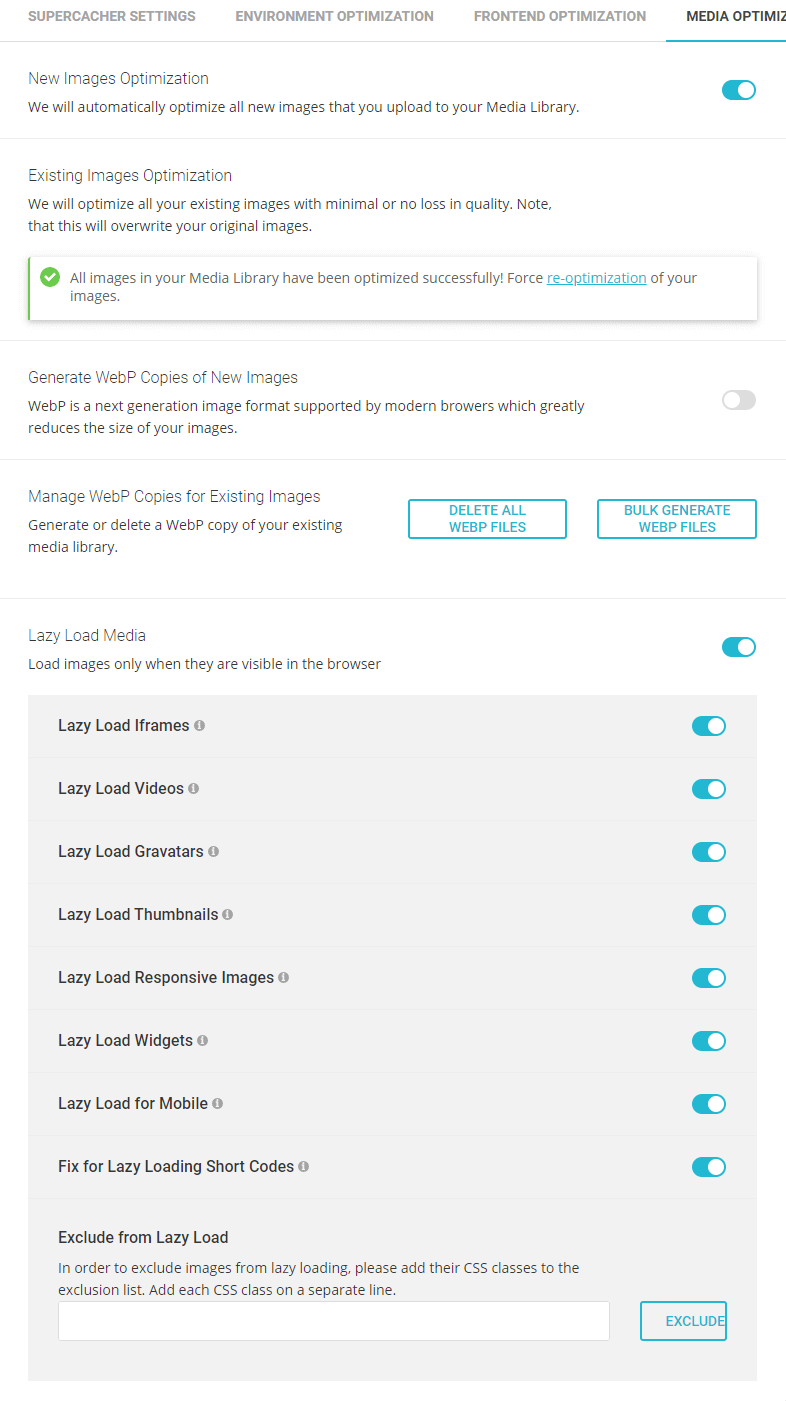
- New Images Optimization:Lossless compression of newly uploaded images (recommended to turn on)
- Existing Images Optimization:Losslessly compress existing images (recommended to turn on)
- Generate WebP Copies of New Images:Convert images to WebP format (if using a paid CDN,Recommended to close。If using Cloudflare free CDN,Recommended to turn on)
- Lazy Load Media:Delay loading of media (recommended to turn on)
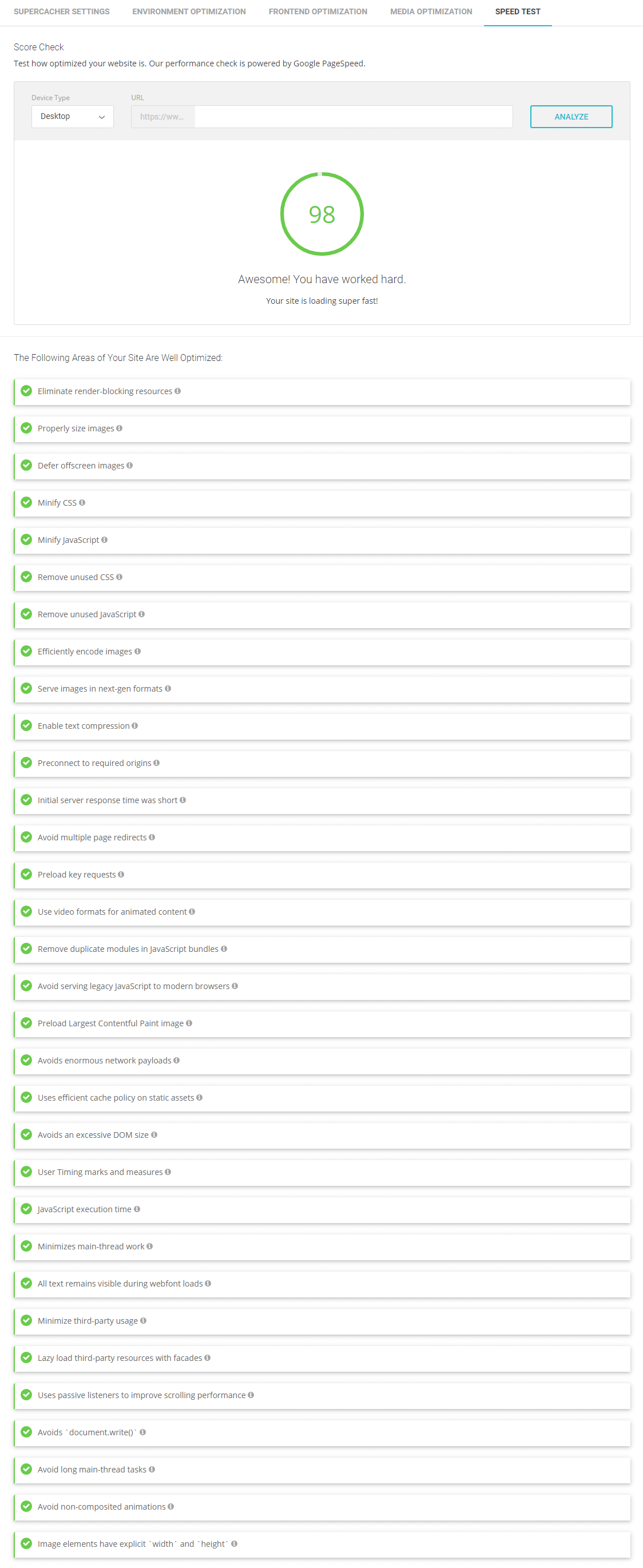
6. Speed Test Speed Test
Clicking the ANALYZE button will display the website rating and prompts where the。
7. Cloudflare CDN acceleration
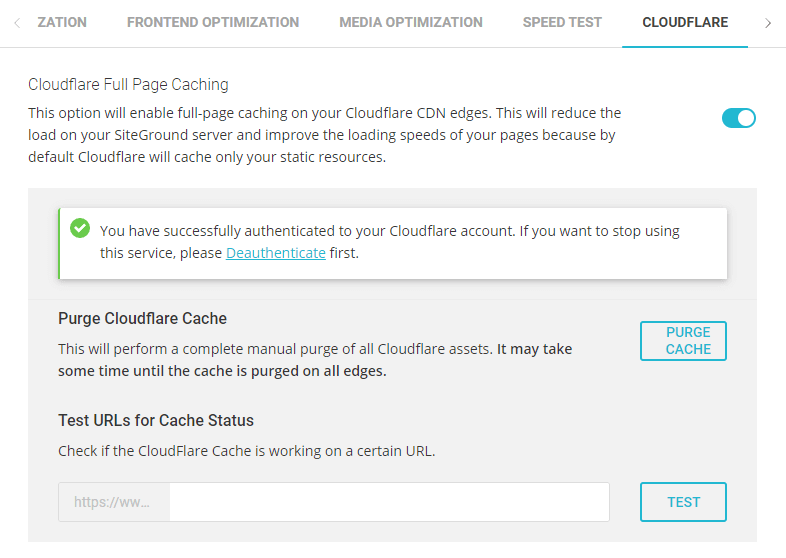
Cloudflare Full Page Caching:Cloudflare full page cache (recommended to turn on)
have to be aware of is,For the Cloudflare option of SG Optimizer, you must first go to the SiteGround backend to activate Cloudflare CDN.,Then log in to WordPress again to display。
8.SG OptimizerSummary
In general,SG Optimizer is one of the best WordPress caching plugins out there.,Not only does it speed up the website,Also improved GTmetrix speed test scores,Can be used as an alternative to WP Rocket。
SiteGround Security security plugin settings
SiteGround Security is a free security plugin developed by SiteGround,Mainly used to improve the security of WordPress websites,Protect WordPress Sites from Brute Force Attacks、Login crack、data leakage。
The plugin can be used on any host,Very comprehensive functions,such as two-factor authentication,Login address modification,Limit login attempts, etc.,Nextcross-border valleyLet me teach you how to use it step by step。
SiteGround Security installation

first,去 WordPress安装插件 的地方(Plugins -> Add New),Search SiteGround Security to find the plugin,Then click on the Install Now button and enable it。

Next,There will be an additional option in the WordPress menu bar (SG Security),All subsequent security settings are operated here,I will introduce it to you in detail one by one。
Website security settings
The first thing you need to set up is Site Security,by default,Enable all options,and delete Readme.html。

Lock and Protect System Folder
Enable this option,Can lock and protect system folders,Prevent hackers from using folder backdoors to insert PHP files and malicious scripts。
Hide WordPress Version
Enable this option,Will hide WordPress version,Make it difficult for crawlers to detect that you are using WordPress,This prevents your WordPress website from being flagged by hackers,Carry out large-scale attacks。
Disable Themes & Plugins Editor
Disable theme editor,This option will be automatically removed from the WordPress menu bar,It is not possible to edit the code of themes and plugins directly from the WordPress backend。If you need to edit the code,You can use the host’s file management tools,FTP or SSH。
Disable XML-RPC
XML-RPC is a legacy protocol used by WordPress to communicate with other systems,Since the advent of REST APIs,Its use is becoming less and less,Unless you have special needs for it,Otherwise it is recommended to always disable XML-RPC。
Force HTTP Strict-Transport-Security (HSTS)
HSTS (HTTP Strict-Transport-Security) can force the browser to use the HTTPS protocol,Recommended to enable。
Disable RSS and ATOM Feeds
RSS and ATOM feeds are often used by people to plagiarize and copy website content,It is recommended to disable this option。
Advanced XSS Protection
Enable this option,will add additional headers to your site,to prevent XSS attacks。
Delete the Default Readme.html
WordPress comes with a Readme.html file,which contains information about your website,Strongly recommended to delete。
Login security settings
The second thing that needs to be set up is Login Security,Can protect your WordPress login address from malicious attacks。
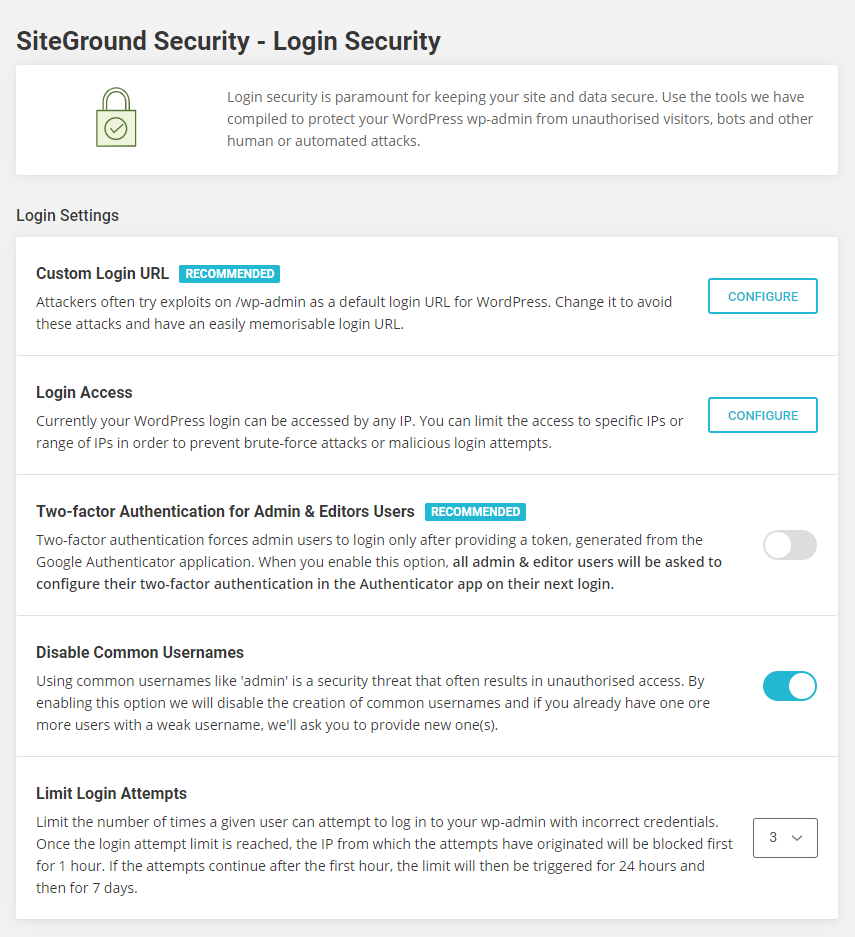

Custom Login URL
WordPress default login address is a target for hackers and spam bots,Using a custom login address can effectively avoid such attacks,There are also plug-ins with similar functionsWPS Hide Login。

Login Access
Specify whitelist IPs that can access the login address,If you are using a dynamic IP,Please use this option with caution,In order to avoid being unable to log in to the WordPress website backend。

Two-factor Authentication for Admin & Editors Users
Two-factor authentication,It has the same meaning as the need to enter a mobile phone verification code to log in to some domestic platforms.,It’s just that it uses the verification code sent by Google。If you are a domestic user,It is recommended to turn this option off,To prevent yourself from being unable to log in to the WordPress backend。
Disable Common Usernames
Using a username like "admin" is a security threat,Usually used by hackers。Enable this option,Common usernames are automatically recognized and disabled,If you are already using a common username,You will also be prompted to modify and replace it。
Limit Login Attempts
Limit login attempts,Used to stop bots from trying to log into your site using random combinations of usernames and passwords。
Monitor activity logs

The activity log page contains all activity on the site over the past 12 days,For example, manual access、robot crawling、Registered user activities、Login attempts etc.,Can help you better understand your site's audience and identify suspicious visitors or activity。

Activity log consists of 3 tabs:
- UNKNOWN – Unauthenticated bot or person
- REGISTERED – Registered user
- BLOCKED – IP address blocking
If you notice suspicious activity,You can click the button Manage IP Traffic under Actions to block suspicious traffic。
Hacking settings

If you suspect your WordPress site has been hacked,You can use the tools on this page to fix your website。
Reinstall All Free Plugins
Reinstall all free plugins,Doing so will remove suspicious code added by hackers。
Force Password Reset
Force password reset,Once you try to log in again,You will be asked to change your password。
Log out All Users
Immediately log out all logged in users。
SiteGround Security Summary
SiteGround Security as a free plugin,All features are very useful,It’s also easy to set up,Reached 100,000 users in just a few months after launch,The popularity is no less than that of the old WordPress security plugins。
The only drawback is that it does not have a full site scan like Wordfence,I specifically consulted SG’s technical staff on this issue.,Their reply was:Since SiteGround host comes with WAF firewall,Therefore, full site scanning is not considered in the initial version of the plug-in.。However, we do not rule out the possibility of adding it in the future.,Because not everyone is using SiteGround。
SiteGround Backup Restore
Many novices ignore website backup and restore when using WordPress to build foreign trade websites.,When a foreign trade website is improperly operated or maliciously attacked,If not backed up,All the previous hard work will be in vain.。
Website backup is something that every webmaster must do regularly.,Once something goes wrong,Restore the backup data and it will be OK。
Most of the backup and restoration tutorials for WP websites on the Internet use this plug-in or that plug-in.,In fact, if you use SiteGround hosting,The hosting background cPanel has a backup and restore setting,Very simple and practical for novices。
Rely on SiteGroundTaking a WordPress website backup is part of your website security plan。
In this tutorial I will introduce 4 ways to backup and restore on SiteGround,No matter which one you use, you can be sure that you won’t lose your website’s data content.,I personally recommend the second method。
1,Manually backup WordPress foreign trade website
WordPress is a CMS website building program based on PHP and MySQL。Backing up a website is actually backing up the MySQL database,If you want to back up all database files,First, copy the files using FTP,About the use of FTP,Please see the FileZilla tutorial。
If you have multiple MySQL databases,But I don’t know which database your foreign trade website uses,You can open the wp-config.php file in the WP root directory,View the database name saved next to DB_NAME。
The first step in backing up a MySQL database is,Enter cPanel,Find phpMyAdmin,Then click in,As shown below。

After entering phpMyAdmin,You can select the database you want to backup in the database menu in the upper left corner,If you only build one website,Usually the first one,Then check Select All at the bottom of the list on the right,Finally click Export,See the picture below for details。

After clicking export you will see the following picture,Format select SQL,Click to execute,Save the exported file on your computer。

If you are restoring a backup,First select the database name to be restored,Then click Import,Select the previously exported .SQL format file,Other settings can be left to default。
2,Using cPanel’s Backup Options
I prefer this backup method,There are many more operations than the first method,It is an automatic backup。First find Create Backup in cPanel,Click to go。

Then click Download a Full Website Backup。

Finally, click Generate Backup to complete the backup.。After the backup is complete, you can use the FTP tool to download the backup file to your computer.。

If you want to restore the backup,Or click on Create Backup from cPanel,At the bottom of the page you will see the restore backup option,As shown below,Select the previously downloaded backup file on your computer,Just upload and restore。

3,Using Softaculous to Backup WordPress
The main purpose of Softaculous is to install a CMS website builder with one click,But it can also be used to back up your website,First as shown below,Go to WordPress options。

Click the small yellow icon in the picture below。

Click Backup Installation to complete the backup。

The picture below shows that your foreign trade website is being backed up.,After the backup is completed, you will be notified of the backup file download link.,You can download the backup file to your computer。

If you want to restore a backup,Also enter WordPress in cPanel,Find the Backups and Restore yellow icon in the upper right corner,Click in and click Restore Backup。


4,SiteGround paid backup
In addition to free backup, SiteGround also offers paid backup.,Backups are automatically completed every day,And store 30 backup files on the SG host。If needed,Just go to backup restore in cPanel and activate it.。


This concludes the introduction on how to backup and restore foreign trade websites on SG.,Personally, I think using the free backup method is fine.,Recommend the second method。